DMX/Art-Net Input
With DMX input, a lighting console can control the FXCanvas color palettes. The console sends Art-Net or sACN (E1.31) data. This gives a console-first workflow. A lighting designer drives the FXCanvas visuals from a familiar tool, for example grandMA3, Eos, ChamSys, or any other console with Art-Net or sACN support.
Why Use Art-Net Input?
Art-Net input brings FXCanvas into your existing lighting workflow:
- Console Integration — Control the FXCanvas colors from cues, from macros, or by hand on your lighting console
- Unified Control — Manage the traditional lighting fixtures and the FXCanvas visuals from one interface
- Show Integration — Program the FXCanvas colors together with your lighting looks, so the whole show stays in step
- Designer Familiarity — Use the console that you know, and learn no new interface
When Art-Net input is enabled, FXCanvas becomes a "virtual fixture". Your console patches and controls it like any other lighting instrument.
Quick Start
These four steps put Art-Net input to work.
1. Open DMX Settings
Open Edit → Settings. Select the DMX Input category. Output has its own DMX Output category.
2. Configure Connection
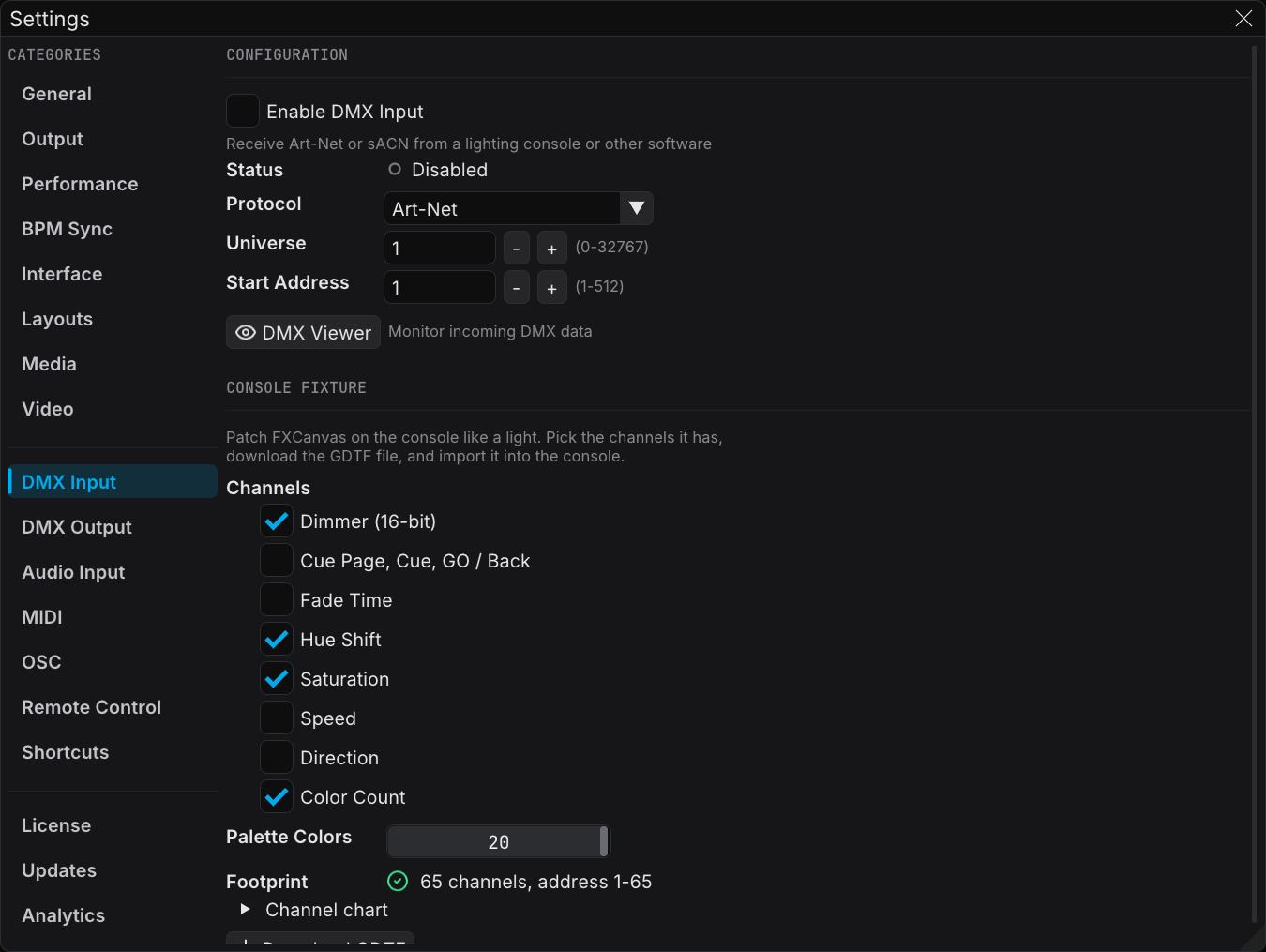
Enable DMX Input. Then set the network values:
| Setting | Description |
|---|---|
| Enable DMX Input | Master toggle that starts the DMX reception |
| Protocol | Art-Net or sACN (E1.31) |
| Universe | The universe that your console sends to (Art-Net default: 0, sACN default: 1) |
| Start Address | The first DMX channel for FXCanvas (default: 1) |
The Art-Net settings (Network Adapter, Net, Subnet) appear only when DMX Input is enabled.
3. Download the Fixture
In the Console Fixture section:
- Select the channels that the console controls, for example Dimmer and Cue Page, Cue, GO / Back
- Set the number of Palette Colors with the slider (1-20 colors)
- Read the Footprint line, which shows the channel count and the address range
- Click Download GDTF to save the fixture file
4. Patch in Your Console
- Import the GDTF file into your lighting console
- Patch "FXCanvas v3" at the universe and the address that you set
- Set the Color Mode in FXCanvas to Art-Net (Live panel → Color section gear menu → Art-Net)
You can now control the FXCanvas colors from your lighting console.
Console Patching Guide
After you download the GDTF profile, import it into your lighting console.
grandMA3
- Open Setup → Patch → Fixture Types
- Click Import and select the
.gdtffile - Go to Patch and add the fixture
- Set the Universe and the Address to match the FXCanvas settings
- Enable Art-Net output to the IP address of FXCanvas, on the universe that you set
ETC Eos Family
- Open Browser → Import Fixture
- Select the
.gdtffile - In Patch, add the fixture at the address that you want
- Set Network → Output Protocols → sACN/Art-Net to send to FXCanvas
ChamSys MagicQ
- Open Setup → View GDTF
- Click Import GDTF and select the file
- In Patch, select the FXCanvas fixture from your library
- Assign the fixture to the universe and the address
- Set the Art-Net output nodes in Setup → Network
These instructions are general guidance. The documentation of your console gives the detailed steps.
General Tips
- Make sure that your console and FXCanvas are on the same network
- The console must send Art-Net or sACN (E1.31)
- Make sure that the universe number is identical on the console and in FXCanvas
- FXCanvas listens on the standard Art-Net port (6454) or the sACN port (5568)
Configuration Options
The DMX Input page has these sections. The Art-Net Settings section appears only while DMX input is enabled and the protocol is Art-Net.
| Section | Description |
|---|---|
| Enable DMX Input | Master toggle and the basic settings (Protocol, Universe, Start Address) |
| DMX Service Status | The connection state and a preview of the received colors |
| Art-Net Settings | The network adapter and the advanced addressing (appears when DMX input is enabled) |
| Console Control | The console connection, Resync to Console, and the signal-loss setting (appears when DMX input is enabled) |
| Console Fixture | The fixture channels, the channel chart, and the GDTF export |
Protocol
FXCanvas supports Art-Net and sACN (E1.31). Select the protocol that your lighting console sends.
- Art-Net listens on UDP port 6454 and uses Net/Subnet/Universe addressing.
- sACN (E1.31) listens on UDP port 5568 and joins the multicast group of the universe (239.255.x.x). The Net and Subnet settings do not apply.
Universe
This is the universe that FXCanvas listens on. It must match the universe that your lighting console sends to.
| Property | Art-Net | sACN |
|---|---|---|
| Range | 0-32767 | 1-63999 |
| Default | 0 | 1 |
Start Address
This is the first DMX channel in the universe for the FXCanvas data.
| Property | Value |
|---|---|
| Range | 1-512 |
| Default | 1 |
If you share a universe with other fixtures, set this value to a free address range.
Network Adapter
Select the network interface for the Art-Net data.
| Option | Description |
|---|---|
| All Interfaces | Listens on every network adapter (default) |
| Specific adapter | Shows the IP address and the adapter name |
If your computer has several network connections, select one adapter. FXCanvas then receives Art-Net on that adapter only.
Net and Subnet
Advanced addressing for large Art-Net systems.
| Setting | Range | Default |
|---|---|---|
| Net | 0-127 | 0 |
| Subnet | 0-15 | 0 |
Most systems use Net 0 and Subnet 0. Change these values only when your console uses extended Art-Net addressing.
Console Fixture
The Console Fixture section sets how your lighting console sees FXCanvas. Pick the channels that the fixture has, then download the GDTF file and import it into the console.
Channels
Each checkbox adds a group of channels. FXCanvas always puts them in this order: intensity first, then cues, then the look, then the palette colors.
| Channels | Count | What the console controls |
|---|---|---|
| Dimmer (16-bit) | 2 | Master dimmer. Coarse and fine channels give smooth fades. |
| Cue Page, Cue, GO / Back | 3 | Fires cues. See Firing Cues from the Console. |
| Fade Time | 1 | The crossfade time for cues that the console fires, 0 to 60 seconds. See Fade Time. |
| Hue Shift | 1 | Global hue shift. 128 = no shift. |
| Saturation | 1 | Global saturation. 0 = grey, 128 = normal, 255 = double. |
| Speed | 1 | Global speed. 0 = freeze, 128 = normal, 255 = 10x. |
| Direction | 1 | Global direction, 0 to 360 degrees. |
| Color Count | 1 | How many palette colors are active. 0 = all of them. |
| Palette Colors | 3 each | Red, green and blue for each palette color, 1 to 20 colors. |
The Footprint line shows the channel count and the address range. If the fixture runs past channel 512, the line turns red. Move the start address down or turn off some channels.
Open Channel chart to see every channel with its address. Copy it to the console patch sheet.
Firing Cues from the Console
The cue channels work like the bank and slot channels of a media server:
| Channel | Value | Result |
|---|---|---|
| Cue Page | 0 | All Cues, in cue-number order |
| 1 to 255 | That cue page, in page order | |
| Cue | 0 | Nothing |
| 1 to 255 | The cue at that position on the selected page fires | |
| GO / Back | 0 to 15 | Nothing |
| 16 to 63 | GO: the next cue | |
| 64 to 111 | Back: the previous cue | |
| 112 to 159 | Fire the selected cue again | |
| 160 to 255 | Nothing (reserved) |
The Cue Page and Cue channels say which cue must be live. If that cue is already live, nothing happens. Because of this, the console can reconnect without restarting the cue on screen. To restart the live cue, use the "fire again" range of the GO / Back channel.
Each channel holds a number from 0 to 255. So the Cue channel reaches the first 255 cues on a page, and the Cue Page channel reaches the first 255 pages. For more cues, split them across pages: 255 pages of 255 cues each. GO / Back still steps to every cue. If a page holds more than 255 cues, the Console Fixture section shows a warning.
GO / Back fires once when the value enters a range. Hold the channel in the GO range and nothing more happens. Return it to 0 before the next GO.
Fade Time
The Fade Time channel sets how long a cue fired from the console takes to crossfade in.
| Value | Fade |
|---|---|
| 0 | Instant: the cue appears at once |
| 1 to 255 | 0.24 to 60 seconds, in equal steps (128 = about 30 seconds) |
FXCanvas reads the channel at the moment that the cue fires, from the Cue channel or from GO / Back. A later change to the channel does not change a fade that already runs.
The channel value overrides the fade time of the cue and the default fade of the show. Cues fired from the Cues panel, shortcuts, OSC, REST or Cruise Control do not use the channel. They use the fade time of the cue, or the show default when the cue has none. If you turn off the Fade Time channel, console cues also go back to these times.
The fade never moves the master dimmer. The Dimmer channel and the Live panel keep control of it during the fade.
Put the Cue channel in the same console cue as your light changes. One GO on the console then changes the lights and the visuals together. Set the Fade Time channel in that cue to the fade time of the lights, and the visuals fade at the same speed.
Downloading the Profile
Click Download GDTF to save the fixture file. The suggested name holds the fixture version and the channel count, for example FXCanvas_v4_19ch.gdtf.
The same channels always give the same fixture type. If you download the file again without changing the channels, the console keeps its patch. If you change the channels, download the file again and update the patch on the console.
Color Count at Zero
When the Color Count channel is 0, FXCanvas activates every configured color slot. A black slot stays in the palette and counts as a color. To use fewer colors, set the channel to a fixed count.
Map Any Control to a Console Channel
The fixture covers the main controls. To put any other control on the console, map it the same way as a MIDI knob:
- Open Settings > Shortcuts and click New Mapping.
- Click the control in FXCanvas, for example a source parameter.
- Move a fader on the console.
FXCanvas ignores channels that were already moving when you started, for example a running chase. It maps the first fader that you move.
You do not need a console connected to map a channel. There are two other ways:
- Type the address. In step 3, instead of moving a fader, type the universe and the channel under Or type a console (DMX) address, then click Create DMX Mapping.
- Next free channel. In step 2, right-click the control instead. FXCanvas gives it the lowest channel that is not in use on the DMX input universe. While DMX input is on, it also skips the channels of the console fixture, and the prompt says which channels those are. Mapping mode stays on, so you can right-click control after control. Each control shows its channel, for example
1.042.
To change an address later, open the mapping and set the universe, the channel, and 16-bit if the console sends a coarse and a fine channel.
Console mappings belong to the show, not to the computer. On tour, the show answers the same console channels on every rig.
How Console Values Behave
- The console wins when a fader moves. If you change a mapped control with the mouse, your change stays until the operator moves that fader again.
- The console syncs when it connects. When data starts to arrive, FXCanvas applies every mapped channel once. You do not need to move every fader.
- Resync to Console. In Settings > DMX, this button applies the console values again, for example after mouse changes.
- Signal loss. After 2.5 seconds without data, FXCanvas does what When the console stops sending says: hold the last values, or return each control to the value it had before the console took it over.
Status Monitoring
The DMX Service Status section shows the state of the Art-Net reception in real time. While the status is Receiving, the section also shows a swatch for each active color.
Status Indicator
A colored dot with text shows the current state:
| Status | Color | Meaning |
|---|---|---|
| Receiving | Green | FXCanvas receives Art-Net packets |
| Listening (No Data) | Yellow | DMX input is enabled, but no data arrived yet |
| Not Running | Red | The protocol failed to start |
| Disabled | Gray | DMX input is disabled |
Color Preview Swatches
During reception, FXCanvas shows the colors as small swatches:
- FXCanvas shows up to 10 colors, with a "+N" mark for more
- Active colors have white borders
- Inactive colors have gray borders
- Hover over a swatch to see the RGB values
Using Art-Net Colors
Color Section Integration
The Color section of the Live panel gives direct control of the Art-Net color mode.
Art-Net Mode
- Available in the gear menu of the Color section, after you configure DMX input in Settings
- Select it to change from Palette mode to Art-Net mode
- Auto-enables DMX — When DMX input is disabled, Art-Net mode enables it
Status Indicator In Art-Net mode, a status indicator shows the connection state:
- Receiving — FXCanvas receives Art-Net packets from your console
- Waiting... — DMX input is enabled, but no data arrived yet
- Disabled — DMX input is disabled
Color Swatches Preview
- FXCanvas shows the received DMX colors as small preview swatches
- The swatches update in real time as your console sends new values
Returning to Palette Mode
- Click any palette in the Palette Panel to return to Palette mode
- Or select Palette in the gear menu of the Color section
Troubleshooting
No Data Received
Firewall:
- Windows Firewall can block Art-Net (UDP port 6454)
- Add an exception for FXCanvas, or open UDP port 6454
Network:
- The console and FXCanvas must be on the same network and subnet
- Make sure that the console sends Art-Net
- Select your specific network adapter instead of "All Interfaces"
Universe:
- The console universe and the FXCanvas universe must be identical
- FXCanvas counts universes from 0 (Universe 0 is the first universe)
Wrong Colors or Channel Offset
Start address:
- Make sure that the console patch address matches the FXCanvas start address
- Make sure that no channels overlap with other fixtures
GDTF profile:
- The GDTF profile in your console must match the FXCanvas settings
- If you change the color count or the control channel, download the GDTF file again and import it again
Status Shows "Not Running"
- Make sure that Enable DMX Input is checked
- Disable DMX input, then enable it again
- Read the Log Viewer (Tools → Log Viewer) for error messages
Colors Do Not Match the Console Programmer
Color count mismatch:
- With the control channel, make sure that its value is correct (0 for auto, or a fixed count)
- Without the control channel, all configured colors are always active
More colors active than you expect:
- A control channel of 0 activates every configured slot, black slots included
- Use a fixed count on the control channel
Multi-NIC Systems
If your computer has several network adapters:
- Select the specific Network Adapter that receives Art-Net
- "All Interfaces" can fail when Art-Net arrives on an unexpected interface
Tips and Best Practices
- Use fixture groups — Group the FXCanvas colors for fast selection
- Create color presets — Save common color combinations as console presets
- Macro integration — Trigger color changes from console macros for complex cues
- Test thoroughly — Make sure that the Art-Net connection works before the show
- Have a backup — Keep some palettes saved. If Art-Net fails, use them.
- Monitor status — Keep the Settings window available, so you can watch the connection status
- Dedicated network — For critical shows, use a dedicated lighting network
- Static IPs — Use static IP addresses to avoid DHCP errors
- Network switch — Use a good gigabit switch for reliable Art-Net delivery
- Right-size your fixture — Use only the number of colors that you need
- Share universes carefully — FXCanvas can share a universe with other fixtures when the addresses do not overlap
- Plan your patch — When you select the start addresses, leave room for later expansion
DMX Monitor
The DMX Monitor shows the incoming DMX data in real time. Use it to debug your Art-Net setup. The monitor is the Monitor tab of the DMX Manager window, in Input mode.
Opening the DMX Monitor
Open Tools → DMX Manager. Select the Monitor tab. Change to Input mode with the toggle at the top.
Understanding the Views
The Monitor tab has three views. Each view shows the same data in a different way.
Table
This view shows the detail in a scrollable table.
| Column | Description |
|---|---|
| Ch | The channel number (1-512) |
| Value | The raw DMX value (0-255), over a fill that grows with the value |
| % | The value as a percentage (0-100%) |
| Type | Red, Green, Blue, or Control for the configured channels |
- Show All 512 Channels checkbox shows every channel
- FXCanvas highlights the rows of the configured range
Best for: precise troubleshooting and exact values.
Grid
This view shows all 512 channels in a compact 32×16 grid.
- Brighter cells hold higher values
- A blue border marks your configured address range
- Hover over a cell to see the channel number and the value
Best for: an overview of the whole universe.
Colors
This view shows the colors that FXCanvas reads from your configured DMX range.
- The color swatches match what the FXCanvas effects receive
- Each color shows its index and its RGB values
- FXCanvas separates the active colors from the inactive ones
- The view updates in real time as the DMX values change
Best for: proof that your console sends the correct palette colors.
Status Header
The top of the monitor shows the connection information:
| Display | Description |
|---|---|
| Status dot | Green (Receiving), Yellow (Waiting...), Red (Not Running), Gray (Disabled) |
| Protocol & Universe | The protocol and the universe, for example "Art-Net Universe 0" |
| Address Range | Your configured start channel through the end channel |
| Timing | The time since the last packet (ms or seconds) |
Troubleshooting with DMX Monitor
Not Receiving Data
If the status shows "Waiting..." or no data, do these steps:
- Make sure that DMX input is enabled — Open Edit → Settings → DMX Input
- Make sure that the universe number matches — It must be the universe of your console
- Make sure that the network works — The console and FXCanvas must be on the same network
- Make sure that the firewall passes UDP port 6454 — Windows Firewall can block that port
Wrong Channel Values
If the values are not the values that you expect, do these steps:
- Use the Grid view to see which channels carry activity
- Make sure that the start address matches — Your console patch must match FXCanvas
- Make sure that the GDTF profile matches — Download it again after a settings change
Colors Not Matching Console
If the Colors view shows colors that differ from the console programmer, do these steps:
- Make sure that the control channel is correct — When it is enabled, channel 1 sets the active color count
- Make sure that the color count matches — The GDTF profile must match your console setup
- Look for a channel offset — Use the Table view to see where the color data starts
Related Topics
- Palettes — The FXCanvas color palettes and the Color section
- Sources — Visual patterns that use palette colors
- DMX Output & Mapping — Send the visuals the other direction, out to real lighting fixtures
- Getting Started — The basics of FXCanvas