AI Agents and the MCP Server
The FXCanvas MCP server lets an AI agent work with a running FXCanvas. The agent can set up the canvas, the outputs, the fixtures and the DMX patch, build color palettes and edit the effects chain. It can also run the show live.
What is the MCP server? Pro
MCP (Model Context Protocol) is an open standard that AI assistants use to call tools. Claude Desktop, the ChatGPT desktop app, Codex, Claude Code, VS Code and other MCP clients can connect to the FXCanvas MCP server and use its tools.
FXCanvas includes the MCP server and runs it for you. You do not install anything else. The server talks to FXCanvas only through the REST API, so everything an agent does through it, a script can also do through the REST API. With it, an agent can:
- Read and change the canvas size, the composition look (hue shift, saturation, mirror and symmetry) and the application settings
- Add, change and remove video outputs, and save and load output presets
- Find fixture types, add fixtures and patch them
- Create, edit and show color palettes
- Add effects with their parameters, change the parameters, turn effects on or off, reorder them and remove them
- Record cues from the live look, edit and re-record them, and arrange cue pages
- Recall cues, go to cue pages, control Cruise Control, and set the tempo and the global look (dimmer, blackout, hue and speed)
The MCP server uses the REST API. The REST API server runs only with an activated license. See What requires a license.
Connect an agent in three steps
The steps are the same on Windows and macOS.
- Open Edit → Settings, select Remote Control, and select Enable MCP server.
- Under Client, select your AI app. Click the copy button beside the snippet.
- Paste the snippet into your app, as the next section shows for each app. Then ask it to call
get_status.
For Claude Desktop, install the FXCanvas extension instead of step 2 and 3. See Claude Desktop.
The MCP server needs the REST API, which is off by default. If the REST API is off when you select Enable MCP server, FXCanvas turns it on and shows a notice. If you turn off the MCP server later, the REST API stays on. Turn it off yourself if you do not need it.
get_status checks that FXCanvas is reachable, that the key works and that the versions match.
The settings
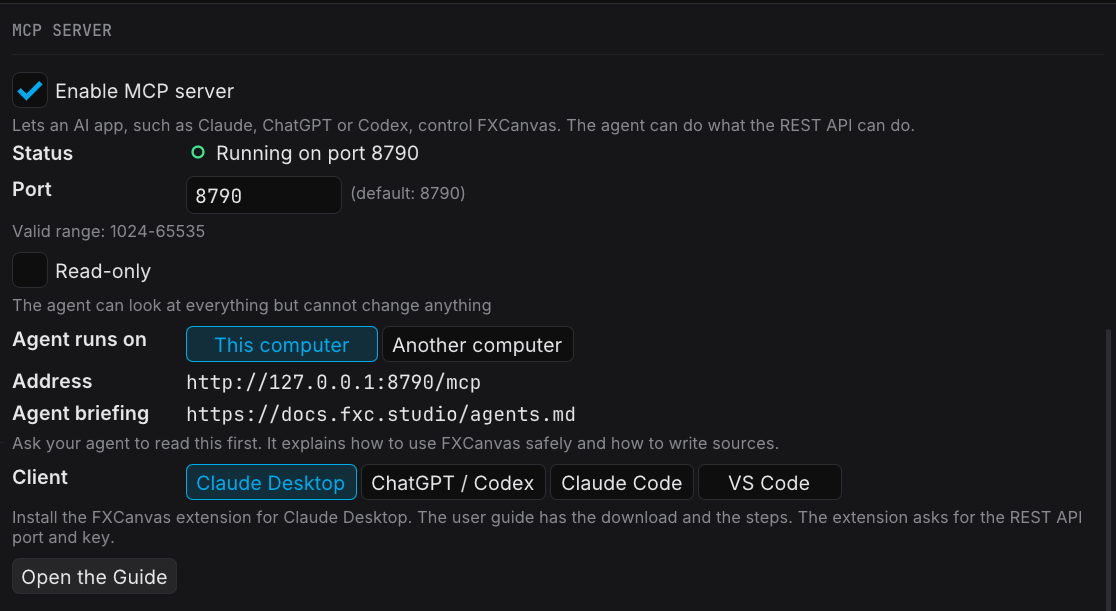
| Setting | What it does |
|---|---|
| Enable MCP server | Starts the server now and each time FXCanvas starts. Clear it to stop the server |
| Status | Running, Starting, Restarting after a crash, or Stopped with the reason. Click Retry after you fix the reason |
| Port | The port of the MCP server. The default is 8790. Click Apply after you change it |
| Read-only | The agent can look at everything but cannot change anything. See Read-only mode |
| Agent runs on | This computer or Another computer. See Agents on another computer |
| Address | The address of the MCP server. Click it to copy it |
| Agent briefing | A page written for AI agents. Click it to copy the link, and give it to your agent before its first task |
| Client | Shows what to do for Claude Desktop, ChatGPT / Codex, Claude Code or VS Code |
FXCanvas starts the server again if it stops unexpectedly. If it stops 5 times in 2 minutes, FXCanvas stops trying and shows the last error. If the port is in use by another program, the status shows that. Select another port, or click Retry after you close the other program.
The API key
The MCP server works without an API key. On This computer, that is usually enough. On Another computer, turn the key on.
If Require API Key is on (see Authentication), the MCP server asks for the same key. Each snippet then includes the key in an Authorization: Bearer <key> header. If you change or generate a new key, FXCanvas restarts the MCP server with the new key. Copy the snippet again and paste it into your client.
Keep the snippet private when it includes the key.
Connect your AI app
Claude Desktop
Claude Desktop uses the FXCanvas extension instead of a snippet. The extension connects to the REST API of FXCanvas directly, so it works when Enable MCP server is off too. It needs the REST API on.
- Download the extension: fxcanvas.mcpb.
- Double-click the file. Claude Desktop opens and asks you to install it. Click Install.
- Fill in the settings of the extension:
- FXCanvas computer:
127.0.0.1when FXCanvas runs on the same computer. Otherwise, the address from Settings → Remote Control in FXCanvas. - REST API port: the REST API port from Settings → Remote Control. The default is 8080.
- API key: the key, if Require API Key is on. Leave it empty otherwise.
- Read-only: select it to let Claude look at the show without changing it.
- FXCanvas computer:
- Ask Claude to call
get_status.
ChatGPT desktop app and Codex
The ChatGPT desktop app, the Codex app and Codex in your code editor all read one settings file: ~/.codex/config.toml in your home folder. Add the snippet to that file, then restart the app:
[mcp_servers.fxcanvas]
url = "http://127.0.0.1:8790/mcp"
With the API key on, the snippet also has an http_headers line with the key.
ChatGPT in a browser connects to MCP servers from OpenAI's computers, not from yours. It can reach only servers with a public internet address, so it cannot reach FXCanvas on your computer or your network. Use the ChatGPT desktop app.
Claude Code
The snippet is a command. Run it in a terminal:
claude mcp add --transport http fxcanvas http://127.0.0.1:8790/mcp
With the API key on, the command also has --header "Authorization: Bearer <key>".
VS Code
Paste the snippet into .vscode/mcp.json in your workspace:
{
  "servers": {
    "fxcanvas": {
      "type": "http",
      "url": "http://127.0.0.1:8790/mcp"
    }
  }
}
If the file has other servers, add only the "fxcanvas" entry to its "servers" list.
Other MCP clients
Any MCP client that supports the streamable HTTP transport can connect. Give it the Address from Settings → Remote Control. With the API key on, it must send the header Authorization: Bearer <key>.
What you can ask
Write to the agent in plain words, as you would to a crew member. The agent picks the tools. These examples show the kind of work it does well.
docs.fxc.studio/agents.md is a page written for AI agents: how to use the MCP server safely, and how to write your own sources and effects. Paste the link into your chat, or ask the agent to read it first.
Look at the show
What is on the output right now? Show me a preview.
The agent calls get_live_state for the cue, source, palette and effects, and get_preview_image for a picture of the output. Use this first with a new agent, or with Read-only on, to see what it understands.
List the cues on the current page and tell me which ones use the warm palettes.
Build a palette
Make a palette called "Sunset" with five colors from deep orange to violet, and show it on the output.
The agent generates the colors (generate_palette_colors), creates the palette (create_palette) and shows it (activate_palette). Then it can check the result with get_preview_image.
The "Sunset" palette is too pink. Make the third color more orange.
Set up a rig
I have a 10 x 4 grid of RGB pixel tiles on universe 1, starting at address 1. Add them and patch them.
The agent searches the fixture types (search_fixture_types), adds the fixtures (create_fixtures) and patches them (update_patch). For each change it reads first and checks the change with a dry run before it applies it. See The safe-edit workflow.
Add a second video output at 1920 x 1080 and save the outputs as a preset called "Club".
Build cues
Record the current look as cue 5, "Verse". Then make cue 6 the same look with the strobe effect added.
The agent records the live look (record_cue), changes the effects chain (add_effect), and records again.
Make a cue page called "Encore" with cues 10 to 14, and start Cruise Control on it.
Run the show
Go to cue 3. Bring the dimmer down to 60 percent and set the tempo to 128 BPM.
The agent calls go_cue, set_globals and set_bpm. With the live tools only, an agent can run the show but cannot change the setup. See Run the server yourself.
Black out the output now.
Convert a setup from other software
Here is the fixture list and patch from my lighting console export. Recreate it in FXCanvas.
Paste or attach the list. The agent follows its guide for this task (convert_setup) and asks you about anything it cannot map.
Try a new agent with Read-only on first. It can then answer questions about the show, but it cannot change anything. Turn Read-only off when you trust what it does.
Agents on another computer
By default the MCP server accepts connections from this computer only. To use an agent on another computer on your network:
- In Settings → Remote Control, set Agent runs on to Another computer. FXCanvas restarts the MCP server, and Address shows this computer's network address, for example
http://192.168.1.20:8790/mcp. Every snippet uses that address. - Copy the snippet and paste it into the client on the other computer.
- If your computer asks to allow incoming connections for
fxcanvas-mcp, click Allow.
On Windows, the installer adds a firewall rule for the MCP server on private and domain networks, so Windows does not ask. On a public network, the firewall blocks connections from other computers. On macOS, the system asks once.
On Another computer, any device on the network that can reach the port can use the MCP server, and through it, change your show. Turn on Require API Key first. The REST API has the same reach: it listens on the whole network.
Read-only mode
Select Read-only in Settings → Remote Control. The MCP server then offers only the tools that read. Nothing the agent does can change FXCanvas, and get_status reports read-only mode. Use it to explore a show safely, or to let an agent answer questions during a show.
FXCanvas restarts the MCP server when you change Read-only. Reconnect your client after the change, so that it reads the new list of tools.
The safe-edit workflow
Agents use the same steps for every setup change:
- Read the item. The result has an
etag, a tag of the item's current state - Check the change with
dryRun: true. FXCanvas runs every check of a real write and shows the result, but changes nothing - Apply the change with
ifMatchset to theetagfrom step 1 - Read the item again to confirm the change
If somebody changed the item in between, for example the operator in the FXCanvas window, the write is refused with PRECONDITION_FAILED. The agent then reads the item again and decides whether to retry. See Safe concurrent edits with ETag and If-Match.
The composition look and the global controls share values: update_composition hueShift, saturation, mirrorX and mirrorY are the same live values that set_globals sets as hue, saturation, mirrorX and mirrorY. A change with either tool shows in both. A recorded cue keeps them in contents.composition. See Composition and the global controls share values.
Large replies and paging
Some MCP clients accept tool results of at most 30,000 characters. The MCP server keeps every text result to 25 KB:
- List tools return one page at a time.
data.pagegivesoffset,limit,totalandreturned. Useoffsetandlimitto read more. The defaults keep a typical show under the limit, for example 10 cues with their contents, 25 fixtures, or 50 browse nodes browse_contentpages large folders such as/sourcesand/presets.searchfinds items by part of their name,kindfilters by item kind, andcompact: trueleaves out the thumbnail URLs but keeps whatactivate_contentneedsdescribe_api_operationcan return one part of a large operation:part(request,responsesorerrors) or onestatus- A reply that is still too long is cut. It ends with a note to ask for less, and
structuredContent.truncatedistrue
get_preview_image waits until the output has settled after a cue recall, a change of source or effects, or a palette fade. The image then shows the new look, not its first frame (which can be black) or a mix of two palettes. FXCanvas waits for at most 3 seconds for each request, and the tool asks again while the output is still changing. By default the wait is at most about 6 seconds. For a longer cue fade, set waitSeconds (3 to 15). settle: false returns the frame at once.
settling: true in the result means that the output was still changing when the wait ran out. The image then shows a mix of the old and new looks, and the result has a text that says so. During a timed fade (a cue fade, a source switch fade or a palette fade), transitionRemainingSeconds gives the time that the fade still runs. Call get_preview_image again after that time to see the new look.
Transitions and timing
Cue recalls fade over the cue's fade time. A plain change of source, preset, media file or live input is a cut, unless the source switch fade is on.
- Turn the switch fade on or off.
update_settingswith{"sourceSwitchFadeSeconds": 0.5}fades every change of source over 0.5 seconds.0is instant, the default. The value is a number from 0 to 30. Anything else is refused and the setting keeps its value.get_settingsreads it. Read Source switch fade. - The fade starts when the new look is ready. A tool that recalls a cue or selects a source answers as before. The new look starts fading one or two frames later, or, for a video, when the clip plays. Call
get_preview_imagewith its default settle wait to see the new look after the fade. - A cue whose media file cannot play still fires. The tool succeeds, FXCanvas shows a warning, and the output fades to black, or the video that was on screen keeps playing.
- Selecting another source while a media file is still loading cancels that load. This applies to a cue, a shader source and a live input. The tool that started the media file then reports a timeout.
The REST API page has the details.
Agent guides and prompts
For a briefing that covers more than the MCP server (writing sources and effects, where files live), point the agent to docs.fxc.studio/agents.md.
The MCP server includes step-by-step guides that an agent can read as resources:
| Resource | Guide |
|---|---|
fxc://skills/safe-edit-workflow | Read, dry run, apply with ifMatch, read again |
fxc://skills/setup-show-from-scratch | Build a working setup from a plain description |
fxc://skills/convert-setup-from-other-software | Recreate a setup made in other lighting or video software |
fxc://skills/build-color-palette | Design, create and show a color palette |
fxc://skills/patch-pixel-fixtures | Add and patch pixel fixtures |
fxc://skills/operate-show-live | Run the show live |
It also offers four prompts, each built from one of those guides: setup_show, convert_setup, build_palette and operate_show. A prompt is offered only when the tools it needs are turned on.
Security
- Setup writes change your show and your rig. Test on a copy of the show and the rig first, and start with Read-only
- Turn on the API key. The REST API listens on the whole network, and so does the MCP server on Another computer. Without a key, any device that can reach the port can change your setup
- Keep the snippet private. With the key on, the snippet and your client's configuration file hold the key in plain text
- The MCP server refuses web pages. It answers MCP clients, and refuses requests that come from a web page in a browser
- Destructive tools are marked. MCP clients that respect the marks ask you before they run them
Troubleshooting
| Problem | Cause and fix |
|---|---|
| Status shows Waiting for the REST API | The REST API did not start, often because another program uses its port. Read the REST API status above the MCP section, and change the REST API port if necessary |
Status shows Stopped: port 8790 is in use | Another program uses the MCP port. Select another Port and click Apply, or close the other program and click Retry |
| Status shows that the MCP server program is missing | The FXCanvas installation is incomplete. Install FXCanvas again |
| The client cannot connect | Make sure that FXCanvas is open and Status shows Running. Compare the address in the client with Address in FXCanvas. For an agent on another computer, see Agents on another computer |
| HTTP 401 when the client connects | Require API Key is on, and the client sends no key or an old key. Copy the snippet again |
FXCANVAS_UNREACHABLE | FXCanvas is not running or its REST API is off. Start FXCanvas and turn on the REST API. For the Claude Desktop extension, also check its FXCanvas computer and REST API port |
UNAUTHORIZED (HTTP 401) | The key in the Claude Desktop extension (or in your own setup) is missing or different. Copy the key from Settings → Remote Control |
ENDPOINT_NOT_AVAILABLE | This FXCanvas is older than the MCP server and does not have the operation. Update FXCanvas. get_status warns you when the versions do not match |
NOT_FXCANVAS | Another program answered at the REST address. Check the address and port |
SHOW_NOT_READY, MAIN_THREAD_TIMEOUT | FXCanvas is busy, for example while it loads a show. Retry after a moment |
NO_SHOW_OPEN | No show is open, so there are no cues or cue pages to change. Open a show in FXCanvas |
An effect id is not found (NOT_FOUND) | A cue recall or a show load rebuilt the effects chain, and every effect has a new id. Read the effects chain again |
| A result ends with "...truncated" | The reply was over 25 KB. Ask for less: a smaller limit, search, compact: true, or a narrower tool. See Large replies and paging |
FXCanvas writes each start and stop of the MCP server, and the reason, to its log (Tools → Log Viewer).
Run the server yourself
This section is for scripts and special setups. Most users do not need it.
The MCP server program is in the FXCanvas folder:
- Windows:
C:\Program Files\FXCanvas\fxcanvas-mcp.exe - macOS:
/Applications/FXCanvas.app/Contents/MacOS/fxcanvas-mcp
Without options, it talks to one MCP client over its standard input and output. A client starts it as a command, with the settings in its environment. For example, a client entry for a read-only agent that sees only the live tools:
{
  "mcpServers": {
    "fxcanvas-live": {
      "command": "C:\\Program Files\\FXCanvas\\fxcanvas-mcp.exe",
      "args": ["--read-only", "--toolsets", "live"],
      "env": { "FXC_API_URL": "http://127.0.0.1:8080", "FXC_API_KEY": "<key>" }
    }
  }
}
In JSON, write each backslash of a Windows path twice, as in the example. To see every option, run the program with --help.
Settings
A command-line flag wins over its environment variable, and the environment variable wins over the default. An invalid value stops the server at startup with one line of text (fxcanvas-mcp: <problem>). The server never prints the API key.
| Setting | Flag | Environment variable | Default | Allowed values |
|---|---|---|---|---|
| REST address | --url | FXC_API_URL | http://127.0.0.1:8080 | An http: or https: URL with no user name, query or fragment. A path of / or /api/v1 is accepted |
| API key | (none) | FXC_API_KEY | none | Up to 512 characters, no control characters. Empty means no key. Set it only in the environment |
| Request timeout | --timeout-ms | FXC_REQUEST_TIMEOUT_MS | 15000 | 1000 to 120000 ms |
| Read-only mode | --read-only | FXC_MCP_READ_ONLY | false | 1, true, 0, false |
| Toolsets | --toolsets | FXC_MCP_TOOLSETS | setup,palettes,live,generic | A comma list of setup, palettes, live, generic. Empty means only get_status |
| Transport | --http | FXC_MCP_TRANSPORT | stdio | stdio or http |
| HTTP host | --host | FXC_MCP_HTTP_HOST | 127.0.0.1 | HTTP mode only. 127.0.0.1, ::1 or localhost for this computer only, or 0.0.0.0 or :: for every network interface |
| HTTP port | --port | FXC_MCP_HTTP_PORT | 8790 | HTTP mode only. 1024 to 65535 |
| HTTP token | (none) | FXC_MCP_HTTP_TOKEN | the API key | HTTP mode only. At least 16 characters, no control characters. When it is not set, the server uses FXC_API_KEY |
| Exit with parent | --exit-with-parent | (none) | off | The server stops when its standard input closes. FXCanvas uses this |
| Log level | --log-level | FXC_MCP_LOG | warn | error, warn, info, debug |
In HTTP mode (--http), the server serves http://127.0.0.1:8790/mcp, and several clients can share it. When a token or an API key is set, every request must send Authorization: Bearer <token> or X-API-Key: <token>. This is the mode that FXCanvas uses.
Toolsets
The tools are in four toolsets. Turn on only the ones an agent needs with --toolsets:
| Toolset | What it covers |
|---|---|
setup | Canvas, composition, settings, video outputs and output presets, fixture types, fixtures, the DMX patch, effect types, the effects chain, and cues and cue pages (record, edit, re-record, delete) |
palettes | List, create, edit, delete and show color palettes, and generate colors from a color scheme |
live | The live state, cues, cue pages, Cruise Control, globals, tempo, content, effects on or off, and a preview image of the output |
generic | Every REST operation by name, including the ones no other tool covers |
get_status is always on. For example, --toolsets live gives an agent that only runs the show, and --toolsets setup,palettes gives one that prepares it. The server that FXCanvas runs has every toolset on.
Related Topics
- REST API: the HTTP endpoints that the MCP server uses, including the effects chain and cues and cue pages
- Effects: the effects chain in the FXCanvas window
- Palettes: color palettes
- Shows and Cues: the shows and cues that an agent recalls
- Licensing: what requires a license