Licensing
FXCanvas runs in one of two states:
- Free — no license key and no time limit. The full engine, every built-in source and effect, palettes, shows and cues, MIDI, and NDI/Spout/Syphon output all work. Some capabilities have a limit, or they are not available.
- Licensed — a license key that is active on this machine removes every limit and unlocks the gated integrations.
There is no countdown, and nothing stops after a set number of days. If you never enter a key, FXCanvas continues to run in the free tier.
What requires a license
This table lists every gated capability. If a capability is not in this table, it works the same way in both states.
| Capability | Free | Licensed | What you see at the limit |
|---|---|---|---|
| Active effects in the chain | 2 | Unlimited | The add effect button greys out, and a padlock appears beside it. FXCanvas bypasses the effects after the second one in a loaded show. It does not delete them |
| Simultaneous video outputs | 2 | Unlimited | The add output button greys out. Extra outputs in a loaded show arrive disabled, with their settings intact |
| Render resolution | 1280×720 | Hardware maximum | FXCanvas clamps higher values without a prompt, and shows a warning notification. The resolution field stays editable |
| DMX universes that transmit | 1 | Unlimited | When you enable a second universe, the checkbox snaps back. Only the universe with the lowest number transmits |
| DMX maps | 2 | Unlimited | New Map greys out and the panel shows "Pro license required". You cannot activate the maps after the second one |
| ISF import from the web (isf.video, glslop) | — | ✓ | File → Import ISF Shader is greyed out. Import ISF shader... in the Effect Presets add menu is greyed out too, with a padlock on the row. Read the note about local ISF files that follows |
| DeckLink capture (input) | — | ✓ | DeckLink devices are greyed out in the video input list |
| DeckLink output | — | ✓ | DeckLink is greyed out in the output type list. Existing DeckLink outputs load disabled |
| REST API | — | ✓ | The enable checkbox is greyed out, and the server does not start |
| OSC control | — | ✓ | The enable checkbox is greyed out, the listener does not start, and FXCanvas drops outgoing OSC |
| Ableton Link | — | ✓ | The Link menu item is greyed out |
| Pioneer DJ sync | — | ✓ | The tempo source stays visible, but it does nothing when you select it |
At the first restriction of each type, a Feature Restricted notification appears. It has an Activate License button that opens this settings tab. FXCanvas shows the notification one time for each restriction in each session. Later attempts are quiet.
The license covers ISF shader import from a URL. In the free tier, you can still put a .fs or .isf file into your Sources folder by hand. Shaders that you imported with a license also continue to work, because they are ordinary local files. Read ISF Sources.
Included in the free tier
These capabilities need no license:
- the render engine
- every built-in source
- every built-in effect (up to two active at the same time)
- custom GLSL and ISF files that you add yourself
- palettes and transitions
- palette animation
- Art-Net color input
- single-universe DMX output
- MIDI clock
- MIDI mapping and MIDI learn
- tap BPM and manual BPM
- audio-reactive sync
- shows and cues
- NDI, Spout, Syphon, or Display output, up to two at the same time
License Activation
How to enter your license key
- Select Edit → Settings, or press
Ctrl+, - Select the License category from the sidebar
- Enter your license key in the input field
- Click Activate License
Activation makes sure that the key is valid. It then registers this computer against your license. It also downloads a signed certificate. The app uses that certificate later without a network connection.
The machine count
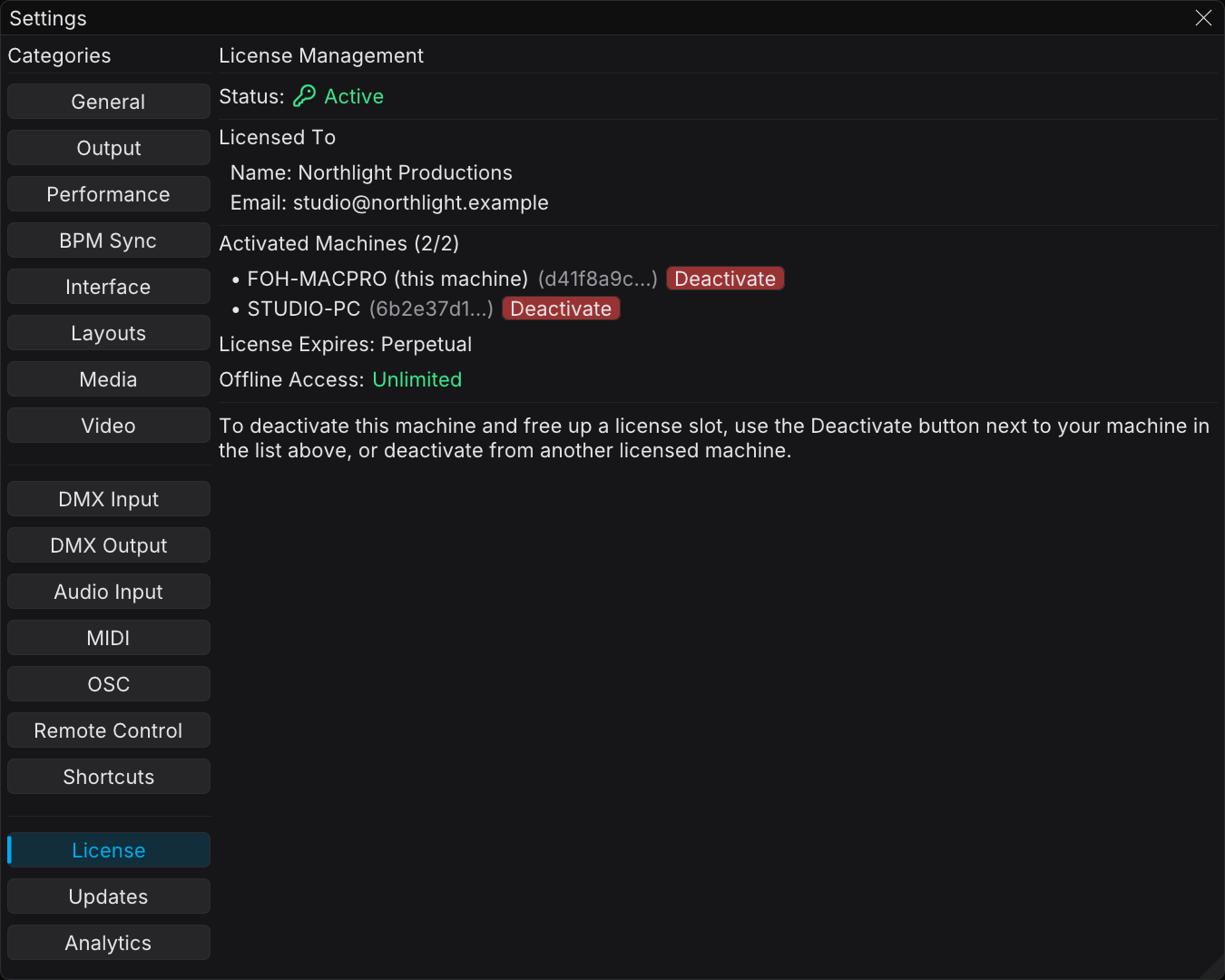
Your license shows "Activated Machines (X/Y)" where:
- X = the number of computers that use your license now
- Y = the maximum number of computers that your license permits
If you are at the limit, deactivate a machine that you no longer use. Then activate the new machine.
Offline Access
The offline period
Activation checks out a machine file. This file is a signed certificate on your computer. It proves that your license is valid without a connection to the server. Your license policy sets the expiry date of the file. The License tab shows one of these three forms:
| Display | Meaning |
|---|---|
Offline Expires: <date> (N days) | The machine file is valid until that date. Go online before that date |
| Offline Access: Unlimited | Your machine file never expires. No check-in is necessary |
| Offline Access: Online only | No machine file is held. Usually the checkout failed. Reactivate while you are online |
Read the tab for your actual date. The offline window is not a fixed length. If your license expires before the machine file does, the tab shows the earlier of the two dates.
Auto-refresh
FXCanvas renews the offline period each time that you start it with an internet connection. If you usually open the app online, you never see an expiry warning.
When to renew
- 3 days remaining — a warning banner appears on the License tab, and the key in the status bar becomes orange
- Expired — FXCanvas continues to run. It uses the free tier until you go online again
How to renew
- Connect to the internet
- Start FXCanvas
- Select Settings → License
- Click Renew Offline Access
Usually it is sufficient to start the app while you are online. The button needs a connection, and it is greyed out when you are offline. If your machine file never expires, the button does not appear at all, because there is no offline period to renew.
Managing Machines
How to see the activated machines
- Open Settings → License
- Read the Activated Machines section. It lists every computer that uses your license
- Each entry shows the machine name, a short fingerprint in brackets, and a Deactivate button. The current computer also carries the mark "(this machine)"
How to deactivate a machine
To make a slot available, do these steps:
- Open FXCanvas on any activated computer
- Select Settings → License
- Find the machine that you want to remove
- Click Deactivate
You must be online to deactivate a machine. While you are offline, the list reads "(Offline - machine list unavailable)" and every Deactivate button stays disabled.
Machine limit
If activation fails with "Machine limit reached":
- Deactivate a machine that you no longer use, or
- Wait until the offline period of an inactive machine lapses, which makes its slot available, or
- Move to a license with more machine slots
When a License Lapses
FXCanvas never locks you out. FXCanvas can fail to make sure that the license is valid for three reasons. The offline period lapsed, the key expired, or nobody entered a key. In each case the app continues to run, and it behaves like the free tier. Your shows, palettes, rigs, and presets are not changed.
The next time that you load a show, FXCanvas adjusts each item that is more than a free-tier limit. It shows one Project Loaded with Restrictions notification with the list of changes. Usually FXCanvas clamps the render resolution, bypasses the effects after the second one, disables the outputs after the second one, and disables the DeckLink outputs. FXCanvas deletes nothing. Activate a license, and FXCanvas restores everything when you load the show again.
License expiry vs offline period
These are two different clocks. The License tab shows both:
| Type | What it means | What to do |
|---|---|---|
| Offline period expired | The check-in window of the machine file lapsed | Connect to the internet and click Renew Offline Access |
| License expired | The license key reached its own end date | Renew it from the customer portal, then restart FXCanvas |
A perpetual license shows License Expires: Perpetual, and the second row never applies. A time-limited license shows the date, and it warns you 30 days before that date. It also adds a Renew Subscription button that opens the customer portal.
Troubleshooting
| Symptom | Solution |
|---|---|
| "Offline period expired" | Connect to the internet and click Renew Offline Access in Settings → License |
| "License expired" | Renew the license from the customer portal, then restart FXCanvas |
| "Machine limit reached" | Deactivate an old machine in Settings → License |
| "Another device is active" | Deactivate the other device, or wait until its offline period lapses |
| "Activation failed" | Make sure that you have an internet connection, and that the key is correct |
| License invalid after a change to the system clock | A large backwards change of the clock invalidates the stored certificate. Set the clock correctly and reactivate |
| License invalid after a reinstallation | Activate with the same key. FXCanvas replaces the old machine entry |
| A feature is greyed out with a padlock | That capability needs a license. Read What requires a license |
Status bar indicator
The license status is at the bottom right of the status bar:
| Icon | Meaning |
|---|---|
| 🟢 Green key | Active. Everything works normally |
| 🟡 Orange key | The offline period expires in less than 3 days. Renew it soon |
| 🔴 Red key | Unlicensed or invalid. The free-tier limits apply. The status bar reads "Unlicensed", and the License category reads "Not Licensed" |
Hover over the key to see the license type, the expiry, the offline status, and the machine name.
Getting help
- Select Tools → Log Viewer, open the System tab, and look for error messages
- Contact support with your license key (first and last 4 characters only), the error message, and your OS version
Frequently Asked Questions
Is the free version time-limited?
No. There is no trial countdown and no expiry. The limits in the table are the only difference.
Can I use my license on multiple computers?
Yes, up to the number of slots on your license. Read the "Activated Machines" count.
What happens if my license expires or I go past the offline period?
FXCanvas continues to run with the free-tier limits. FXCanvas deletes nothing, and a new activation restores the full capability.
What happens if I reinstall my operating system?
Reactivate with the same key. The new installation replaces the old machine entry.
Can I transfer my license to a new computer?
Yes. Deactivate the old computer in Settings → License. Then activate the license on the new computer.
Does FXCanvas work completely offline?
Yes, for the length of your offline period. For the exact date, read Offline Expires on the License tab. A license with a perpetual machine file works offline with no time limit.
Related Topics
- Installation & Requirements — how to install FXCanvas
- Software Updates — how to keep FXCanvas current
- Settings Overview — every tab in Settings