DMX Output & Mapping
FXCanvas can drive a real lighting rig from your render canvas. FXCanvas samples the colors of your visuals, transforms them, and transmits them over Art-Net or sACN. The data goes to fixtures such as LED bars, moving heads, and pixel tape. FXCanvas uses GDTF fixture profiles, the industry standard.
This guide covers the whole pipeline. It starts with the fixture import. Then it covers the patch, the groups, the 2D layout, the map from the canvas onto the fixtures, and the network output.
Concepts at a Glance
The table below explains the main building blocks.
| Concept | What it is |
|---|---|
| Rig | A saved collection of fixtures, groups, layout positions, maps, and regions. Rigs live outside the shows, so you can use one rig again. |
| Fixture Type | A GDTF file that describes a physical fixture model (channels, modes, emitters). |
| Fixture Instance | One patched fixture in your rig, which is one row in the patch. |
| Group | A named set of fixture instances. An MVR import creates groups, and you can create your own. |
| Layout | The 2D positions of the fixture instances on a plan view. |
| DMX Map | A named collection of layers that defines how the canvas drives the fixtures. |
| Mapping Layer | One rule inside a map: one group, one strategy, one transform. |
| Input Region | A rectangular area of the render canvas, used as the source for a layer. |
| Output | Art-Net or sACN transmission to one or more universes. |
All of these items live in the DMX Manager window. The window has seven tabs.
The DMX Manager Window
Open the window from Tools → DMX Manager. The tabs run left to right, in the normal order of work:
| Tab | Purpose |
|---|---|
| Rigs | Create, load, save, and delete rigs, and set the default startup rig. Import MVR files. |
| Fixtures | Manage the fixture types in the rig. Import GDTF files and browse the online fixture library. |
| Patch | Assign fixtures to universes and DMX addresses. Grid view or Table view. |
| Groups | Read the MVR groups and create custom groups for the maps. |
| Mapping | Position the fixtures, define maps and layers, and edit the input regions. |
| Output | Configure the Art-Net or sACN transmission. |
| Monitor | Watch the live DMX channel values that FXCanvas sends. |
Rigs save themselves. A few seconds after your last edit, FXCanvas writes the changes to disk. While changes are pending, the Rigs tab shows an asterisk (Rigs *). The asterisk clears when the autosave completes. Four actions write the pending changes at once: you close the window, you save the show, you switch rigs, or you quit the application.
Typical Workflow
A first setup usually has these steps:
- Create or load a rig on the Rigs tab.
- Add fixture types on the Fixtures tab. Import GDTF files, import an MVR, or download from the online library.
- Patch fixtures on the Patch tab to universes and addresses.
- Organize into groups on the Groups tab. This step is optional, but it helps.
- Arrange fixtures in 2D on the Mapping tab, in Layout mode.
- Create a DMX map with layers on the Mapping tab, in Output mode.
- Define input regions on the Mapping tab, in Input mode. This step is optional.
- Configure output on the Output tab and enable the transmission.
- Make sure that the output is correct with the Monitor tab and with the physical fixtures.
The rest of this page covers each tab in detail.
Rigs
A rig holds everything about your physical lighting setup. FXCanvas saves each rig in ~/Documents/FXCanvas/Rigs/[RigName]/. The folder holds a rig.json file, plus the imported MVR and GDTF files.
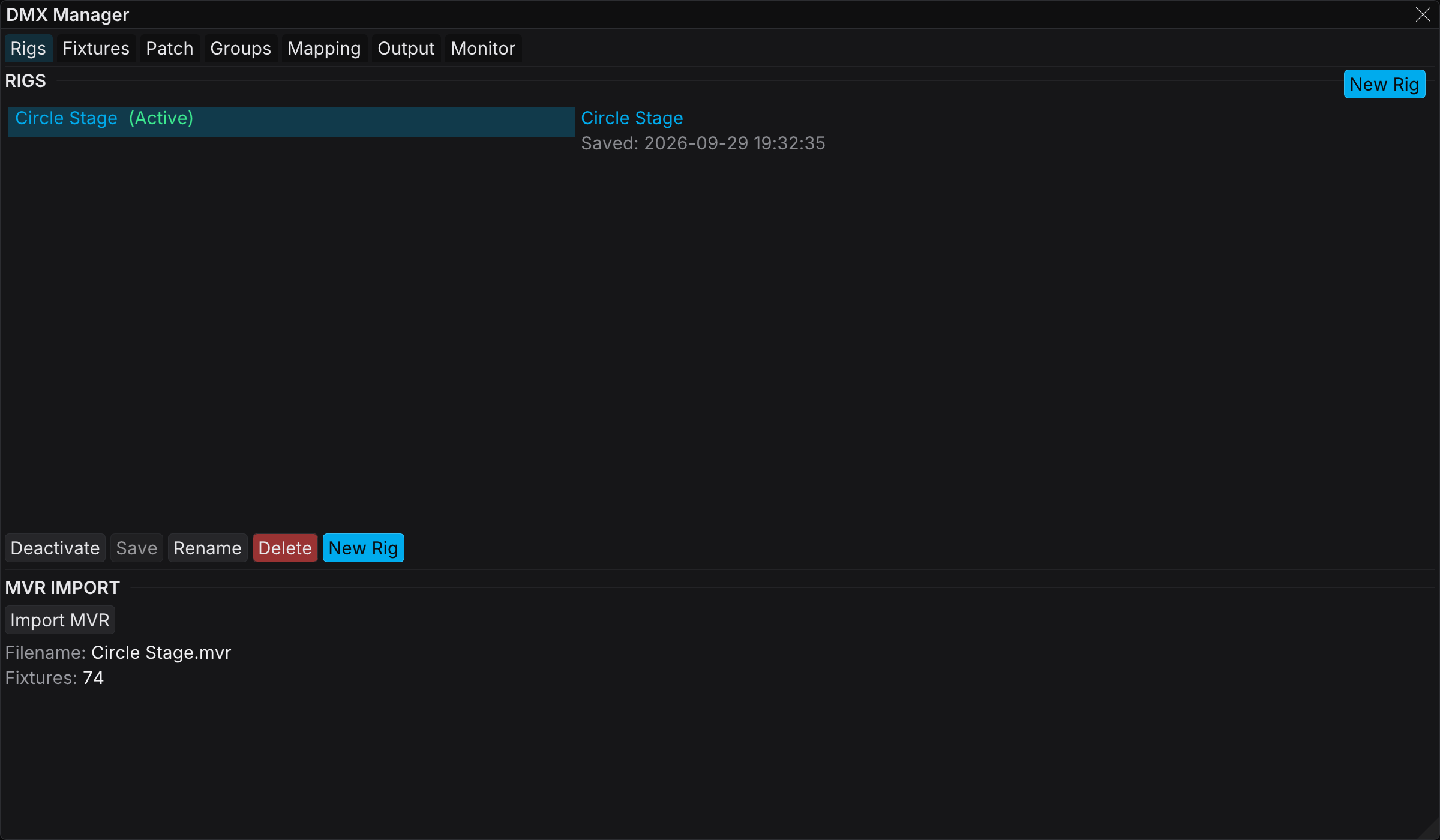
What a rig contains
- Fixture types (GDTF data)
- Fixture instances (patch, positions)
- MVR groups (read-only) and custom groups
- DMX maps and mapping layers
- Input regions
- Layout positions
Creating and managing rigs
| Action | How |
|---|---|
| New rig | Click New Rig and enter a name |
| Load | Select a rig in the list and click Load |
| Save | Automatic. The Save button forces an immediate write when changes are pending |
| Rename | Right-click the rig row, or use its action menu |
| Delete | Right-click the rig row or use its action menu, then accept the modal |
| Set as default | Tick the default box, and the rig loads at the next startup |
Autosave
You never have to remember to save a rig. FXCanvas watches the live rig state and writes rig.json a few seconds after your last edit. FXCanvas also writes the file at once when you quit the application, save the show, switch rigs, or close the DMX window. The writes are atomic. FXCanvas keeps the previous version beside the file as rig.json.bak, so you can return to that version by hand.
Importing an MVR
MVR (My Virtual Rig) is the industry standard file that most lighting design software exports. FXCanvas can import an MVR and create everything in it in one step.
- On the Rigs tab, click Import MVR.
- Select the
.mvrfile. - FXCanvas extracts the embedded GDTF files, creates the fixture types and instances, sets the patch addresses, reads the positions, and creates the MVR groups.
An overlay shows the progress. The import runs on a background thread, so the interface stays responsive.
An MVR is the fastest way to build a rig. Ask your lighting designer for one file instead of patching each fixture by hand.
Fixtures
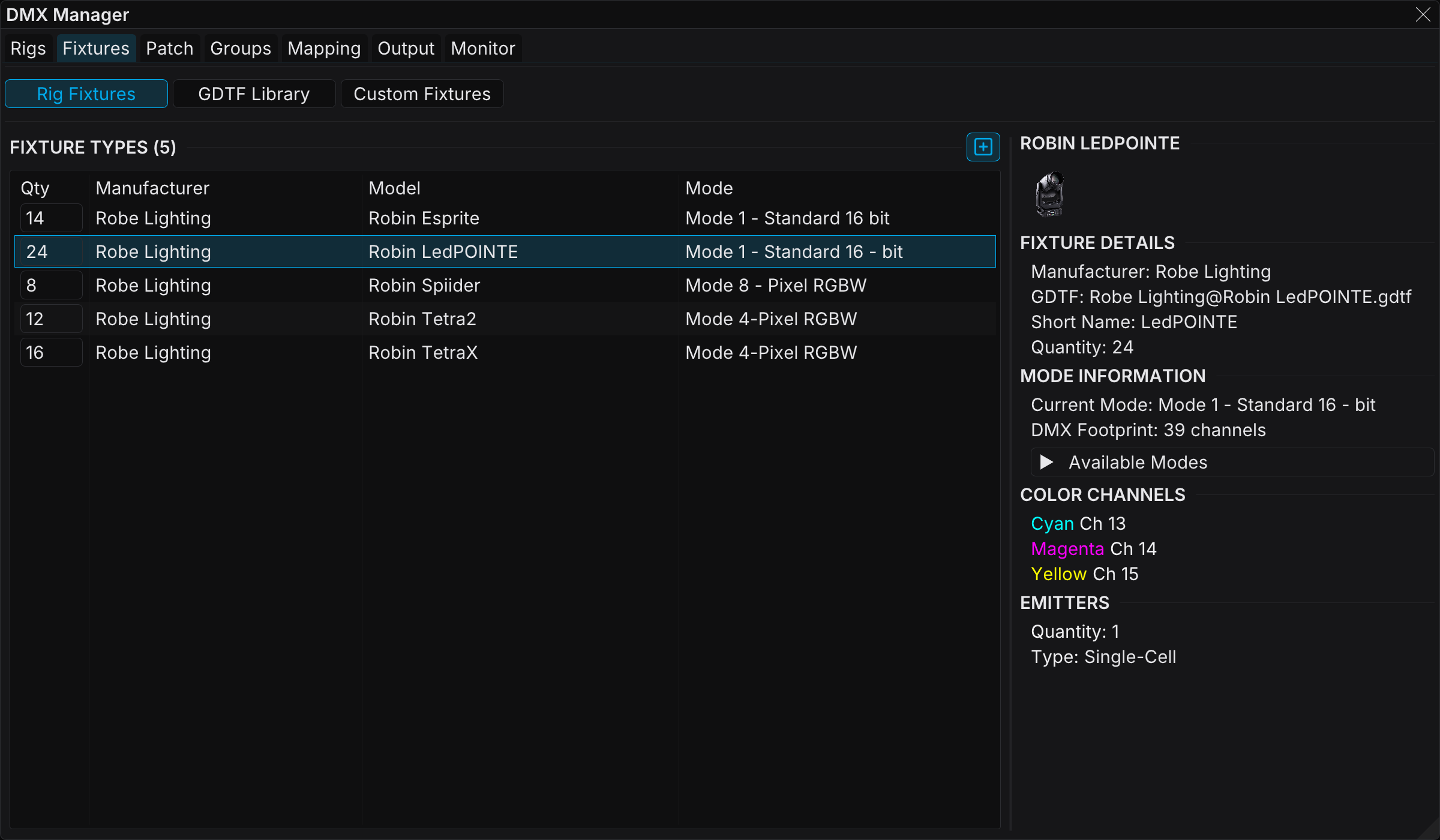
The Fixtures tab manages the fixture types in the rig. A fixture type is a GDTF file. You create the fixture instances later, on the Patch tab.
The tab has three view modes, and the buttons at the top switch between them:
- Rig Fixtures — the fixture types in the current rig
- GDTF Library — search the online GDTF Share library and download from it
- Custom Fixtures — your global library of fixtures that you build in the application, for use in any rig
Rig Fixtures view
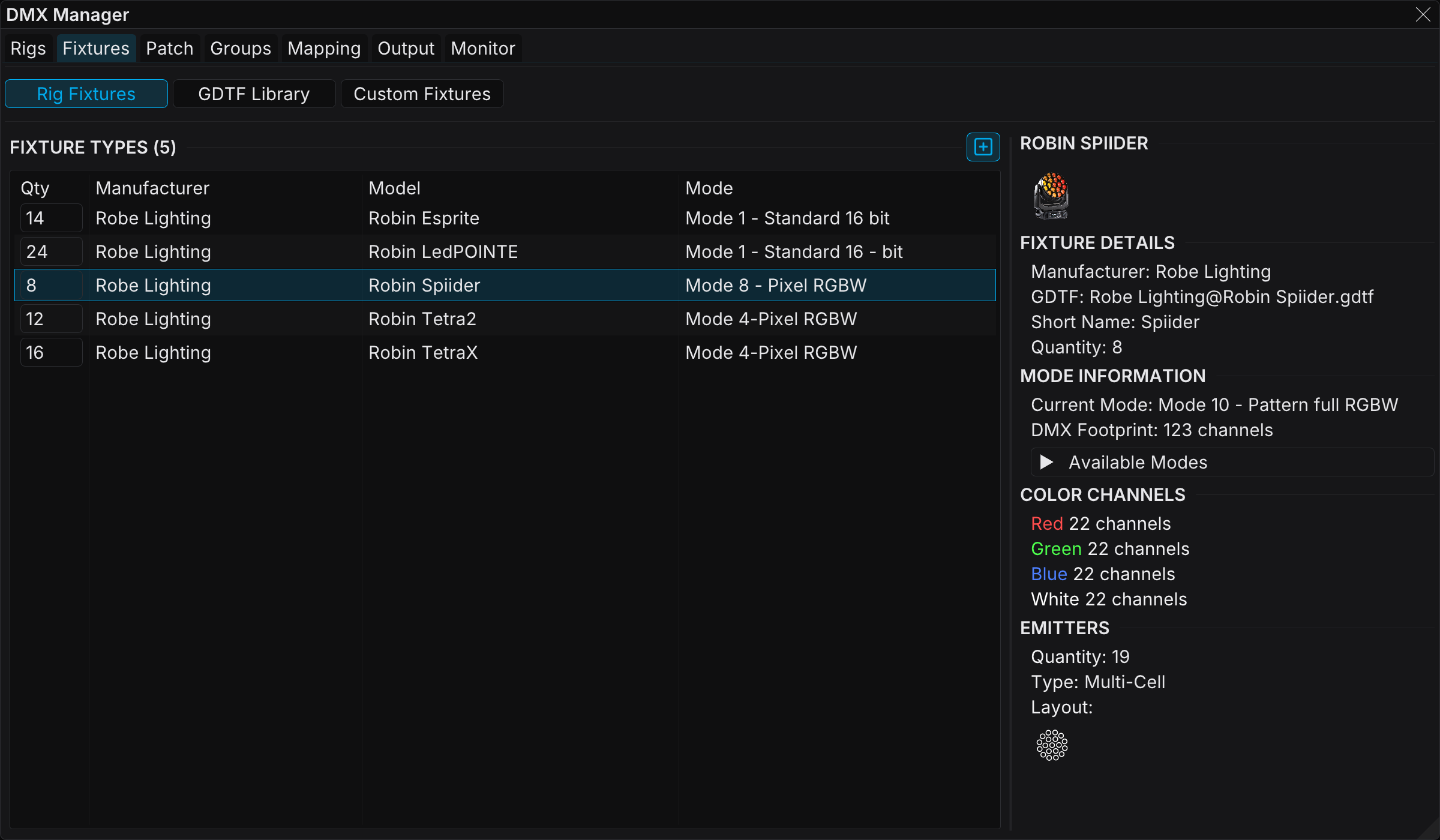
Two-pane layout:
- Left: the list of fixture types (quantity, manufacturer, model, mode)
- Right: the detail of the selected type, with the modes, the channel counts, the emitters, and the physical geometry
This view shows which modes each fixture has, and the DMX footprint of each mode.
You can edit the Qty column in place. Click the cell. Type a number to create that many unpatched instances, or to remove the surplus instances that you added. The limit is 1024 instances for each fixture type.
Right-click any row for a context menu:
- Edit... / Duplicate... — open the custom fixture builder on this type. This works for custom fixtures from the application only, because you cannot edit an imported GDTF.
- Delete — delete the fixture type and every instance of it from the rig. A dialog states the instance count first, and you must accept it. FXCanvas then removes the group and map references to the deleted fixtures.
Importing a single GDTF
Click Import GDTF above the list. Then select a .gdtf file. FXCanvas parses the file and adds it to the rig. FXCanvas copies the file into the GDTF/ folder of the rig, so the rig stays self-contained.
Importing a Resolume patch
Import Resolume Patch rebuilds your whole Advanced Output setup from one XML file. The command is in the same add menu as Import GDTF.
Export the XML from Resolume with Output → Advanced → Save, or take the preset file directly. Then select the file in the import dialog. FXCanvas creates these items again:
- Fixture types: one custom fixture profile for each unique pixel shape and color format, for example a 40×1 RGB strip. FXCanvas generates them as real GDTF, so they behave like any other fixture.
- Patched instances: one fixture for each slice, named after the slice, patched to the same universe and start channel
- Universes and routing: each universe of a Lumiverse gets a label and its Art-Net wire address. FXCanvas imports the output destinations too, with the named nodes and their IPs (FXCanvas resolves the name again when the IP of the device changes) and the broadcast targets
- Spatial layout: the fixtures land in the Mapping → Layout viewport at the same positions and rotations as their slices in the Resolume composition
- A ready-to-run map: the import creates a fixture group and a DMX map ("Import: composition name"). FXCanvas anchors the map to the composition frame, so the fixtures sample the canvas exactly as their slices sampled the composition
The import runs in the background with a progress overlay, and the output continues while the import applies. At the end, a notification lists what FXCanvas created, and gives the composition size. Set your canvas resolution to that size for 1:1 pixel mapping.
Notes:
- FXCanvas supports the RGB-order color formats (rgb, grb, rgbw, and similar). It skips the slices that use CMY or raw DMX formats, and it gives a warning.
- A second import of the same file creates duplicates, so delete the fixtures and the map of the first import first
- Slices that share a pixel shape share a fixture type, so the Fixtures tab stays short even for a large map
Building a custom fixture
Some pixel tape, LED bars, and DIY fixtures have no GDTF file. Build one in a minute with Create Custom Fixture. The builder writes a real GDTF file, so a custom fixture patches, maps, and monitors like an imported one.
The dialog has two panes:
Control defines the DMX channels:
- # of pixels sets how many pixels the fixture has. The channel total updates beside it.
- Color channels define one pixel block. Use the RGB/GRB/BGR/RGBW/GRBW presets, or add the channels one at a time from 12 color types (Red through UV, CMY, warm white and cool white). The channel count for each pixel is the number of channels that you add. The 16-bit channels count too.
- Non-Color Control Channels (accordion) holds the less common cases. It holds the per-pixel control channels, for example a strobe byte in every pixel block. It also holds the header and footer blocks. FXCanvas sends these blocks once before or after the pixels, for example a master dimmer or a mode select. FXCanvas drives an Intensity role channel, so a dimmer-gated fixture stays lit. A Static channel holds its default value.
- Color Sampling Mode controls how the sampled canvas color becomes channel values. Auto is the best option, because it infers the correct conversion from your channel types (RGBW white extraction, amber blending, CMY inversion). Gamma compensates the LEDs that ramp too fast at the low end.
- DMX footprint preview shows one labeled block for each section with live addresses. It also states how many times the pixel block repeats.
Layout defines the physical pixel arrangement:
- Grid mode: width, height, pitch, and a distribution that controls how the DMX chain snakes through the grid, with a numbered traversal preview
- Free-form mode: a canvas where you drag the pixels to any position. Generators seed lines, rings, arcs, or the grid. Snap holds the spacing on the pitch. Chain shows the DMX order as a connecting line.
- The pixel count stays the same in both modes. A switch between modes asks you to accept the change, because some settings do not transfer.
Create asks how many fixtures to add to the rig. The new fixtures start unpatched, in the inventory of the Patch tab. You can edit or duplicate a custom fixture type later. Right-click its row in the rig list, or use the buttons in the details pane. FXCanvas resolves every placed instance again after an edit.
Custom Fixtures view (reusable across rigs)
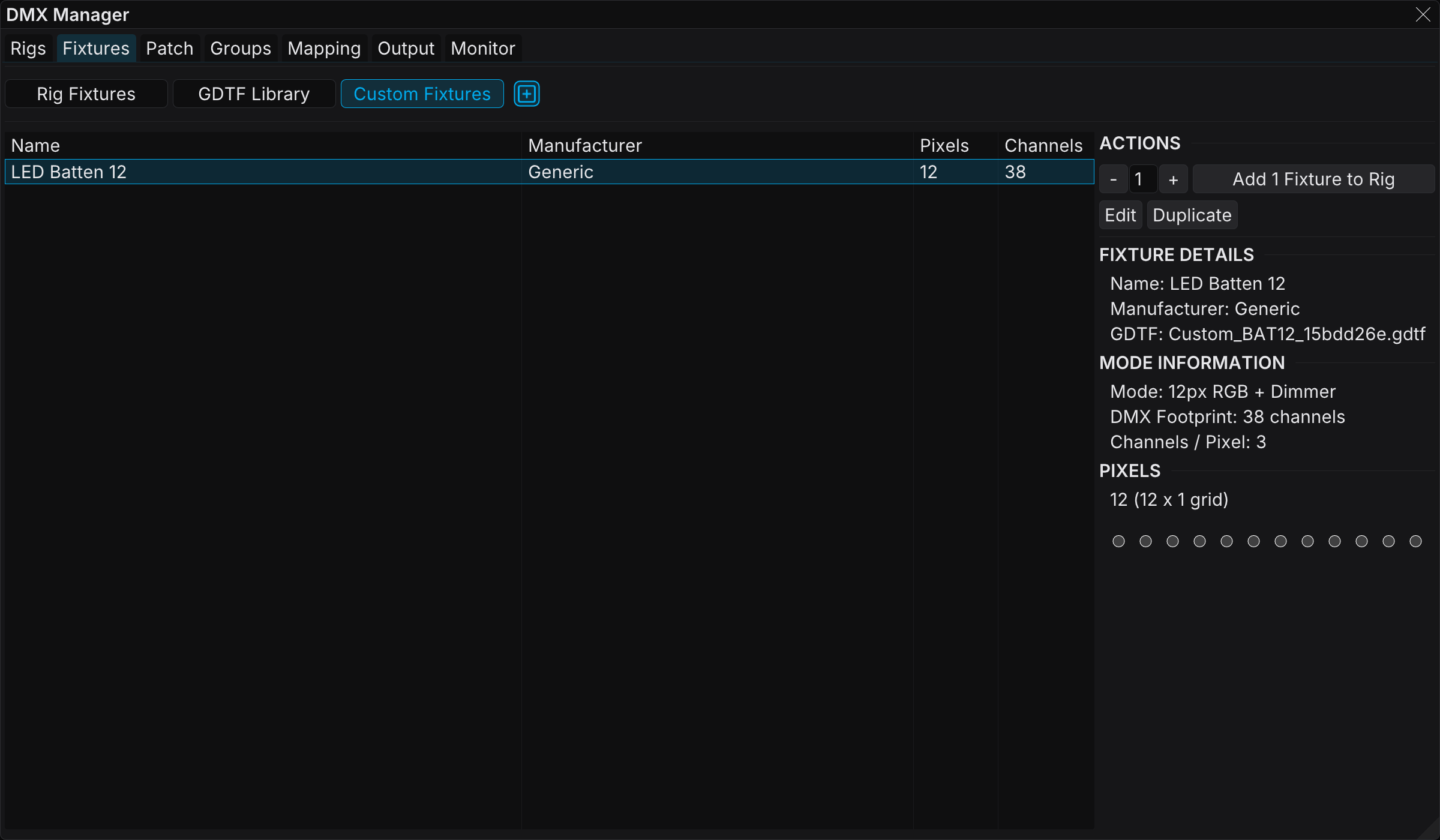
FXCanvas also saves every custom fixture that you create or edit to a global library at ~/Documents/FXCanvas/CustomFixtures/. That library is independent of any rig and any show. The Custom Fixtures view browses it.
The list shows each fixture with its pixel count and channel count, in the style of the Rig Fixtures table. When you select a fixture, a details pane shows these items:
- Actions at the top: a quantity stepper and an Add N Fixtures to Rig button. That button copies the fixture into the current rig, and it drops that many unpatched instances into the Patch inventory. Edit and Duplicate are here too.
- The fixture detail, the mode information, and the pixel counts
- A pixel layout preview, which is a top-down view of the pixel positions. A strip reads as a line, and a ring reads as a ring.
Right-click any row for Edit... / Duplicate... / Delete:
- Edit rewrites the fixture in the global library. When the current rig holds a copy of the same fixture, FXCanvas updates the rig copy too and resolves its placed instances again.
- Duplicate opens the builder on a copy with a fresh identity, so a save never overwrites the original
- Delete deletes the fixture from the global library only. A rig that already imported it keeps its own copy.
GDTF Library view (online GDTF Share)
The GDTF Library view searches the GDTF Share database from inside FXCanvas.
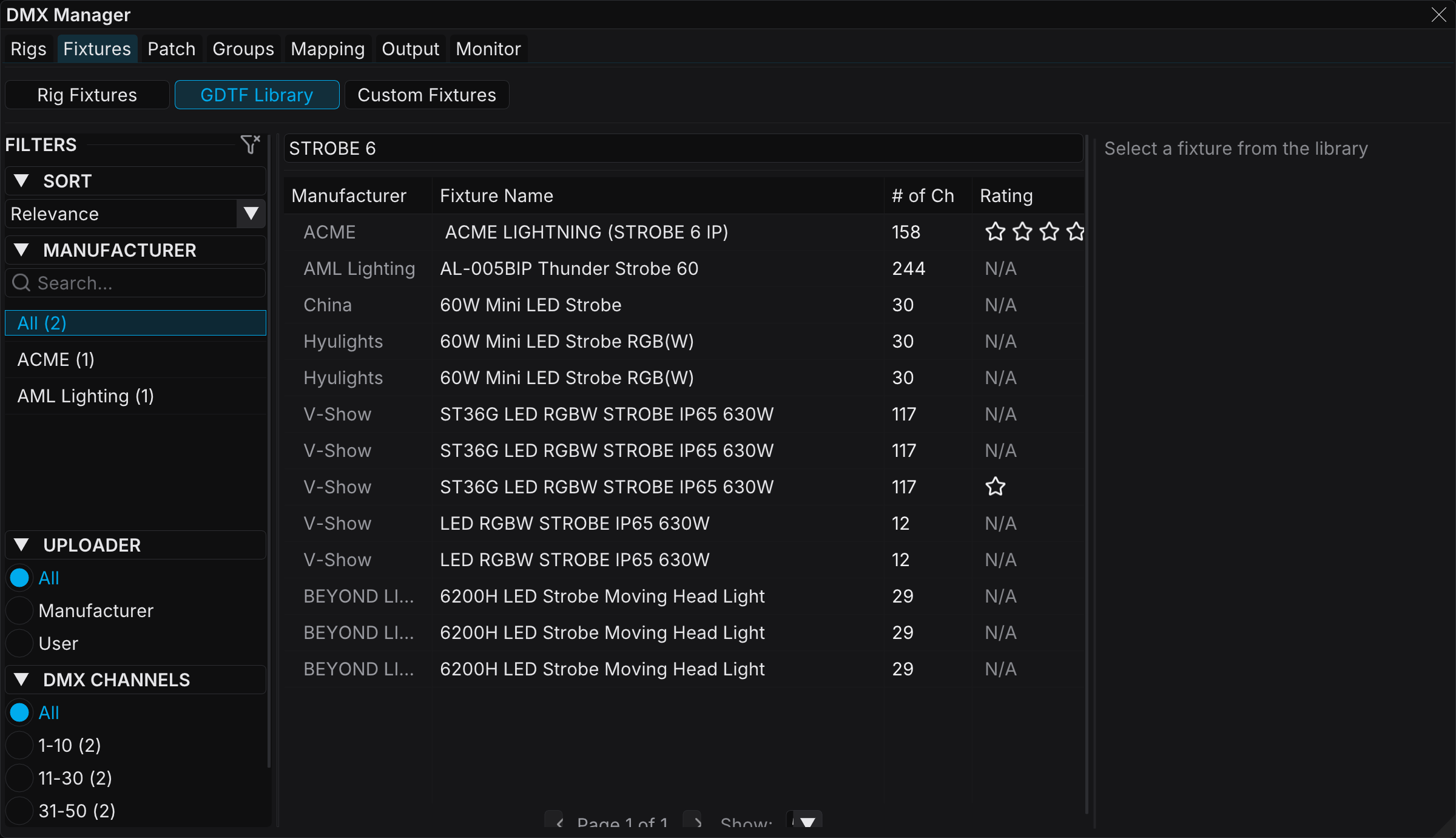
Features:
- Search by manufacturer or model
- Filter sidebar for the sort order, the manufacturer, the uploader (manufacturer-official or community), and the channel counts
- Results table with pagination. Right-click a row and select Add to Rig... to add a fixture without the details pane.
- Details pane with an Actions section at the top. Select the DMX mode for the preview and click Add to Rig.
- Add to Rig dialog with the mode (pre-filled from your Actions selection), the quantity, and an optional start address (leave it blank for automatic)
The mode selector drives the whole preview. FXCanvas renders the mode information, the color channels, and the emitter layout again for the selected mode. This happens after FXCanvas downloads and parses the GDTF file. A spinner shows during that time. FXCanvas caches the preview, so a change between two fixtures is fast.
Emitters
A multi-color fixture, for example RGBW or RGBA, has one or more emitters. Each emitter carries its own color channels (Red, Green, Blue, White, Amber, Lime, UV, Cyan, Magenta, Yellow, Warm White, Cool White). FXCanvas renders each emitter separately in the mapping viewport, so the multi-emitter behavior is accurate by default.
Patch
The Patch tab assigns fixture instances to universes and DMX addresses. Two display modes cover different workflows:
- Grid — a visual universe map. Click to patch.
- Table — a sortable list with inline editing
Switch between them at the top of the tab.
Grid view
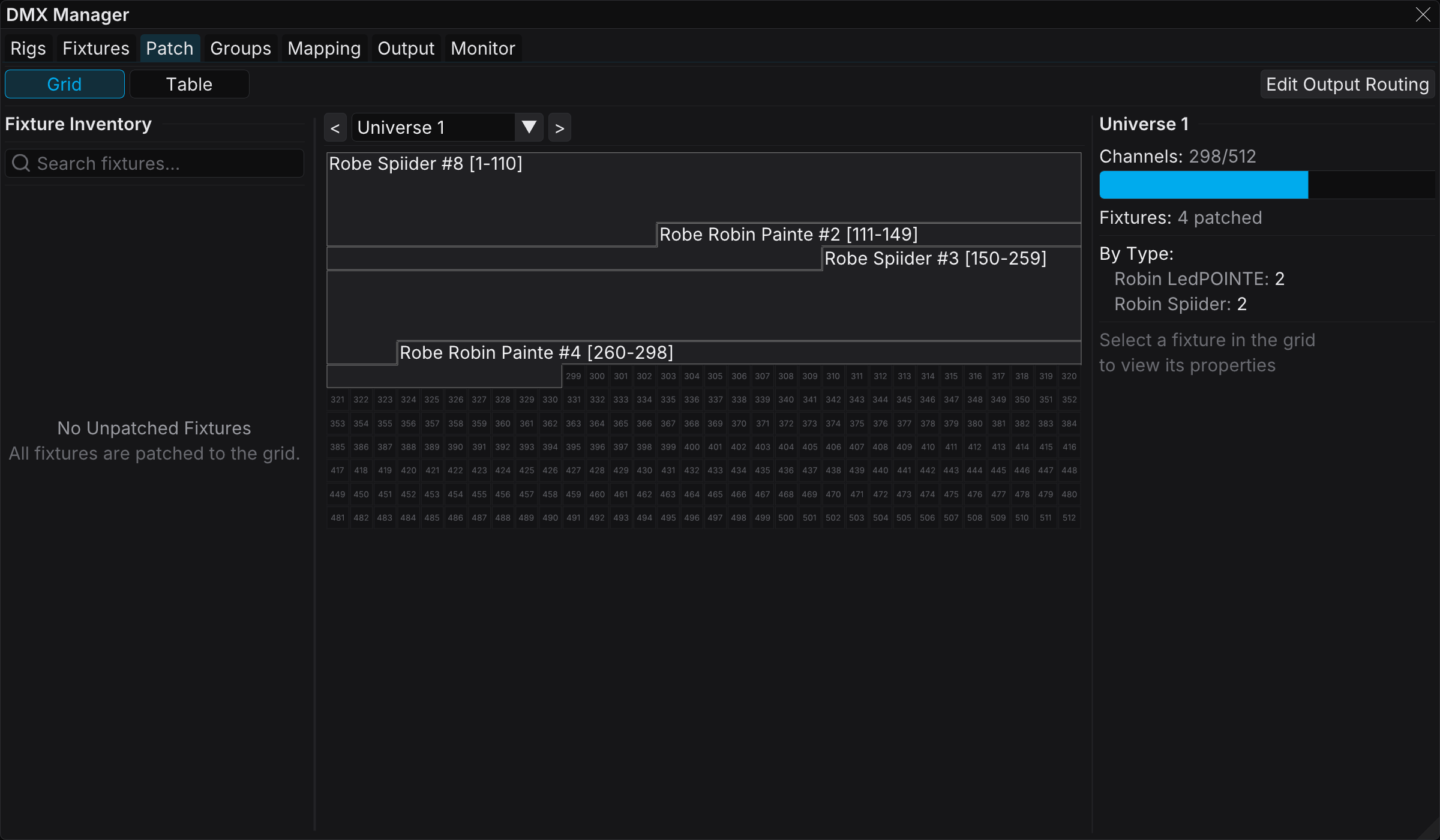
Three panels:
- Left: Fixture Inventory — the unpatched fixtures that wait for a place
- Center: Patch Grid — the selected universe, with 512 cells that show the channel allocation
- Right: Inspector — the detail of the selected fixture
Workflow:
- Select a universe in the selector.
- Click a fixture in the inventory to select it.
- Click a cell in the grid to patch the fixture at that address.
- Drag the fixtures on the grid to move them.
FXCanvas highlights the overlaps and the addresses that are out of range.
An unpatched fixture stays in the Inventory and never transmits. A fixture transmits only after it has a universe and an address.
Table view
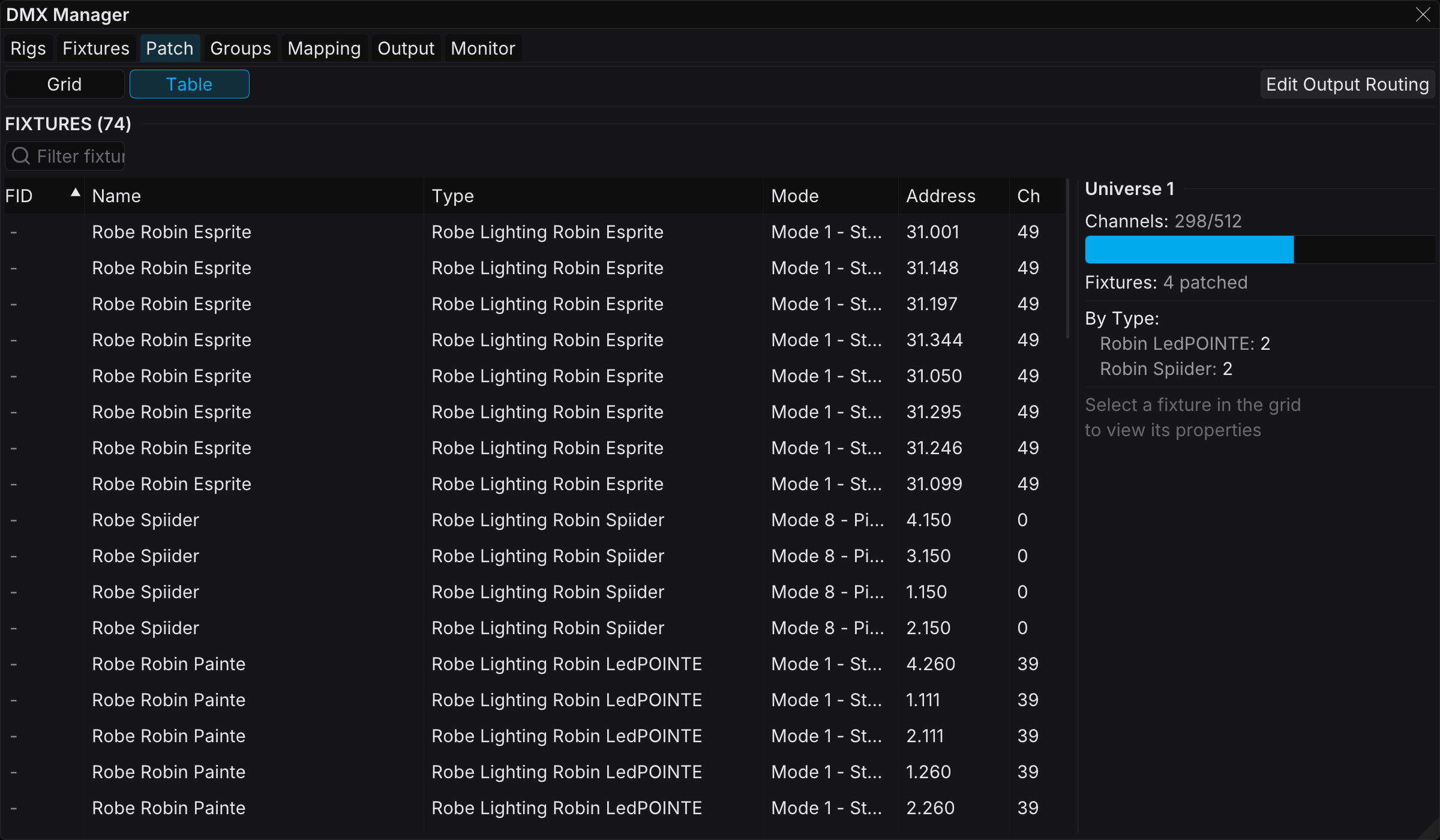
This view is a flat table of every patched fixture. The columns are FID, Name, Type, Mode, Address (universe.address), and Channels. Click a header to sort the table. Use the search box to filter on any visible column. Double-click a row to open the Edit Fixture dialog. There you can change the name, the type, the mode, the universe, and the start address.
Importing MVR
The Patch tab also has an Import MVR button. It does the same work as the button on the Rigs tab, and it is useful when you are already in the patch workflow.
Groups
A group is a named set of fixtures. Groups matter on the Mapping tab, because a layer targets a group and not a single fixture.
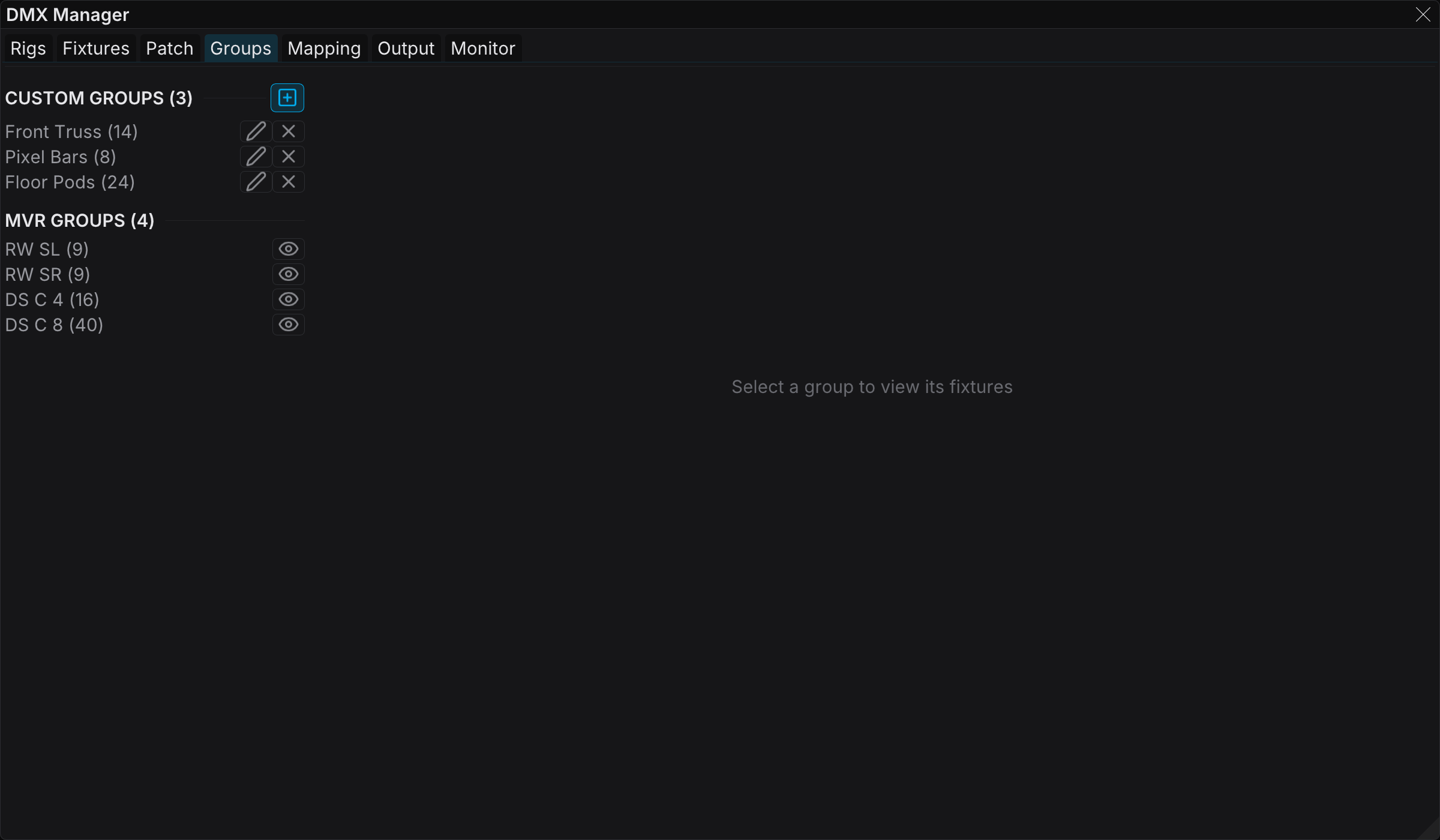
Two sources:
- MVR Groups — read-only, imported from the
Positionnodes of an MVR - Custom Groups — created and edited in FXCanvas
Creating a custom group
- Click New Group.
- Enter a name.
- Move the fixtures from Available to Selected with the arrow buttons.
- Click Save.
The selection supports Ctrl+click and Shift+click for several fixtures at once. With the Add All dropdown you can add fixtures by fixture type, or copy them from an existing group.
Using groups in maps
The custom groups appear next to the MVR groups in the layer dialog on the Mapping tab. A special "All Fixtures" pseudo-group is always available.
If you delete a group that a DMX map uses, FXCanvas gives a warning first, so you do not break an existing mapping.
Mapping
On the Mapping tab the canvas meets the fixtures. The tab has three modes, and the buttons at the top switch between them:
- Layout — position the fixtures in 2D
- Output — define how the canvas drives the fixtures
- Input — define the canvas regions that serve as sources
Layout mode
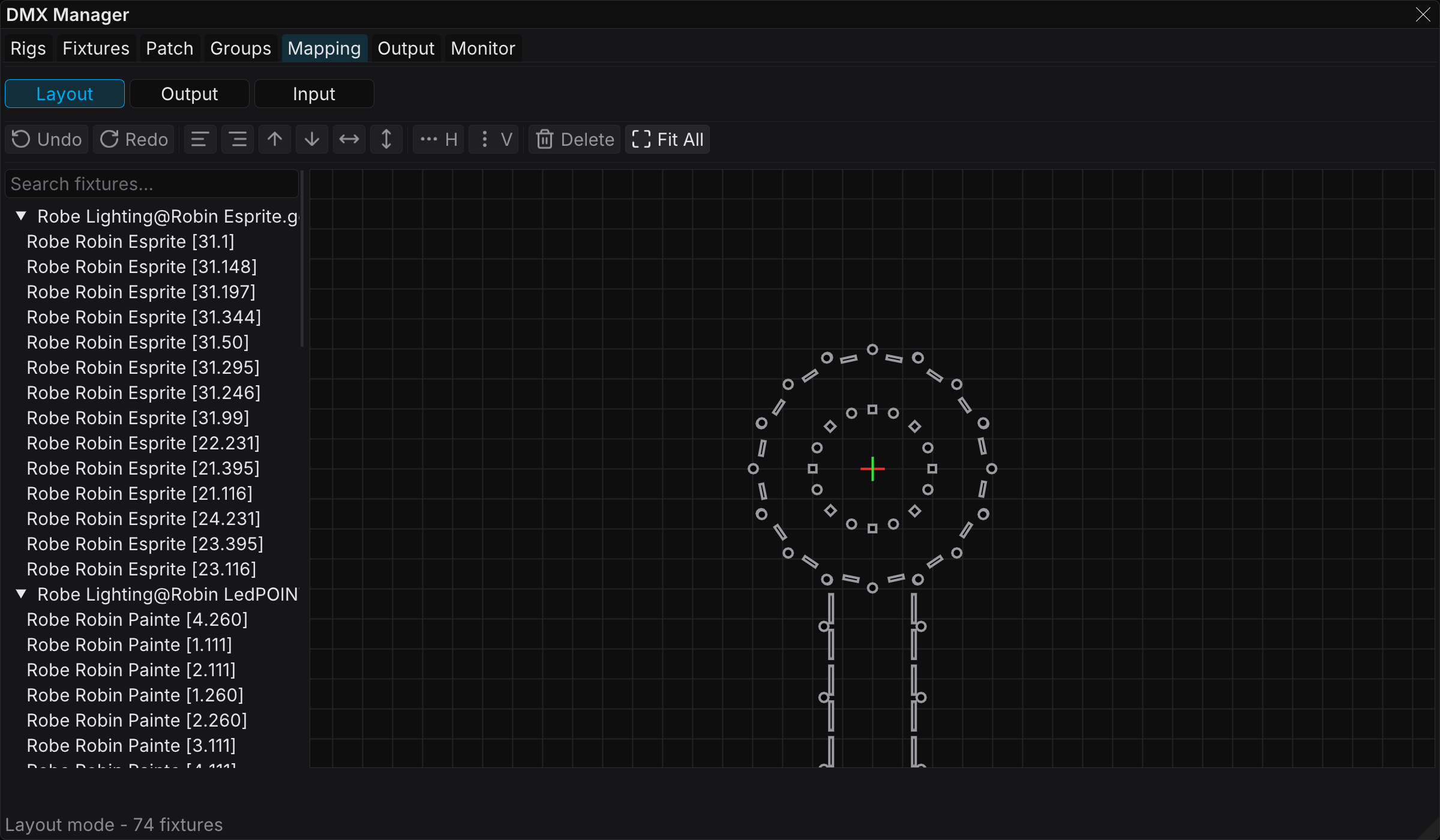
A 2D floor plan view of your rig.
- Pan with a middle-mouse drag
- Zoom with the scroll wheel
- Select with a click on a fixture. Ctrl+click selects several fixtures. Drag a box for an area select.
- Move with the X handle, the Y handle, or the center handle of the gizmo
- Undo / Redo for every layout edit
An MVR import brings the real-world positions in meters. Without an MVR, you can arrange the fixtures by hand to match your venue. FXCanvas saves the layout with the rig.
Output mode
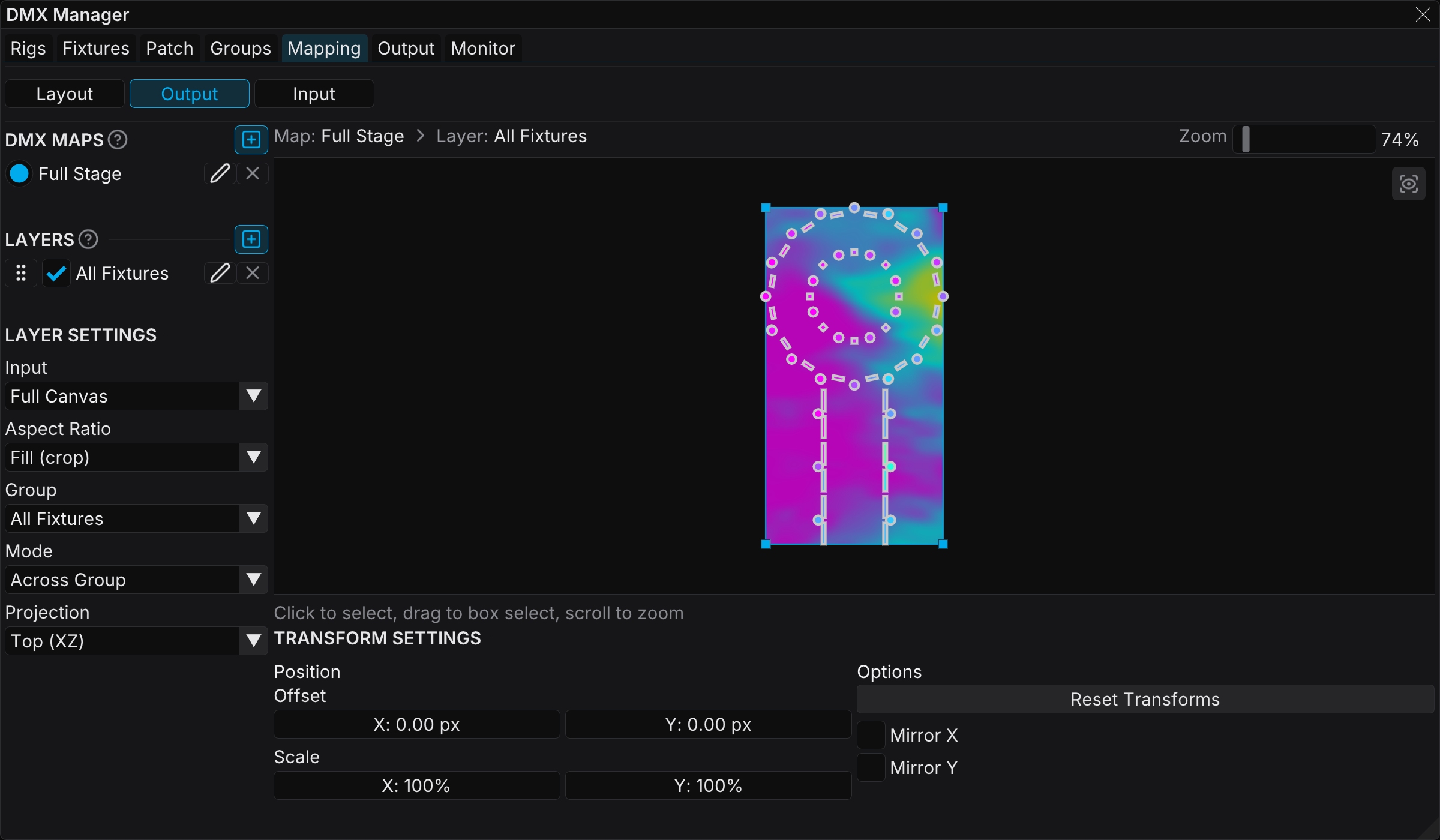
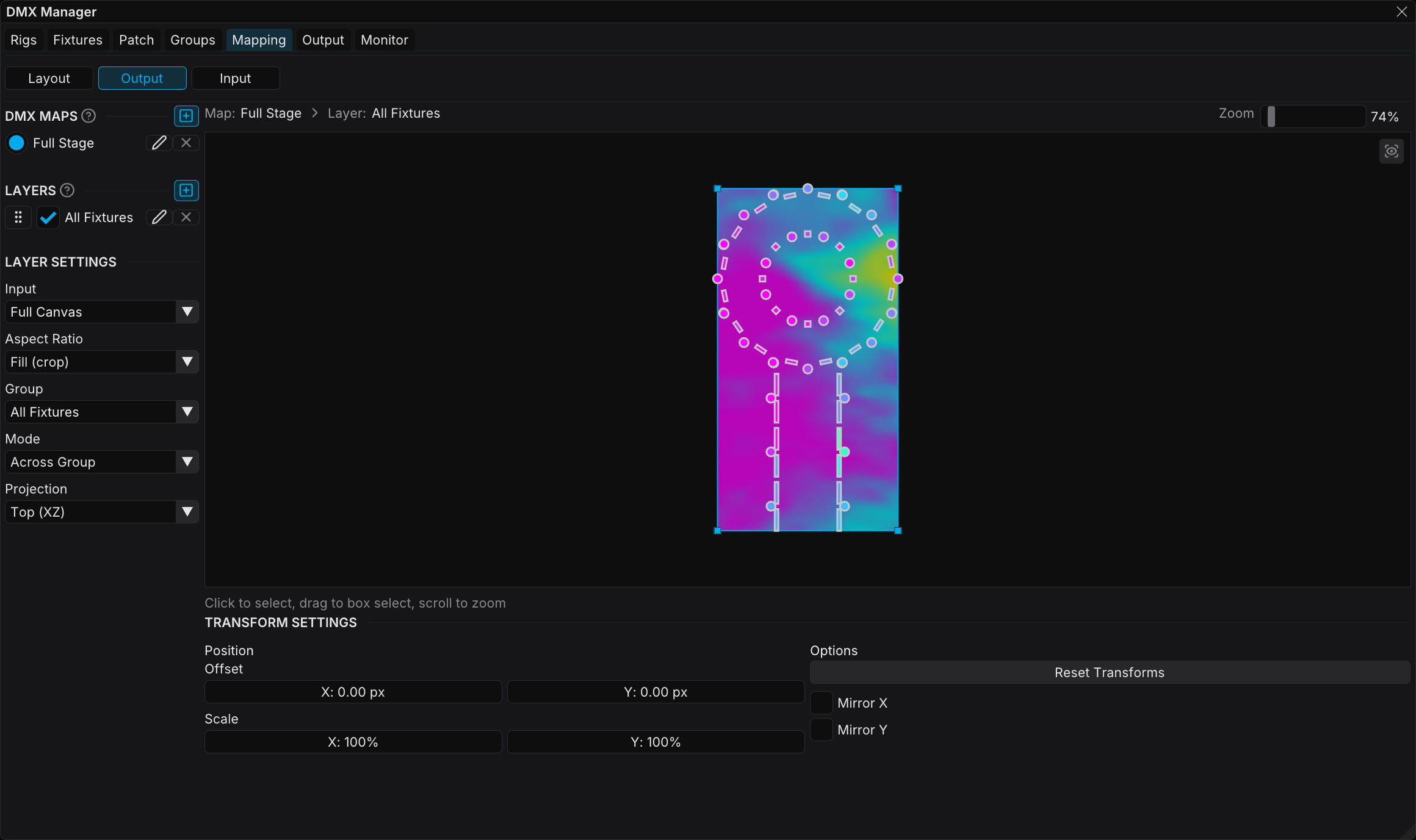
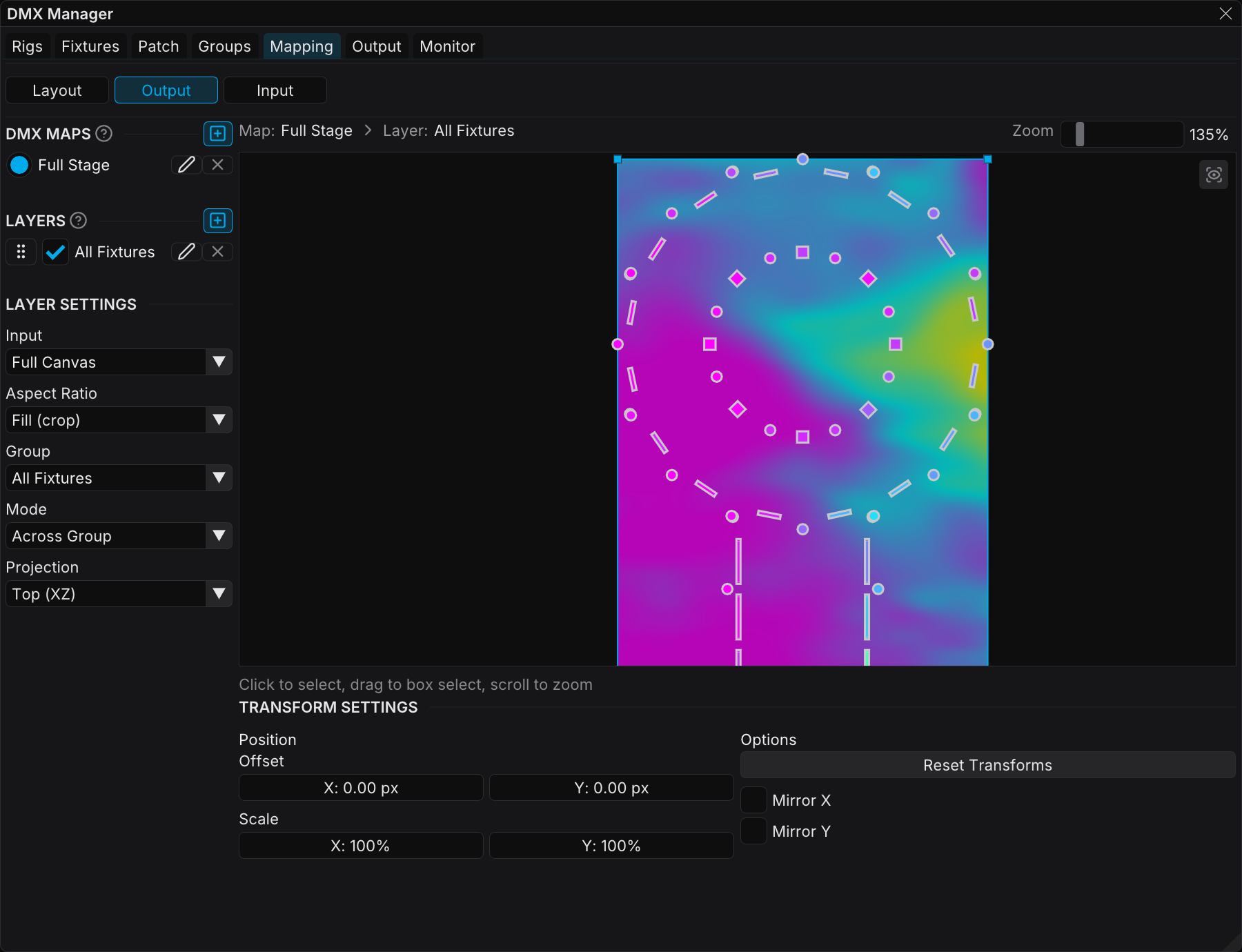
The three images below show the same view at three zoom levels. At the widest zoom the whole rig sits under the canvas, and each fixture takes the color of the point below it:
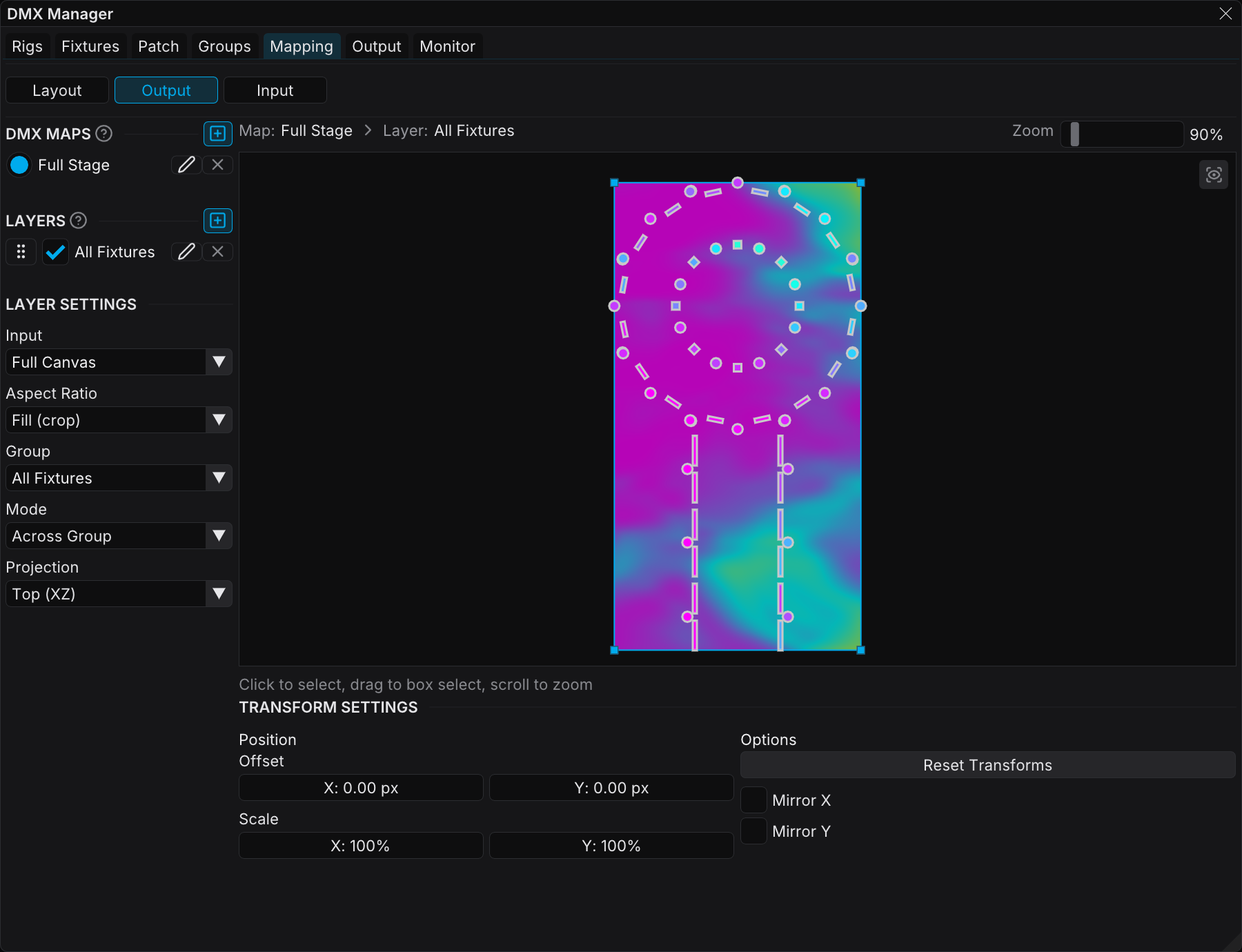
Closer in, the fixtures beside each other hold different colors. You can trace each color to the canvas region below the fixture:
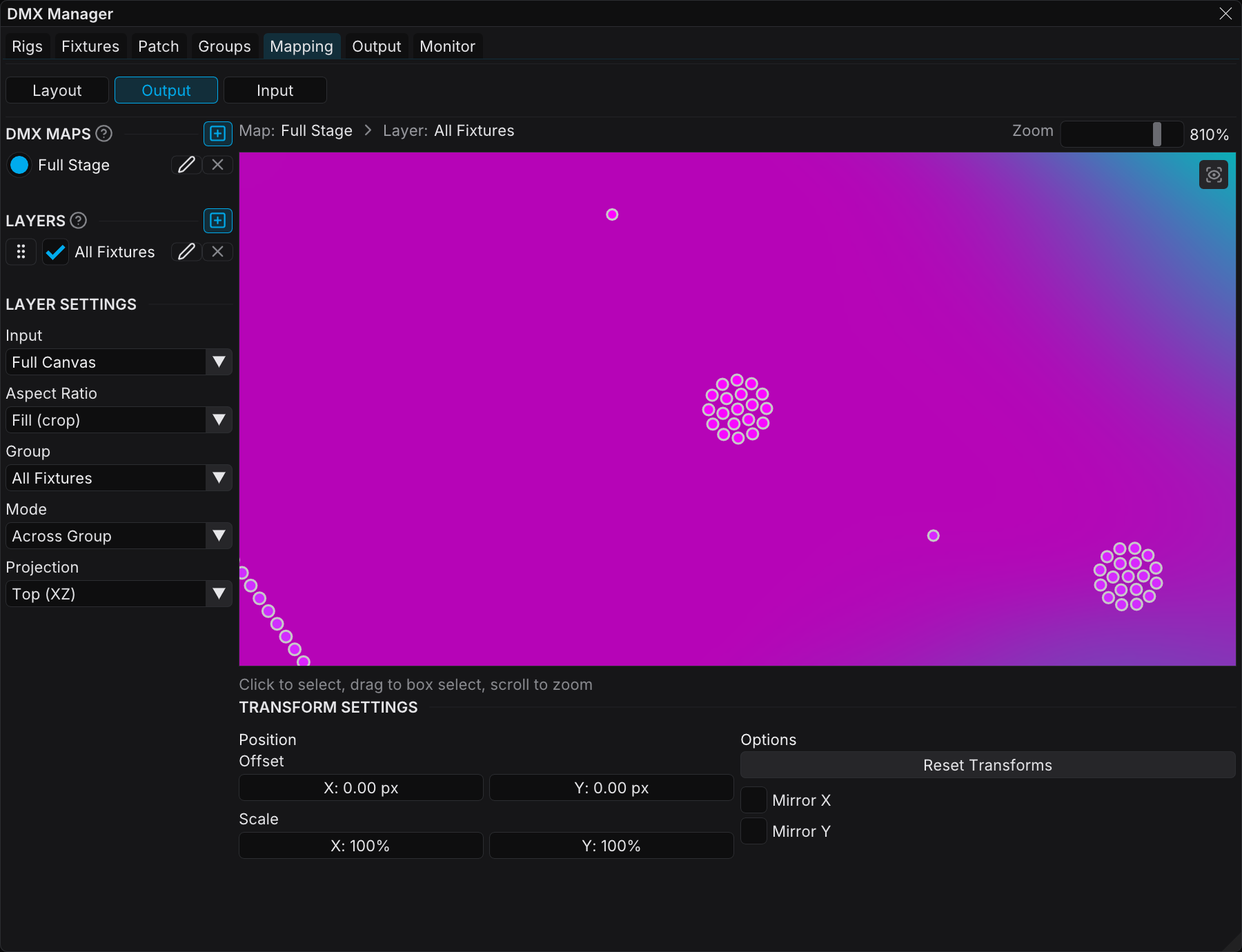
Closer still, a multi-emitter fixture is no longer one sampling point. It resolves into its separate emitters, and each emitter takes its own pixel:
The left column has three sections:
- DMX Maps — the list of maps. The radio buttons select the active map, and the selection sets the map that you edit.
- Layers — the ordered list of layers in the selected map (drag to reorder, and the top layer wins)
- Layer Settings — the detail of the selected layer
The right side is the viewport. It shows the fixtures with a live color preview when a map is active.
Creating a map
A DMX map is a named container for layers. A cue binds to a map by name, so different cues can drive different mappings.
- Click Add Map.
- Enter a name, then select an initial group and strategy.
- The map appears in the list. Click its radio button to make it active.
Only the active map affects the DMX output. You can edit a map that is not active without a change to the running show.
Without a license, a rig holds two DMX maps. At that point Add Map turns gray with a "Pro license required" note, and you cannot activate a third map. See What requires a license.
Creating a layer
Each layer inside a map has:
- Group — the fixtures that it targets
- Strategy — how FXCanvas applies the canvas
- Transform — offset and scale
- Options — mirror X, mirror Y, tile or clamp
- Projection plane — XZ (top view), XY (front view), or YZ (side view)
- Input region — the canvas area to sample (empty means the full canvas)
- Scale mode — how the region content fits inside the layer
- Active — an on/off toggle
FXCanvas evaluates the layers in order. Use the order to decide which layer wins on a fixture that belongs to several groups.
Mapping strategies
| Strategy | What it does | Use when |
|---|---|---|
| Across Group | Stretches the canvas across the 2D positions of the fixtures in the group | You want a gradient or a wave to flow across the rig |
| Per Fixture Type | Renders the full canvas once for each fixture type, with a shared transform | A fixture type renders the same at every position |
| Per Fixture | Renders the full canvas for each fixture, with a unique transform for each one | Each fixture must sample a different part of the canvas |
With Per Fixture you can select one fixture and give it its own transform override.
Canvas overlay and transform
When a layer is active in Output mode, a rectangular overlay shows the canvas area that the layer samples. Drag the overlay to move it, or drag a corner to scale it. You can also type the numbers in the Layer Settings.
Reset returns the layer transform to the default values.
Input mode
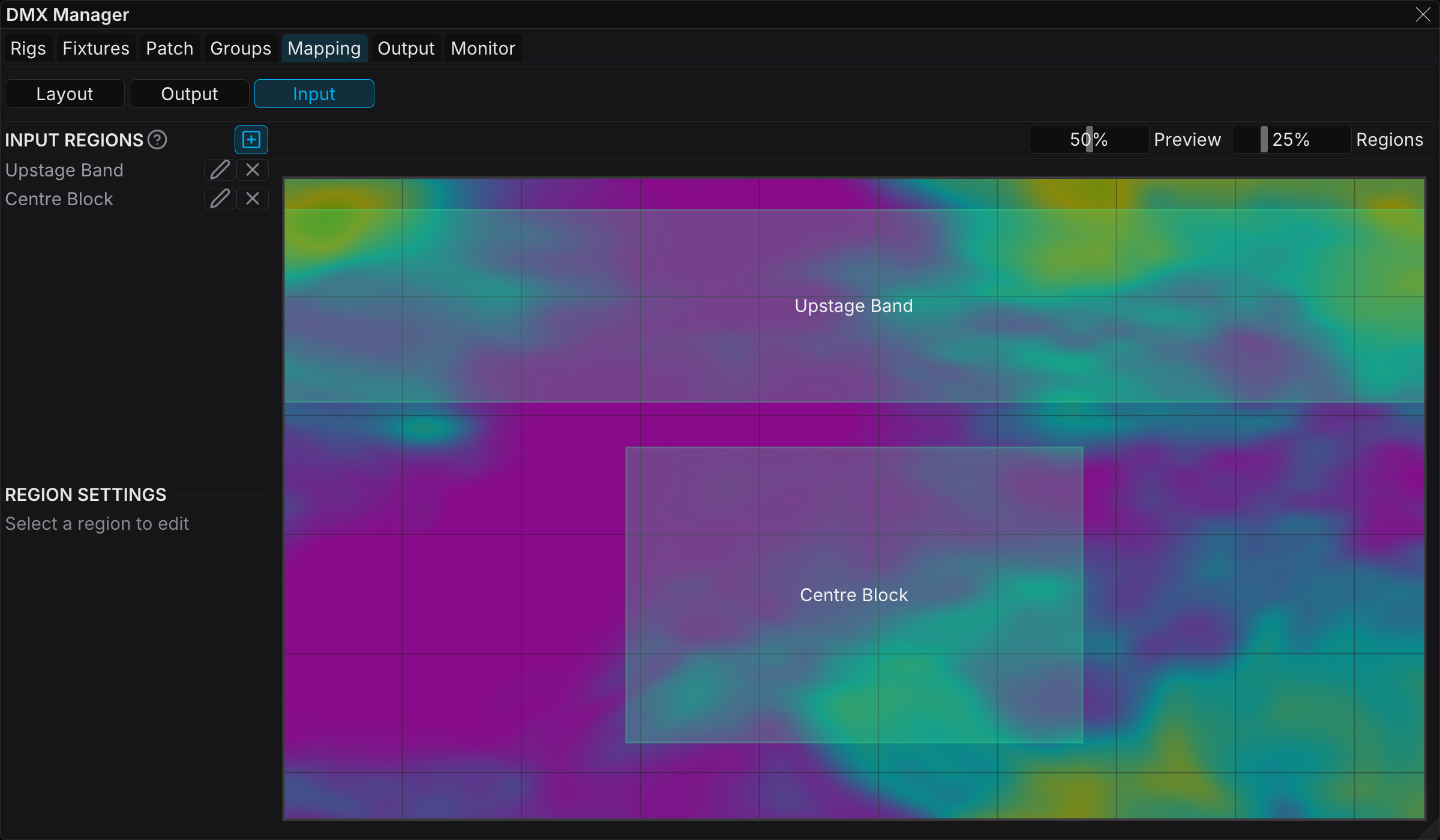
In Input mode you define named rectangular Input Regions on the render canvas. A layer can reference a region and sample only that part of the canvas.
Left column:
- The Input Regions list, with Add and Delete
- Region Settings for the selected region: name, position, and size (all normalized 0-1)
Right side:
- A preview of the render canvas, with region rectangles that you can drag and resize on top of it
Why use regions:
- Split the canvas between different fixture groups. For example, use the left half for the front truss and the right half for the back truss.
- Isolate one visual element, for example a scrolling text region, to drive one fixture group
- Use the same canvas for several different looks
Regions are independent of the maps. Any layer in any map can reference any region.
If the Input Region of a layer is empty, the layer samples the full canvas. Use regions only when you must divide the canvas.
Output
The Output tab controls how FXCanvas transmits the DMX data on the network.
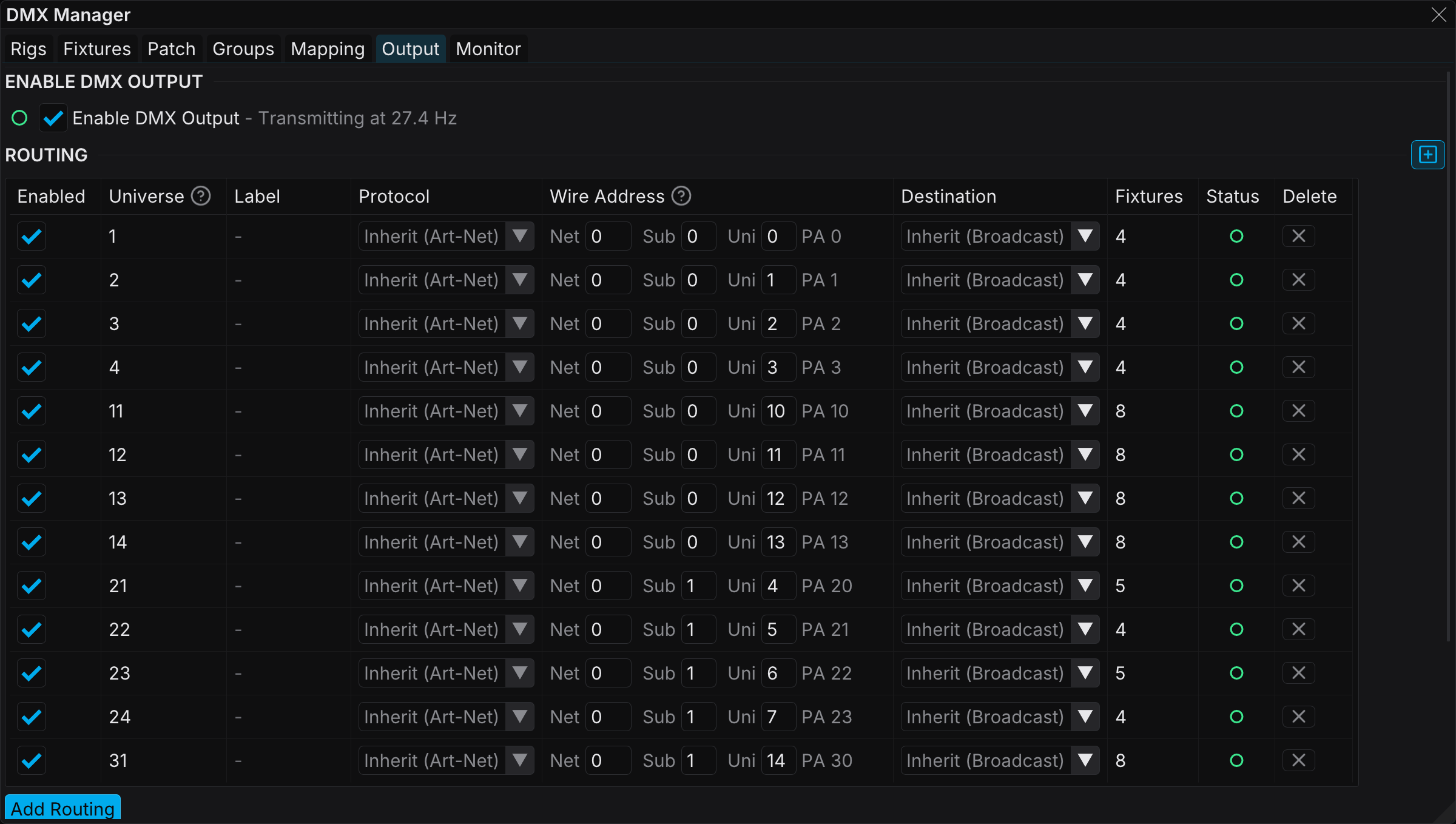
Sections:
| Section | What it controls |
|---|---|
| Enable DMX Output | The master on/off switch, with the live transmit rate and a dropped-packet counter (with a Clear button) |
| Routing | The universe table: the protocol, the wire address, the destination, and the status of each universe |
| Nodes | The named output devices that a universe can target |
| GrandMA3 Input Setup | Ready-to-use values for the Art-Net and sACN Input settings on a grandMA3 |
| Output Settings | The default protocol, the network interface, the sACN priority, and the fixture channel behavior |
Without a license, only the lowest-numbered universe transmits. If you tick the enable box of a second universe, FXCanvas clears it again and gives a notification. You can still patch, arrange, and map a rig of any size. The restriction applies only to the data that leaves the machine. See What requires a license.
Universe routing
The universe list follows your patch automatically. Patch fixtures into a universe, or import an MVR. The row for that universe then appears in the table. You maintain nothing by hand.
Each row is one internal (patch) universe. The row holds five items: an editable label (double-click it to rename it), a Protocol, a Wire Address, a Destination, and one Status dot. The Protocol cell shows Inherit (Art-Net) when the row follows the default protocol. The dot summarizes the whole signal path of the row. Hover over it for the path and for any error. The errors are: disabled, duplicate route, missing IP, node offline, or a protocol mismatch with the target node.
The wire address is the address on the network. For an Art-Net row you type the labeled Net / Sub / Uni fields, which are the same three fields as on your node. The computed Port-Address stands beside them. For an sACN row the wire address is one sACN Uni number:
Port Address = (Net × 256) + (SubNet × 16) + Universe
By default every universe maps 1:1. Patch universe N transmits as Art-Net Port-Address N−1, and the Sub-Net increments every 16 universes. For sACN it transmits as universe N. If the network side needs other numbers, remap the wire address. Your patch stays dense, and the wire matches the console or the nodes.
Below the table:
- Add Routing creates a row for a universe with no patched fixtures. The row transmits zeros until you patch it. The dialog asks for the patch universe number, the same number as on the Patch tab. The dialog then pre-fills the 1:1 wire address, which you can change. Two universes can share a wire address when they target different nodes. The dialog warns about the overlap, but it never blocks it, because only an overlap to the same destination is a real conflict.
- Reset to 1:1 appears only when a row diverges. It returns the wire address of every universe to the 1:1 default. The protocol and destination settings stay.
Destinations
Each universe selects where its data goes:
- Inherit — the group send of the protocol: broadcast for Art-Net, multicast for sACN
- Broadcast / Multicast — the same, but forced
- A node — unicast to a named device. FXCanvas resolves the IP again when it changes.
- Manual IP — unicast to a fixed address
The node list in the Destination dropdown holds only the nodes that speak the protocol of the row.
Nodes
A node is a named output device, for example a pixel controller or a console. A universe can route to a node. The table shows the protocol of each node and its source: ArtPoll for a discovered device, Manual for a device that you entered by hand. The table also shows the IP, the MAC, and the number of universes that target the node.
FXCanvas discovers the Art-Net nodes automatically with ArtPoll, so a node continues to work when DHCP gives it a new IP. The sACN standard has no discovery, so you always add an sACN receiver by hand with Add Node. Give the name, the static IP, and the protocol. The status dots show whether FXCanvas can reach a node. A discovered node turns green a few seconds after its answer, and it goes offline soon after its last answer.
Protocol choice
| Protocol | When to use |
|---|---|
| Art-Net | Most common, works with almost every device, UDP port 6454 |
| sACN (E1.31) | Best for large professional systems, with native support for priorities and multicast |
The Default Protocol in Output Settings applies to every universe without its own protocol in the Routing table. FXCanvas supports a mixed rig. Universes with different protocols transmit at the same time, each on its own standard UDP port (6454 for Art-Net, 5568 for sACN). The standards fix these ports, so you do not have to set them.
GrandMA3 Input Setup
The collapsible GrandMA3 Input Setup section generates ready-to-type values for the In & Out page of the console. The values come from your enabled universes and their wire addresses. The section gives an Art-Net table (Local Uni / Amount / Net / Sub-Net / Universe / Absolute). When a universe transmits sACN, the section gives a matching sACN table too.
Monitor
The Monitor tab shows the live output values on the wire. It opens in Output mode on the Table view. A toggle at the top changes between Output and Input mode.
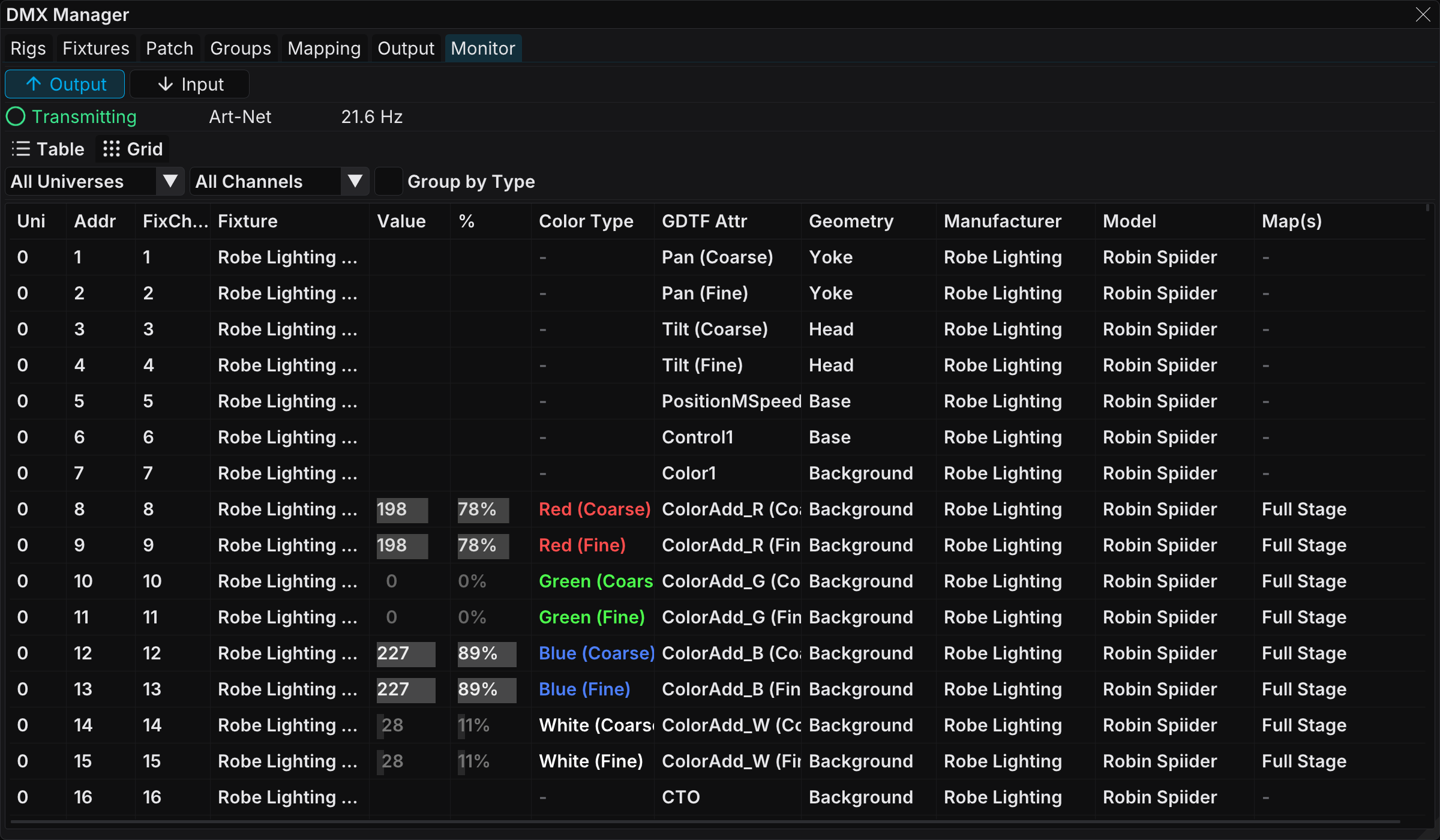
Features:
- A universe selector that offers All Universes and each universe in use
- The Table view, one row for each channel. The Fixture and FixChan columns name the fixture that owns the channel, and Color Type gives its color role
- A channel filter, a Group by Type toggle, and a column menu that hides the columns you do not need
- The Grid view, which draws all 512 channels of one universe as a 32x16 block. The brightness of each cell follows the channel value
- Grid tooltips with the channel number, the value, the percent, and the hex value
Use the Monitor tab to make sure that your maps and layers produce the correct output. Do this before you trust the rig.
Driving Maps from Cues
A cue binds a map by name, so the cue travels with the show and resolves against the rig that is loaded. When a cue fires, its bound map becomes active.
To bind a map to a cue:
- Right-click the cue in the Cues panel and select Edit Cue...
- In the DMX Map section, select a map in the dropdown, or select None to unbind the cue
If the bound map does not exist in the loaded rig, that section turns amber. It offers Create map '<name>', which creates an empty map under that name, so the cue resolves. Add layers to it here on the Mapping tab, which the Go to Maps link opens directly. With no rig loaded, the editor states that instead, because there is nowhere to create the map yet.
The Cues panel reports the same error from the outside. A warning triangle on the row or on the tile reads "Missing DMX map".
Each cue has a DMX Map recall-scope switch. When you disable it, FXCanvas keeps the binding but does not use it. The cue then changes the visuals and leaves the active map alone.
With this binding you can change the whole lighting behavior for each cue, and you never touch the patch or the fixtures.
Troubleshooting
Fixtures do not appear in the Layout viewport
- Make sure that the rig has fixture instances (Patch tab)
- Click Fit All in the viewport toolbar to center the view again
- Look at the group filter. Switch it to "All Fixtures" to exclude it as the cause.
No color reaches the fixtures
- Is a DMX Map active (radio button on the Maps list)?
- Is the layer of the map enabled?
- Is DMX Output enabled on the Output tab?
- Is the fixture patched to a universe that appears in the Output universe list?
- Does the GDTF mode of the fixture have color channels? (Look on the Fixtures tab.)
Art-Net or sACN receiver sees nothing
- Make sure that the Output tab shows Transmitting and a frame rate above zero
- Make sure that the protocol, the wire address, and the network interface match the receiver (the Status dot tooltip of the universe row gives the full signal path)
- For Art-Net, make sure that no firewall blocks UDP port 6454 (5568 for sACN)
- If the broadcast does not arrive, set the Destination of the universe to the receiving node or a Manual IP (unicast)
Wrong fixture gets the wrong color
- Open the Monitor tab and watch the channels live
- Look at the layer order in the map. The first layer that holds a fixture wins, and a later layer cannot overwrite it.
- Make sure that the group of the layer targets the correct fixtures
- With the Per Fixture strategy, look at the per-fixture transform overrides
MVR imported but fixtures look stacked on top of each other
- The MVR can hold a 2D-only layout, which places every fixture at the origin
- Switch to Layout mode. Arrange the fixtures by hand. Save the rig.
Tips and Best Practices
An MVR import does most of the work. It brings the fixture types, the instances, the patch addresses, the positions, and the groups.
Name each rig after its venue or setup, for example MainStage or RehearsalRoom. Rigs live outside the shows, so you can use one rig for several shows.
Good group names make the Mapping tab much easier. Group the fixtures by physical position (front truss, back truss) or by role (pixel tape, wash, moving heads).
Most setups need the full canvas only. When you must divide the canvas among different groups, use input regions.
Open the Monitor tab. Step through your cues with the rig live. A missing patch or a dead universe is much easier to correct in soundcheck than during the first song.
Related Topics
- DMX Input (palette control) — Art-Net control of the FXCanvas palettes from a console
- Shows and Cues — bind maps to cues for per-scene lighting behavior
- Palettes — the color palettes whose colors reach your fixtures
- Outputs — NDI / Spout / Syphon / Display outputs for video