Keyboard Shortcuts
FXCanvas has keyboard shortcuts for live performance and studio work. Many of them use the common patterns of other applications, so they are easy to remember.
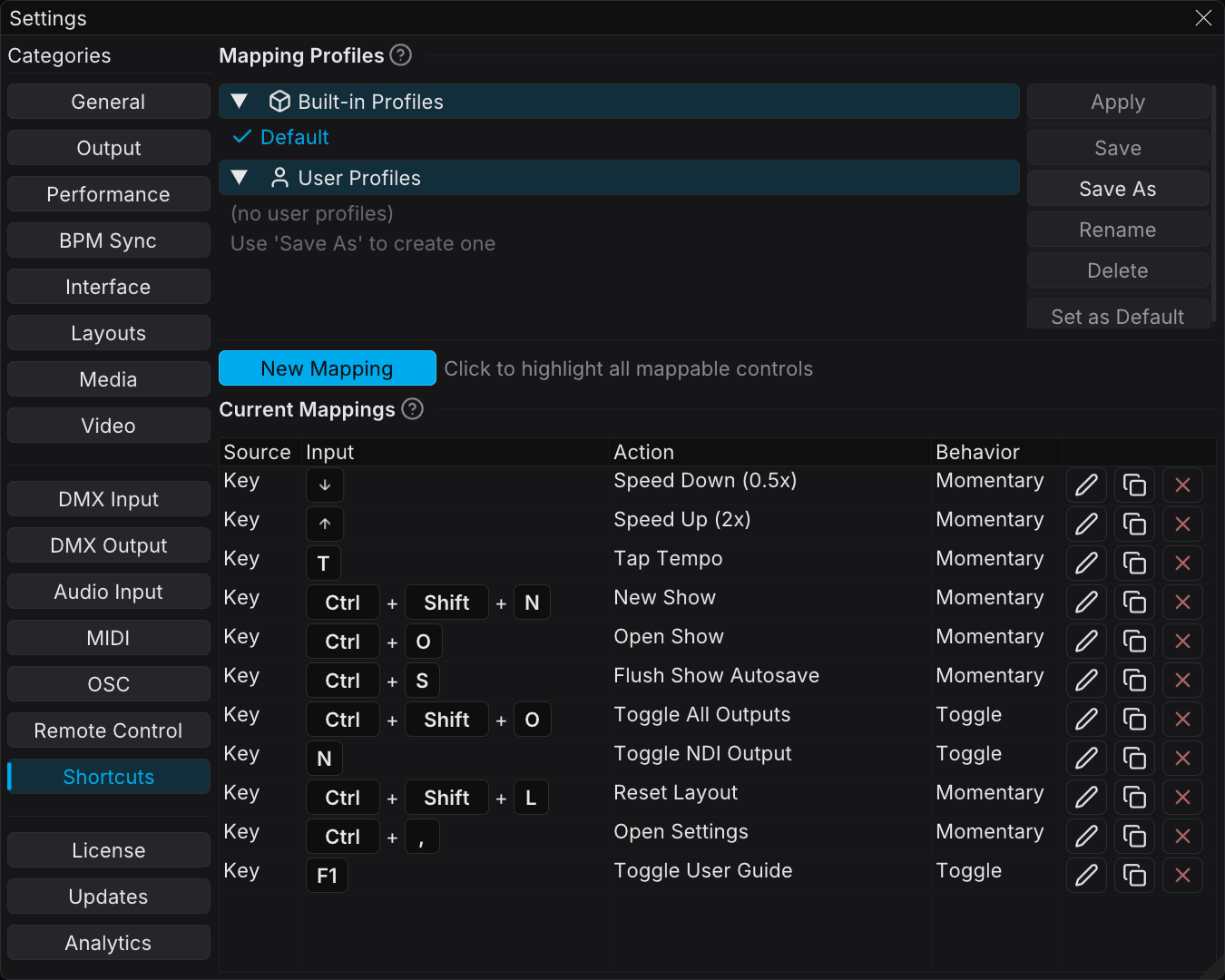
The shortcuts here are the defaults from the built-in Default profile. You can bind any of them again, and you can add your own, in Edit → Settings → Shortcuts. See Customizing Shortcuts below.
File Operations
Use these shortcuts for your shows:
| Shortcut | Description |
|---|---|
| Ctrl+Shift+N | Create a new show |
| Ctrl+O | Open an existing show |
| Ctrl+S | Write the show autosave immediately (Flush Show Autosave) |
| Ctrl+, | Open the Settings window |
Alt+F4 also closes FXCanvas on Windows. It belongs to the window manager, so it is not in the profile and you cannot rebind it here.
Window and View
Control the application interface with these shortcuts:
| Shortcut | Description |
|---|---|
| F1 | Toggle the User Guide window |
| Ctrl+Shift+L | Reset the current layout to the default layout |
BPM and Timing
These shortcuts control the tempo synchronization during a performance:
| Shortcut | Description |
|---|---|
| T | Tap tempo — tap more than one time to set the BPM |
| Up Arrow | Double the speed multiplier — up to 8x |
| Down Arrow | Halve the speed multiplier — down to 0.125x |
The BPM keyboard shortcuts work whenever no text field holds the keyboard input. They do not test the tempo source, so an external source can overwrite the result of a tap.
Output Control
Toggle the output options:
| Shortcut | Description |
|---|---|
| Ctrl+Shift+O | Toggle all outputs globally (NDI, Spout, Display) |
| N | Toggle the NDI output |
Dialog Navigation
The standard dialog shortcuts work in the whole application:
| Shortcut | Description |
|---|---|
| Escape | Close the current dialog window |
| Enter | Submit the current dialog action |
Parameter Adjustments
Use these actions with sliders and parameter controls:
| Action | Description |
|---|---|
| Ctrl+Click | Hold Ctrl and click a slider to enter an exact numeric value |
| Right-Click | Right-click most parameters to open a context menu with reset and preset commands |
Customizing Shortcuts
Keyboard shortcuts use the same Shortcuts settings tab as MIDI control and OSC control. All of them map to the same catalog of actions. To change a keyboard shortcut, or to add one:
- Open Edit → Settings → Shortcuts
- Click New Mapping. FXCanvas highlights every mappable control in the app.
- Click a highlighted control, or select an action from the list
- Press the key or the key combination that you want to use
Your binding appears in the Current Mappings table. The table shows the keyboard rows as key caps, for example Ctrl+Shift+L. Use the row buttons to Edit, Duplicate, or Delete a binding. To capture a different key, click Remap… in the Edit dialog.
Mapping Profiles
The top of the Shortcuts tab manages the profiles. A profile is a saved set of all keyboard, MIDI, OSC, and REST bindings. Apply a profile with Apply, or double-click it in the list. Use Save As for your own profile, and Set as Default for the profile that loads at startup. The built-in Default profile holds the factory shortcuts, and you can always apply it again.
Keyboard, MIDI, OSC, and REST share one action catalog and one set of profiles. The MIDI Mapping page gives the full list of mappable actions, and the behavior and value options.
Tips
Use the mouse less — Learn the keyboard shortcuts for your most common operations. The T key for tap tempo helps most with live music.
Speed multipliers — Use the Up Arrow and Down Arrow to double or halve the animation speed. Use this to build intensity, or for a breakdown.
NDI quick toggle — The N key enables or disables the NDI output at once. Use it for a technical test or a transition.
Keep panels visible — Use the View menu to arrange the panels for your workflow. If you move a panel during a performance, press Ctrl+Shift+L to restore the layout.
Settings quick access — Press Ctrl+, to open the settings for BPM sync, outputs, and layouts.
User Guide reference — Press F1 at any time to open the built-in User Guide.
Combine with mouse — Many workflows are fastest with keyboard shortcuts and the mouse together. For example, press T for tap tempo while the mouse adjusts an effect parameter.