Performance Monitoring
FXCanvas shows live performance meters. You can then find a fault before it appears on stage. The status bar reports the frame rate, the CPU load, and the GPU load. In the Settings → Performance category you can set a target frame rate.
The Status Bar Meters
The status bar holds three live performance read-outs among its other segments. The other segments are the BPM, the video outputs, the DMX state, an audio level meter, and the license key. Enable or disable each segment under View → Status Bar.
FXCanvas refreshes the performance read-outs about one time each second:
| Meter | Shows |
|---|---|
| FPS | The current frame rate against your target |
| CPU | System-wide CPU load |
| GPU | System-wide GPU load |
Frame rate color
The FPS read-out is color-coded against your target frame rate:
| Color | Meaning |
|---|---|
| 🟢 Green | At least 95% of the target. The engine runs smoothly |
| 🟡 Yellow | 80–95% of the target. You can see this, but it is not critical |
| 🔴 Red | Less than 80% of the target. FXCanvas drops frames |
Hover the FPS read-out to see the same status in words. The tooltip also gives the ratio against the target as a percentage.
The CPU and GPU meters are also green at a low load. They become yellow, and then red near 100%.
Hover for detail
Hover over the CPU or GPU meter for a tooltip that splits the load into:
- Total Load — everything that runs on the machine
- FXC Load — the part of that load that belongs to FXCanvas
These two values tell you what uses the machine. If Total is high and FXC is low, another program on the system is the bottleneck. If FXC is high, FXCanvas does the work.
Video decode details
When a video file plays, the GPU tooltip adds decode information:
- Decoder — a short code for the active decoder (NVDEC, D3D11, QSV, AMF, VTB for VideoToolbox, or SW for software), with the full name below it
- Decode FPS — the decoded frames per second against the frame rate of the source, with a status of Keeping up, Slightly behind, or Falling behind
- Dropped Frames — a count in red, when the decoder cannot keep up
If you see the SW decoder or a Falling behind status, that media file is a probable cause of stutter. For the hardware-decoding settings, read Video Playback.
Setting the Target Frame Rate
Open Edit → Settings → Performance and select one of two radio buttons. There are no other targets.
| Option | When to use |
|---|---|
| 30 FPS | A lower CPU and GPU load. This target is smoother on slower systems |
| 60 FPS | Higher quality. Use this target on most systems |
The same page shows a Current Performance read-out. It gives the FPS against the target, and the CPU and GPU percentages. You can then test a change immediately.
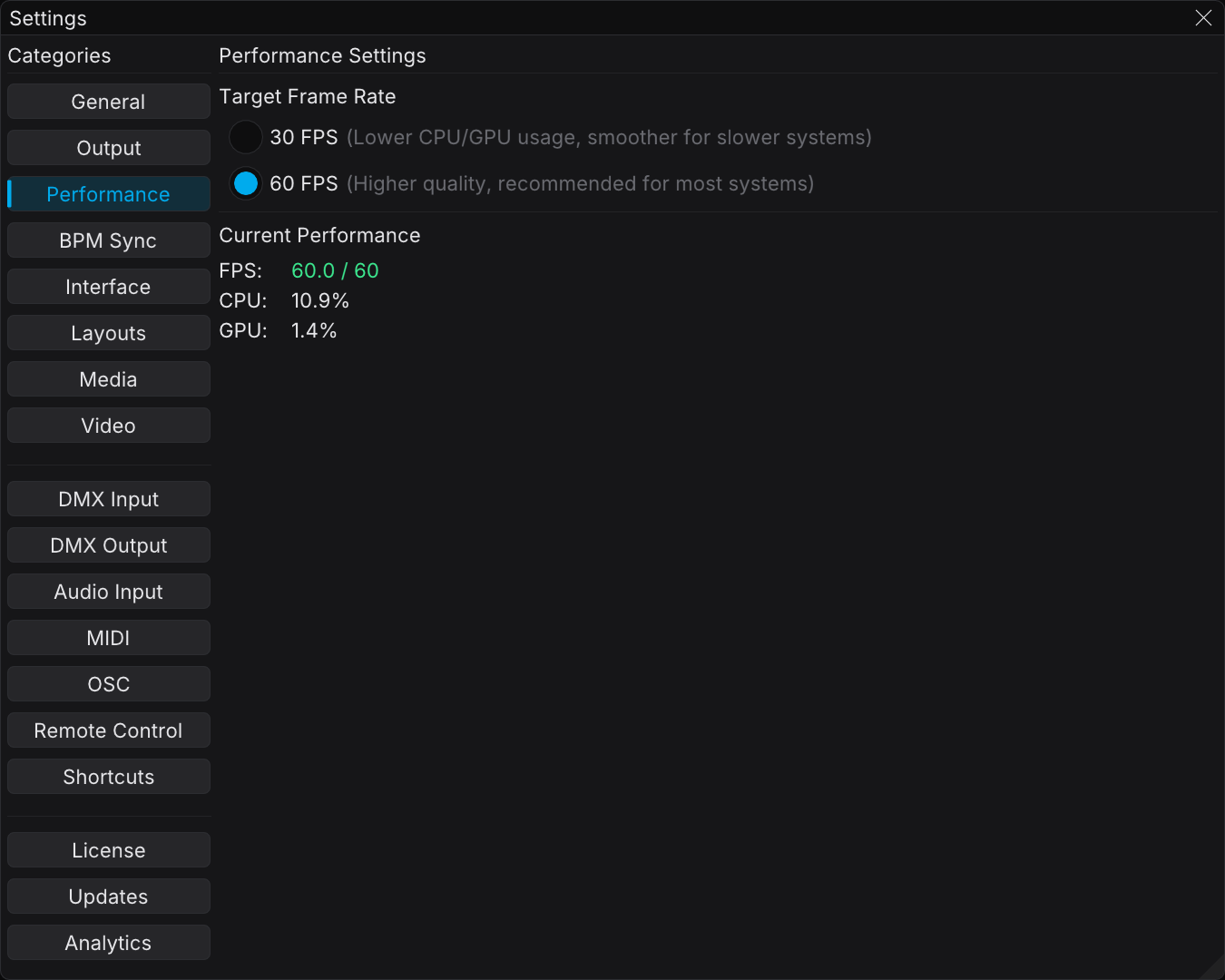
The target frame rate also sets the reference point for the FPS color-coding. At a 60 FPS target, green starts at ~57 FPS. At a 30 FPS target, green starts at ~28.5 FPS.
Diagnosing Frame Drops
If the FPS meter is yellow or red, do the steps in this list:
- Reduce the active effects — each enabled effect adds GPU work. Disable the effects that you do not use
- Lower the render resolution — in Settings → Output. 4K costs much more than 1080p
- Reduce the simultaneous outputs — every NDI/Spout/Syphon/Display output adds encode and readback cost
- Lower heavy effect parameters — for example the Blur quality and radius, or the effects with reflections and shadows
- Look at the decoder — a video on a Software decoder is expensive. Use hardware decoding
- Compare the Total load with the FXC load — if Total is high and FXC is low, close the other applications. Do not make your show simpler
- Drop to a 30 FPS target — if the machine cannot hold 60 FPS, a 30 FPS target is smoother
Run your most demanding cue and watch the meters for one minute. Leave headroom. If the meter is red at the soundcheck, the show does not become easier. Green with spare capacity is the goal.
How FXCanvas Measures It
- FXCanvas samples the metrics about one time each second. It keeps a short rolling history of about 2 seconds.
- On Windows, the CPU and GPU figures come from the system performance counters (PDH). These counters include the per-process (FXC) load. If the counters are not available, the GPU figure uses a frame-time estimate.
- The performance read-outs cover FPS, CPU, and GPU. FXCanvas does not report live memory usage anywhere.
Troubleshooting
FPS is red even on a simple source
- Make sure that the target frame rate is the one that you want (Settings → Performance). A 60 FPS target on a modest GPU can stay yellow
- Hover over CPU or GPU and compare FXC Load with Total. Another application can compete for the GPU
GPU sits near 100%
- Reduce the render resolution and the number of active effects and outputs
- If a video plays, make sure that it uses a hardware decoder and not Software. The GPU tooltip gives this information
A video stutters but FPS looks fine
- Open the GPU tooltip while the video plays. Read Decode FPS and Dropped Frames. The decoder can be the bottleneck, and not the render
Related Topics
- Settings Overview — all the settings tabs at a glance
- Outputs — the output count and the render resolution both affect performance
- Video Playback — hardware decoding for video files
- Effects — the effect count and the effect quality affect the GPU load