OSC API
Control FXCanvas from external applications and hardware controllers with Open Sound Control (OSC) messages. FXCanvas works with TouchOSC, custom control surfaces, show control systems, and any other OSC-capable software.
What is OSC? Pro
Open Sound Control (OSC) is a protocol for networks of sound synthesizers, computers, and multimedia devices. Live performance, installation art, and show control applications use it often.
An OSC message has two parts:
| Component | Description |
|---|---|
| Address | A path-like string, for example /global/dimmer |
| Arguments | Optional values — floats, integers, or strings |
FXCanvas listens for OSC messages on a dedicated port. A message can change the palette, trigger a cue, adjust a global effect, or return data.
OSC control needs an activated license. In the free tier FXCanvas disables the enable checkbox, does not start the listener, and does not send OSC messages. See What requires a license.
Getting Started
Enabling the OSC API
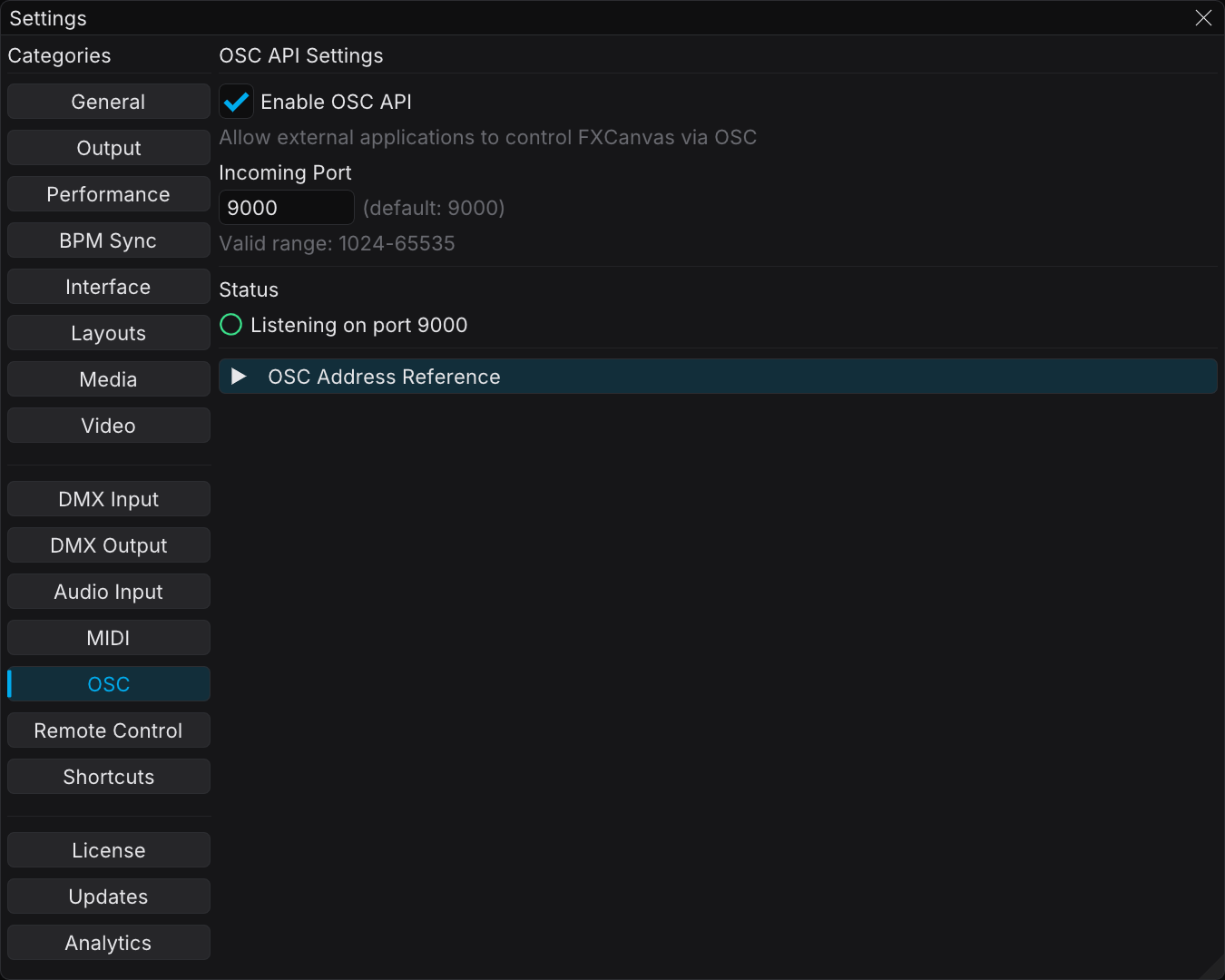
- Open Edit → Settings from the menu bar
- Select the OSC tab in the sidebar
- Select Enable OSC API
- Keep the default port 9000, or enter another port number
- The listener starts as soon as you select the checkbox. If you changed the port, click Apply
When you enable the OSC API, the status indicator shows the current state:
| Status | Description |
|---|---|
| Listening on port 9000 (green circle) | FXCanvas is ready to receive OSC messages |
| Enabled but not running (yellow circle) | The service did not start |
| Disabled (gray circle) | The OSC API is disabled |
Testing Your Connection
Do these steps to make sure that the OSC API works:
- Enable the OSC API in Settings
- Open Tools → Log Viewer
- Select the OSC tab
- Make sure that the API filter is selected
- Send an OSC message from your controller, for example
/palette/next - The message appears in the log with an "API" source badge
If no messages appear, make sure that the firewall permits the traffic. Also make sure that your controller sends to the correct IP address and port.
OSC Address Reference
This section lists the most common addresses. The OSC API Reference gives the complete specification. It covers every address, every OSC argument type, every value range, and the query/reply protocol.
Source Type Selection
Control which source type is active.
| Address | Arguments | Description |
|---|---|---|
/source/<n> (/source/1, /source/2) | — | Select the source by 1-based index |
/source/{type} | — | Select the source by type name, for example /source/plasma |
/source/index | int (1–N) | Select the source by index argument |
/source/next | float/int (optional) | Go to the next source type |
/source/previous | float/int (optional) | Go to the previous source type |
/source/list | — | Query the available source types. FXCanvas returns an OSC reply. |
Examples:
/source/1               → Selects first source type
/source/plasma          → Selects "Plasma" source
/source/warp_speed      → Selects "Warp Speed" source
/source/index 3         → Selects third source via argument
/source/next            → Advances to the next source type
/source/previous        → Goes back to the previous source type
Source Preset Selection
Load a saved source preset. A preset holds the source type and the parameter values.
| Address | Arguments | Description |
|---|---|---|
/source/preset/<n> (/source/preset/1, /source/preset/2) | — | Select the preset by 1-based index |
/source/preset/{name} | — | Select the preset by name (underscores → spaces) |
/source/preset/index | int (1–N) | Select the preset by index argument |
/source/preset/list | — | Query the available presets. FXCanvas returns an OSC reply. |
Examples:
/source/preset/1                → Selects first source preset
/source/preset/ocean_waves      → Selects "Ocean Waves" preset
/source/preset/index 5          → Selects fifth preset via argument
Source presets work well in automation scripts. One command loads the source type and all parameter values.
Palette Selection
Control which color palette is active.
| Address | Arguments | Description |
|---|---|---|
/palette/<n> (/palette/1, /palette/2) | — | Select the palette by 1-based index |
/palette/{name} | — | Select the palette by name (underscores or hyphens → spaces) |
/palette/index | int (1–N) | Select the palette by index argument |
/palette/next | float/int (optional) | Go to the next palette |
/palette/previous | float/int (optional) | Go to the previous palette |
/palette/list | — | Query the available palettes. FXCanvas returns an OSC reply. |
Examples:
/palette/1               → Selects first palette
/palette/2               → Selects second palette
/palette/ocean           → Selects "Ocean" palette
/palette/deep_space      → Selects "Deep Space" palette
/palette/purple-haze     → Selects "Purple Haze" palette
/palette/index 3         → Selects third palette via argument
/palette/next            → Advances to the next palette
/palette/previous        → Goes back to the previous palette
Palette indexes are 1-based. Index 1 selects the first palette. To select by name, replace the spaces with underscores or hyphens. FXCanvas matches the names without regard to case.
Cue Selection
Control which cue is active. You can trigger a cue by index, by name, or by cue number.
| Address | Arguments | Description |
|---|---|---|
/cue/<n> (/cue/1, /cue/2) | — | Trigger the cue by 1-based index |
/cue/{name} | — | Trigger the cue by name (underscores or hyphens → spaces) |
/cue/number | float | Trigger the cue by cue number, for example 1.5 |
/cue/index | int (1–N) | Trigger the cue by index argument |
/cue/next | float/int (optional) | Recall the next cue in cue-number order (no wrap) |
/cue/previous | float/int (optional) | Recall the previous cue in cue-number order (no wrap) |
/cue/go | float/int (optional) | Trigger the current cue again |
/cue/list | — | Query the available cues. FXCanvas returns an OSC reply. |
Examples:
/cue/1               → Triggers first cue
/cue/intro_scene     → Triggers "Intro Scene" cue
/cue/number 1.5      → Triggers cue with cue number 1.5
/cue/index 2         → Triggers cue at index 2
/cue/next            → Advances to the next cue
/cue/go              → Re-triggers the current cue
Cue indexes are 1-based. The /cue/next and /cue/previous addresses accept an optional float or int argument. They trigger when the value is more than 0.5, or when the message carries no argument. This behavior helps with button controls that send a press event and a release event.
Global Controls
Adjust the master output effects. These effects apply to the whole composition.
| Address | Arguments | Range | Description |
|---|---|---|---|
/global/dimmer | float | 0.0–1.0 | Master brightness (0 = black, 1 = full) |
/global/hue | float | -1.0 to 1.0 | Hue shift (color wheel rotation) |
/global/saturation | float | 0.0–2.0 | Color saturation (1.0 = normal) |
/global/blackout | int | 0 or 1 | Instant blackout toggle |
/global/reset/canvas | — | — | Reset the canvas controls (dimmer, hue, sat, mirror, blackout) |
/global/reset/source | — | — | Reset the source globals (direction, speed) |
Examples:
/global/dimmer 0.5       → Sets master brightness to 50%
/global/hue 0.5          → Shift hue 50% around the color wheel
/global/saturation 0.0   → Fully desaturated (grayscale)
/global/blackout 1       → Turn on blackout
/global/reset/canvas     → Reset dimmer, hue, saturation, mirrors, and blackout
/global/reset/source     → Reset direction and speed overrides
Mirror Controls
Control the horizontal and vertical mirror effects.
| Address | Arguments | Description |
|---|---|---|
/global/mirror/x | int (0 or 1) | Horizontal mirror (0 = off, 1 = on) |
/global/mirror/y | int (0 or 1) | Vertical mirror (0 = off, 1 = on) |
/global/mirror/both | int (0 or 1) | Toggle both mirrors at the same time |
List Endpoints
Query the available sources, presets, palettes, and cues. These endpoints return OSC reply messages to the sender.
| Address | Response | Description |
|---|---|---|
/source/list | Multiple OSC messages | Returns the count and then the source types |
/source/preset/list | Multiple OSC messages | Returns the count and then the preset details |
/palette/list | Multiple OSC messages | Returns the count and then the item details |
/cue/list | Multiple OSC messages | Returns the count and then the item details |
Source List Response:
/source/list/count 20
/source/list/item 1 "Plasma"
/source/list/item 2 "Drift"
/source/list/item 3 "Blobs"
...
Source Preset List Response:
/source/preset/list/count 15
/source/preset/list/item 1 "Ocean Waves" "plasma"
/source/preset/list/item 2 "Fire Storm" "explosion"
...
Palette List Response:
/palette/list/count 5
/palette/list/item 1 "Ocean Blues"
/palette/list/item 2 "Sunset Fire"
/palette/list/item 3 "Aurora"
...
Cue List Response:
/cue/list/count 8
/cue/list/item 1 1.0 "Intro Scene"
/cue/list/item 2 1.5 "Build"
/cue/list/item 3 2.0 "Chorus"
...
Make sure that your controller receives on the reply port (the listening port plus 1). FXCanvas sends the list responses to the IP address of the sender. If FXCanvas listens on port 9000, the replies go to port 9001.
Settings Configuration
OSC Settings Tab
Open the OSC settings from Edit → Settings → OSC tab.
| Setting | Description |
|---|---|
| Enable OSC API | Enables or disables the OSC listener |
| Incoming Port | UDP port FXCanvas listens on (default: 9000, range: 1024–65535) |
| Status | Shows the current service state with a colored indicator |
| OSC Address Reference | A collapsible list of the available addresses |
The Copy All Addresses button (copy icon) copies a formatted list of all OSC addresses to the clipboard. When you configure your controller, use this list.
Changing the Port
- Enter the new port number in the Incoming Port field
- Click Apply
- Change your OSC controller to send to the new port
A port change restarts the OSC service. FXCanvas shows the warning message "Port change requires restart" with a warning icon.
Common port numbers:
| Port | Usage |
|---|---|
9000 | Default port. TouchOSC uses it often. |
8000 | Alternative if another application uses 9000 |
Firewall Configuration
If OSC messages do not reach FXCanvas, do these steps:
- Open the Windows Firewall settings
- Permit FXCanvas (or
FXCanvas.exe) through the firewall - Make sure that the firewall permits UDP traffic on your port
- If you use a network controller, make sure that both devices are on the same network
Example Use Cases
TouchOSC Integration
TouchOSC is an iOS and Android app for custom OSC control surfaces.
To configure TouchOSC:
- Enable the OSC API in FXCanvas Settings, on port 9000
- In TouchOSC, set the Host to the IP address of your computer
- Set the Port (outgoing) to 9000
- If you use the list endpoints, set Port (incoming) to 9001
- Create buttons or faders that map to FXCanvas addresses
Example TouchOSC Layout:
| Control | OSC Address | Range | Purpose |
|---|---|---|---|
| Button | /palette/next | — | Tap to select the next palette |
| Fader | /global/dimmer | 0–1 | Slide for brightness |
| XY Pad X | /global/hue | -1 to 1 | Horizontal for hue shift |
| XY Pad Y | /global/saturation | 0–2 | Vertical for saturation |
| Toggle | /global/blackout | 0/1 | Quick blackout control |
The OSC API Reference shows advanced TouchOSC layouts. These layouts use Lua scripts to query the palette and cue lists and show them on the surface.
Troubleshooting
Messages Not Being Received
Look in the Log Viewer:
- Open Tools → Log Viewer
- Select the OSC tab
- Make sure that the API checkbox is selected
- Look for incoming messages
If no messages appear:
- Make sure that the OSC API is enabled in Settings
- Make sure that the port number matches your controller
- Look at the firewall settings
- Make sure that the controller sends to the correct IP address
Wrong Parameter Values
| Parameter | Correct Range | Common Mistake |
|---|---|---|
| Dimmer | 0.0–1.0 | Sends 0–100 or 0–255 |
| Hue | -1.0 to 1.0 | Sends 0–360 |
| Saturation | 0.0–2.0 | Sends 0–100 |
| Toggles | 0 or 1 | Sends true/false strings |
Send floats as the float type, not as strings. Send integers as the int32 type.
Palette or Cue Not Found
If you cannot select an item by name:
- Replace spaces with underscores: "Deep Space" →
/palette/deep_space - Hyphens also work: "Purple Haze" →
/palette/purple-haze - Make sure that the spelling is correct (FXCanvas ignores case)
- Make sure that the item exists in your palette list or cue list
- Use the numeric index instead:
/palette/1,/cue/1
Port Already in Use
If a port conflict occurs, or the service does not start:
- Make sure that no other application holds the port
- Change to a different port in Settings (try 8000 or 7700)
- Or close the other application
Common conflicts: TouchOSC editor, other OSC applications, VPN software
Distinguishing OSC Sources in Logs
FXCanvas receives OSC messages from two sources:
| Source | Description |
|---|---|
| Pioneer | Messages from the built-in Pioneer DJ tempo sync bridge |
| API | Messages from external controllers through the OSC API |
The OSC tab of the Log Viewer has a checkbox for each source:
- Pioneer — Show or hide the messages from the Pioneer DJ bridge
- API — Show or hide the messages from the OSC API
This separation helps you debug your controller. You can hide the continuous tempo sync traffic while you work.
Related Topics
- Sources — The source types that you can control with OSC
- Palettes — The color palettes that you can control with OSC
- Shows and Cues — The cues that you can trigger with OSC
- BPM Sync — The Pioneer DJ tempo system, which also uses OSC internally
- Log Viewer — Watch the OSC message traffic