Audio Input
Make your visuals react to music in real time. FXCanvas captures audio from a microphone or from the system audio (loopback). FXCanvas then analyzes the spectrum and sends the frequency data to your effects. The visuals pulse, shift, and flow with the music.
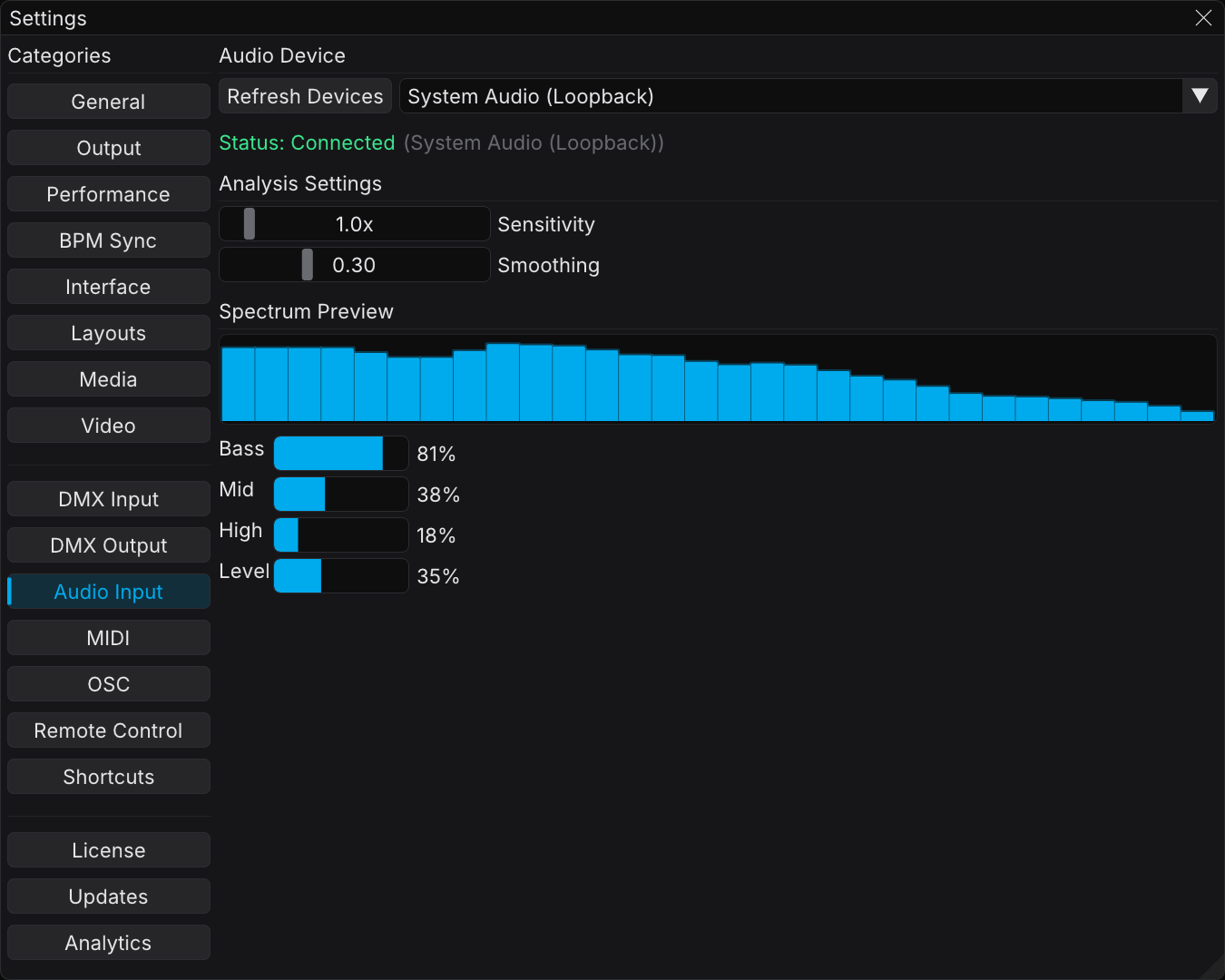
What is Audio Input?
Audio Input captures sound from your system and analyzes it in real time. The analysis uses an FFT (Fast Fourier Transform) to extract the data for each frequency band. This data can then drive visual parameters. Effects answer bass hits, vocal frequencies, or the overall energy level.
Key capabilities:
- Microphone capture — Use any connected microphone or audio interface
- System loopback — Capture the audio that plays on your computer. Cables are not necessary.
- 64-band spectrum analysis — Detailed frequency data from sub-bass to high frequencies
- Aggregate levels — Bass, Mid, High, and Overall levels, ready to map
- BPM detection — Automatic tempo detection from audio for beat-synced effects
- Audio-reactive parameter mapping — Drive any source parameter from the audio data
Getting Started
Opening Audio Settings
- Open Edit → Settings from the menu bar
- Select the Audio Input category in the sidebar
Selecting a Device
The device dropdown groups every audio input on your system under two headings:
| Group | Description |
|---|---|
| System Audio | System audio capture, which is the sound that you hear through the speakers |
| Microphones | USB microphones, built-in microphones, and audio interface inputs |
The dropdown also offers None (Disconnected). Select it to stop the capture.
Loopback is the fastest way to make visuals react to music. It captures the audio that plays on your computer, with no cables and no routing. Some products call it "what you hear" capture, because it records the same signal that goes to your speakers or headphones.
Using the Loopback Feature ("What You Hear")
Loopback captures the audio that your system plays, for example music from Spotify, a DJ application, or a browser. A virtual audio cable and a hardware loopback are not necessary.
On Windows
Windows gives each playback (render) device a matching loopback capture. FXCanvas lists these captures together with the normal microphones.
- Play audio through your normal speakers or headphones
- Open Edit → Settings → Audio Input
- In the device dropdown, look for names that end with (Loopback). These are usually your default speakers or headphones.
- Select the loopback device of the output that you listen through
- Make sure that the spectrum preview reacts to the audio
Each output has its own loopback. If the music plays through the headphones and you select the loopback of the speakers, you get silence. The correct device is the loopback of the output that produces sound now.
Windows includes loopback in the operating system, so extra drivers and virtual cables are not necessary. The audio continues through your speakers while FXCanvas captures it.
On macOS
On macOS 14.2 and later, FXCanvas captures the system output directly with the Core Audio process-tap API of Apple. A virtual audio driver, a Multi-Output Device, and output rerouting are not necessary.
- Play audio from any application
- Open Edit → Settings → Audio Input
- Select System Audio (Native) in the Audio Device dropdown
- In System Audio Source, select one of these:
- All System Audio to capture the complete system mix
- An application to capture only the output of that application
- Grant the macOS System Audio Recording permission at the prompt
The audio continues through the selected speakers or headphones while FXCanvas analyzes it. FXCanvas keeps its own process out of the All System Audio capture.
The application dropdown holds the processes that are connected to Core Audio now. If an application does not appear, start it and play audio. Then click Refresh Devices. Connected applications that produce no audio carry the mark Not Playing.
FXCanvas still supports BlackHole, Soundflower, and Rogue Amoeba Loopback as normal input devices. They are optional on macOS 14.2 and later. They are still useful for complex routing, and on older macOS versions without native process taps.
Adjusting Settings
After you select a device, set the analysis values:
| Setting | Range | Default | Description |
|---|---|---|---|
| Sensitivity | 0.1 – 10.0 | 1.0 | Gain multiplier for the spectrum. Increase it for quiet sources and decrease it for loud ones. |
| Smoothing | 0.00 – 0.95 | 0.30 | How much FXCanvas smooths the spectrum over time. A high value gives more stable visuals and a slower response. |
Monitoring the Spectrum
The page shows the spectrum in real time:
- Spectrum bars — 64 frequency bands, drawn as vertical bars
- Level meters — The Bass, Mid, High, and Overall levels
- Connection status — Shows whether FXCanvas receives audio
The spectrum preview and the level meters appear only while the status is Connected. Without a device, the page shows the status and the device controls alone.
Connection Status
A status indicator shows the state of the audio capture:
| Status | Color | Meaning |
|---|---|---|
| Connected | Green | FXCanvas receives and analyzes audio data |
| Connecting | Yellow | FXCanvas tries to connect to the selected device |
| Disconnected | Gray | No device is selected, or audio input is disabled |
| Error | Red | The device is not available, or the capture failed |
Using Audio-Reactive Effects
Audio data drives the visuals through the modulation system. Every numeric parameter on a source or an effect can follow an audio band instead of a fixed value.
Audio-Reactive Parameter Mapping
- Open the Source Parameters panel
- Click the modulation button in the gutter to the left of the parameter that you want to drive
- In the popover, select Audio in the mode row
- Select the frequency Band that the parameter follows:
| Band | Description | Best For |
|---|---|---|
| Bass | Low frequencies (0–2750 Hz) | Kick drums, bass drops, heavy beats |
| Mid | Mid frequencies (2750–13800 Hz) | Vocals, guitars, synths |
| High | High frequencies (13800–22050 Hz) | Hi-hats, cymbals, sparkle |
| Level | The overall audio energy | General reaction to any sound |
- Set the Range that the parameter can travel. Then tune Gain, Rise, and Fall
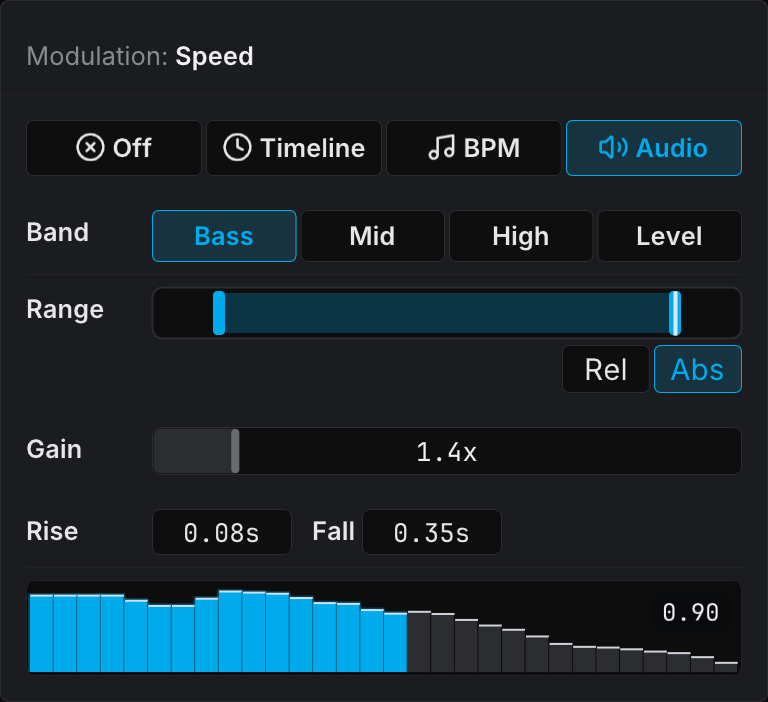
The live spectrum at the bottom of the popover highlights the bins of the selected band and shows the output value. Use it to make sure that the parameter follows the part of the mix that you want.
How It Works
When a parameter follows audio, these rules apply:
- FXCanvas multiplies the band level (0–1) by Gain, then clamps the result
- Range decides what that 0–1 value maps onto. In Abs mode the modulation owns the parameter and sweeps between the two range handles. In Rel mode the band rides above and below the value that you set by hand.
- Rise and Fall smooth the follower asymmetrically. A short Rise snaps to transients. A longer Fall gives a natural decay after the hit.
- FXCanvas draws the live output into the parameter row, so you can watch the value move without the popover
The Timeline and BPM modes share these controls. For the full modulation model, see Modulation.
Example Setups
Bass-Reactive Pulse:
- Source: Pulse
- Map Speed → Audio Reactive (Bass)
- Result: the pulse rings expand faster on kick drums
Mid-Reactive Color Shift:
- Source: any palette-based source
- Map Softness → Audio Reactive (Mid)
- Result: the colors sharpen and soften with vocal and melodic content
Overall Energy Intensity:
- Source: Plasma
- Map Speed → Audio Reactive (Level)
- Result: the pattern moves faster with more overall audio energy
BPM Detection
Audio Input includes automatic BPM detection. The detected tempo can feed the BPM Sync system.
Audio joins Internal, Ableton Link, Pioneer DJ, and MIDI Clock as a tempo source.
Enabling BPM Detection
BPM detection is available when the audio input is connected. To use it, click the Audio chip in the Source row of the Tempo section. The detected tempo then appears on the Tempo row, and the Status row reports the confidence of the lock.
Audio BPM detection works best with music that has a clear and constant beat. Complex or ambient music can give unreliable results. Ableton Link and MIDI Clock are better sources for critical timing.
Holding the Tempo Through a Quiet Passage
A quiet intro, a breakdown or a talk-over has no clear beat. The detector cannot find one, so the tempo drifts at the moment the room is quiet enough to notice.
Click the pause button to the right of the Status row. FXCanvas holds the current tempo and stops following the audio. The Status row reads "Analysis paused, holding tempo" and the button turns blue. Click it again to follow the audio again.
The beat keeps running while paused. Only the tempo re-estimation stops, so your visuals stay in time.
The pause does not stop the audio analysis itself. The spectrum keeps updating, and audio-reactive parameters keep responding. Use it when the tempo must hold but the visuals must still react.
Map this to a controller button. The action is Pause Audio Analysis, in the BPM category. See MIDI Mapping.
Troubleshooting
No Devices Shown
- macOS: Grant microphone permission in System Settings → Privacy & Security → Microphone
- Click Refresh Devices to scan the devices again
- Make sure that the device is connected, and that no other application holds it exclusively
Connected But No Spectrum Activity
- Make sure that audio plays. Start some music.
- If the source is quiet, increase Sensitivity
- For loopback, make sure that the system audio output is not muted
- Make sure that the correct device is selected. Some systems have several loopback options.
Spectrum Is Noisy or Jittery
- For more stable visuals, increase Smoothing to a value between 0.5 and 0.7
- If the signal clips, decrease Sensitivity
- Some background noise is normal with a microphone. Loopback is cleaner.
Audio-Reactive Parameters Not Responding
- Make sure that the audio input is connected. The status is in Settings → Audio Input.
- Make sure that the modulation mode of the parameter is Audio, and not Timeline or BPM
- Make sure that the selected band (Bass, Mid, High, or Level) matches your content
- If the response is too small, increase the Gain or widen the Range
- If the parameter snaps back before you see it move, lengthen Fall
Tips and Best Practices
- Loopback is best for DJ sets, music playback, and any setup where the audio comes from the computer
- Microphone is best for live music, ambient sound installations, and audio from external speakers
- Low smoothing (0.1–0.2) reacts very fast. Use it for percussive music with clear transients.
- Medium smoothing (0.3–0.5) is a good balance for most music.
- High smoothing (0.6–0.8) gives a smooth and flowing response. Use it for ambient or atmospheric effects.
Audio reactivity and BPM sync work well together:
- Use BPM modulation for rhythmic, beat-locked effects such as strobes and color changes on the beat
- Use Audio modulation for energy-driven effects such as intensity, speed, and size that follow the volume
- Together they give visuals that are rhythmically precise and dynamically responsive
Related Topics
- Modulation — The full per-parameter modulation system, including Timeline and BPM modes
- BPM Sync — Tempo synchronization for beat-locked effects
- Sources — Visual patterns that audio can drive
- Video Playback — Use audio levels to modulate the video playback speed
- Effects — Post-processing effects with audio-reactive parameters
- MIDI Clock — Alternative tempo source from MIDI devices