MIDI Clock
MIDI Clock keeps your visuals locked to the beat. FXCanvas can take the tempo from a DJ mixer, a drum machine, or a DAW. You do not have to enter the BPM by hand.
What is MIDI Clock?
MIDI Clock is a timing signal at 24 pulses per quarter note. Music hardware and software send this signal, for example DAWs, drum machines, and DJ mixers. FXCanvas can receive the signal and sync visual effects to the tempo of the music. Tap tempo and manual BPM entry are not necessary.
Key capabilities:
| Feature | Description |
|---|---|
| MIDI Clock sync | Take the tempo from any MIDI clock source |
| Transport tracking | Follow the Start, Stop, and Continue messages |
| Beat phase | Track the position in the bar for beat-aligned effects |
| Separate devices | Use one MIDI device for clock and another for control |
Getting Started
Opening MIDI Settings
- Open Edit → Settings from the menu bar
- Select the MIDI category in the sidebar
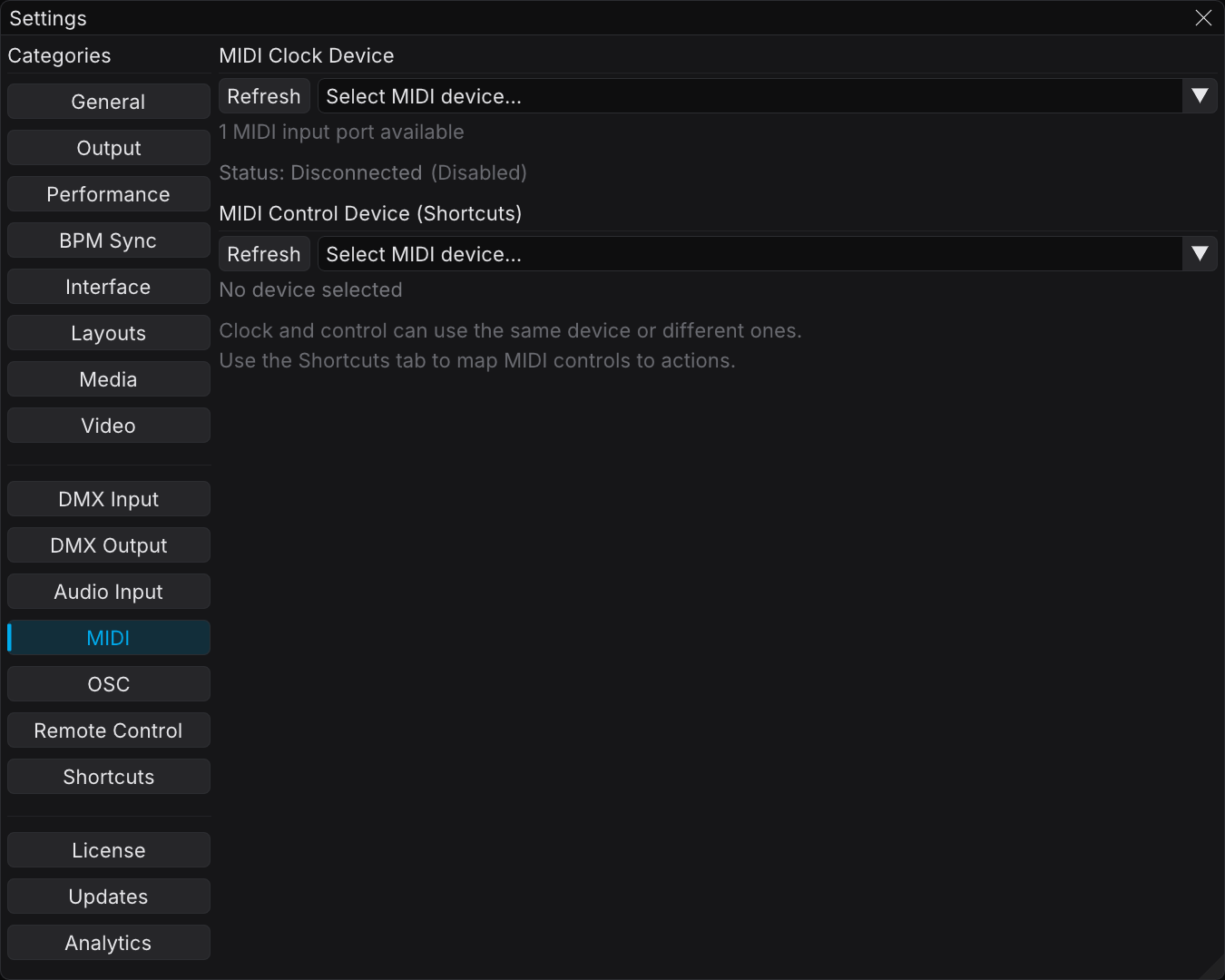
The MIDI page holds two device selectors. MIDI Clock Device sets the tempo source. MIDI Control Device (Shortcuts) sets the controller for mappings. One device can do both jobs.
Selecting a Clock Device
The MIDI Clock Device section lists the available MIDI input ports.
- Click the device dropdown to see the available MIDI inputs
- Select the device that sends MIDI clock, for example your DJ mixer, DAW, or drum machine
- Make sure that the connection status reports incoming clock
If your device does not appear, make sure that it is connected and has power. Then click Refresh to scan the MIDI ports again.
Using MIDI Clock as Tempo Source
After you select a clock device, do these steps:
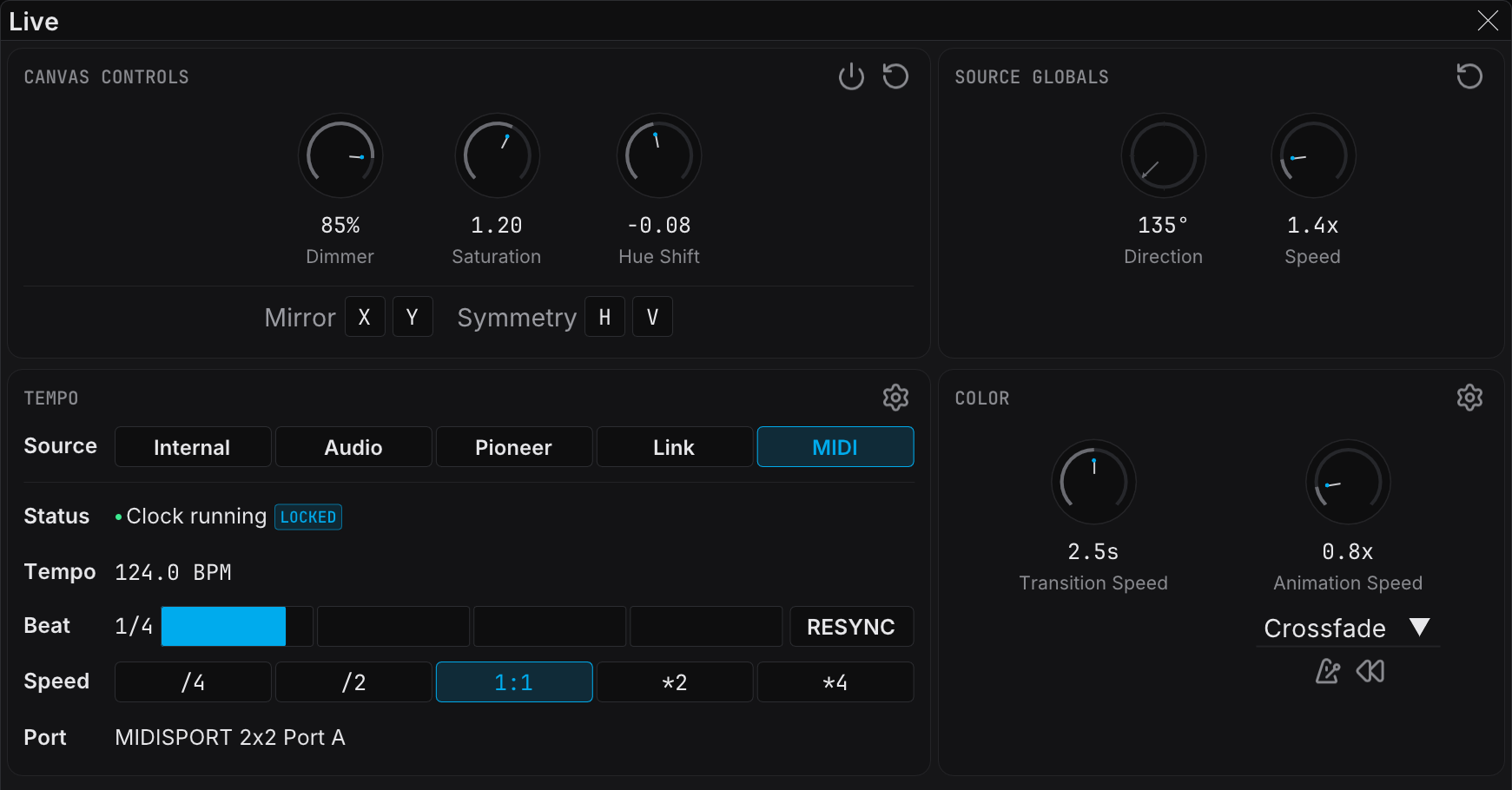
- Open the Live panel and find the Tempo section
- Click the MIDI chip in the Source row
- Make sure that your visuals follow the external MIDI clock
The Tempo row shows the tempo that FXCanvas calculates from the incoming MIDI clock messages. A Port row names the connected port, and reads -- when no port is set. The gear menu of the section holds MIDI clock settings..., which opens the MIDI page.
Connection Status
The MIDI page reports one of four states.
| Status | Meaning |
|---|---|
| Receiving Clock | FXCanvas receives MIDI clock messages and the tempo is locked |
| Waiting for clock... | The port is open, and no clock messages arrive |
| Error | The port failed to open |
| Disconnected | No device is selected, or the device is not available |
While the status is Receiving Clock, a [Playing] or [Stopped] badge follows it and reports the transport state. A Tempo block then appears with the BPM read-out, a beat bar, and a four-dot metronome.
Transport Messages
FXCanvas answers these MIDI transport messages:
| Message | Behavior |
|---|---|
| Start | Resets the beat phase to the downbeat |
| Stop | Stops phase tracking and holds the current position |
| Continue | Continues phase tracking from the current position |
When the external source starts playback, your visuals start on the downbeat.
How MIDI Clock Differs from Other Sources
| Feature | Internal | Ableton Link | Pioneer DJ | MIDI Clock |
|---|---|---|---|---|
| Set tempo from FXCanvas | ✅ | ✅ (bidirectional) | ❌ | ❌ |
| Automatic discovery | N/A | ✅ | ✅ | ❌ (manual port selection) |
| Phase sync | ✅ | ✅ | ✅ | ✅ (with the Start message) |
| Works without network | ✅ | ❌ | ❌ | ✅ |
| Hardware compatibility | N/A | Limited | Pioneer only | Universal |
MIDI Clock is receive-only. FXCanvas follows the external clock. FXCanvas cannot change the tempo of the device that sends the clock.
Troubleshooting
No MIDI Devices Shown
- Connect your MIDI device with USB or with a MIDI interface
- Make sure that no other application holds exclusive access to the MIDI port
- On Windows, make sure that the device appears in Device Manager under "Sound, video and game controllers"
- On macOS, open the Audio MIDI Setup utility and look for the device
- Click the refresh button to scan the ports again
Clock Connected But No Tempo
- Make sure that the sending device transmits MIDI clock. Many devices do not send clock by default.
- Enable MIDI clock output in your DAW or mixer. Many devices do not enable this setting automatically.
- Some devices send clock only during playback. Press Play on the source.
Tempo Is Unstable or Jittery
- MIDI clock resolution is 24 ppqn. Some jitter is normal at a very low or a very high tempo.
- USB MIDI can add timing jitter. A dedicated MIDI interface can improve stability.
- If you use a DAW, keep its CPU load low. A high CPU load causes clock jitter.
Tips and Best Practices
Most DJ mixers can send MIDI clock from their own BPM analysis, for example Pioneer DJM and Allen & Heath models. Enable MIDI clock output in the settings of the mixer. Then connect the mixer with USB. This gives stable tempo sync without Pioneer DJ Link.
When you use a DAW such as Ableton, Logic, or FL Studio:
- Enable MIDI clock output in the MIDI preferences of the DAW
- Route the clock to the port that FXCanvas listens on
- If your DAW supports Ableton Link, use Link instead. Link gives lower latency and phase sync.
- Test the MIDI connections before the show
- Keep a fallback plan. Internal tempo with tap tempo works when MIDI fails.
- Watch the Beat row in the Tempo section of the Live panel to make sure that the tempo tracks correctly
- MIDI Clock works without a network. This helps in venues with restricted networking.
Related Topics
- BPM Sync — All tempo sources, including MIDI Clock
- Audio Input — Audio-reactive effects and BPM detection from audio
- MIDI Mapping — Map MIDI controllers to FXCanvas actions