MIDI Mapping
Control FXCanvas from a physical MIDI controller. Use MIDI Learn to map knobs, faders, buttons, and pads to almost any action in the app. You can trigger cues, select sources, and control the global dimmer and the effect parameters. Your controller can also get LED feedback.
What is MIDI Mapping?
With MIDI Mapping you can drive FXCanvas in real time from a controller such as the Novation Launchpad, the Akai APC40, or the Korg nanoKONTROL. You bind incoming Note On/Off, Control Change (CC), and Program Change messages to FXCanvas actions. FXCanvas can also send feedback that lights the pads and the LEDs.
MIDI is one input into a unified control system. Keyboard shortcuts, MIDI, OSC, and the REST API map to the same catalog of actions. You configure all of them in one place, the Shortcuts settings tab. A mapping for a MIDI knob works the same as a keyboard shortcut or an OSC message on the same action.
Key capabilities:
| Feature | Description |
|---|---|
| MIDI Learn | Click an action, then move the knob, fader, or pad to bind it |
| Map almost anything | Global controls, cues, sources, palettes, and every source/effect parameter |
| Behavior modes | Select how a control acts — passthrough, toggle, momentary, or step |
| Value scaling | Map the range of a control onto the range of the action (a fader to 0–360° hue) |
| MIDI feedback | Send the LED state back to controllers (Launchpad, APC) |
| Controller profiles | Save one full set of mappings for each controller, and recall it at once |
Overview: Two Steps
MIDI control needs two steps, in two settings tabs:
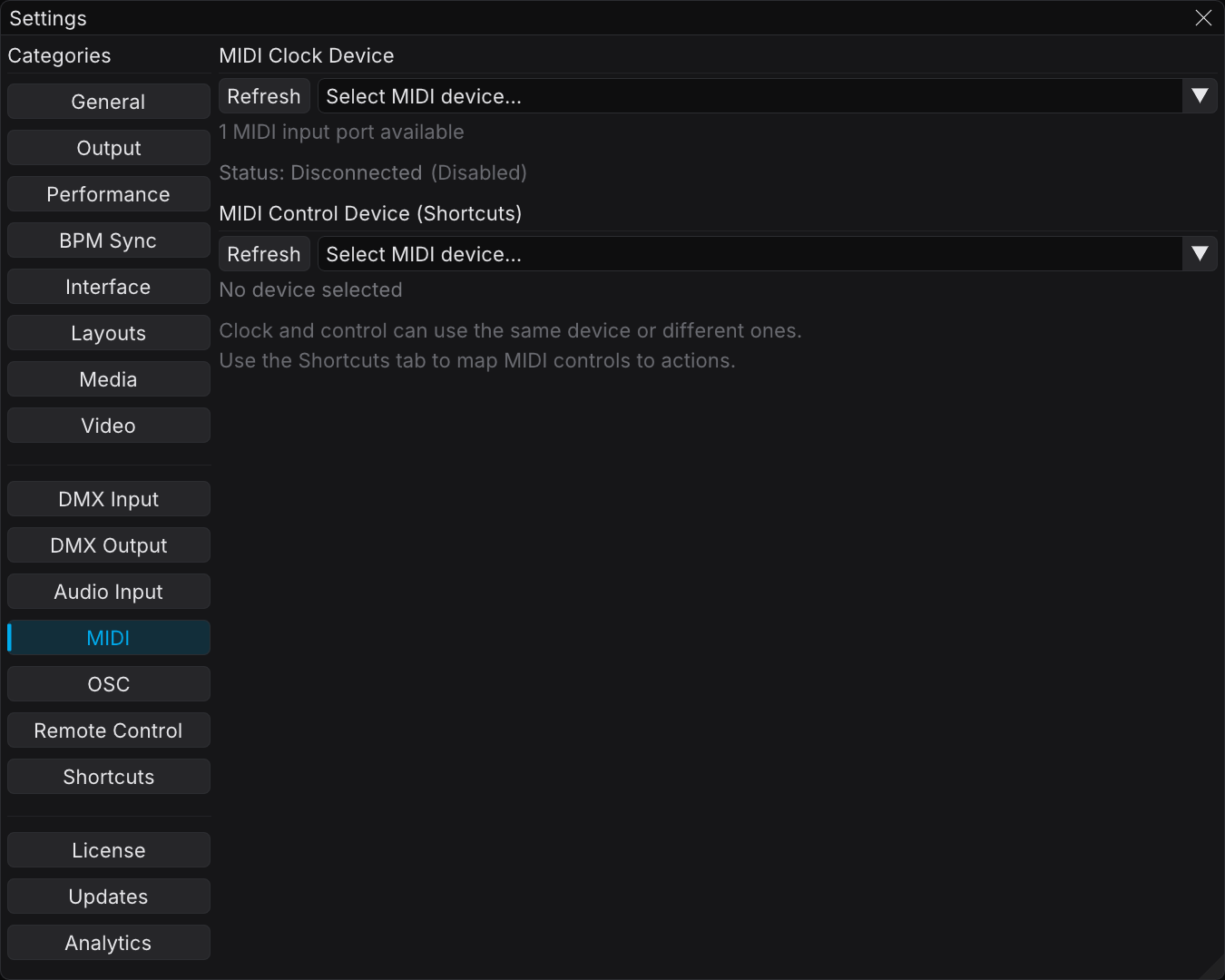
- Select your controller in Edit → Settings → MIDI (the Control Device).
- Create mappings in Edit → Settings → Shortcuts with MIDI Learn.
Step 1: Select a Control Device
- Open Edit → Settings (or press Ctrl+,)
- Select the MIDI tab in the sidebar
- Under MIDI Control Device (Shortcuts), click the dropdown and select your controller
- The status line under the dropdown shows Connected when the port is open
The MIDI tab has two independent device selectors:
| Selector | Purpose |
|---|---|
| MIDI Clock Device | Receives MIDI clock for tempo sync — see MIDI Clock |
| MIDI Control Device (Shortcuts) | Receives notes/CC/program-change messages for mapping |
The clock device and the control device can be the same physical device, or different devices. For example, a DJ mixer can send the clock while a Launchpad gives visual control. Select None (Disconnected) to release a device. Click Refresh to scan again for new hardware.
If the control status shows "Port selected but not open," another application can hold the port. Close that application and click Refresh.
Step 2: Map a Control (MIDI Learn)
You create MIDI mappings in the Shortcuts tab, with a two-click flow.
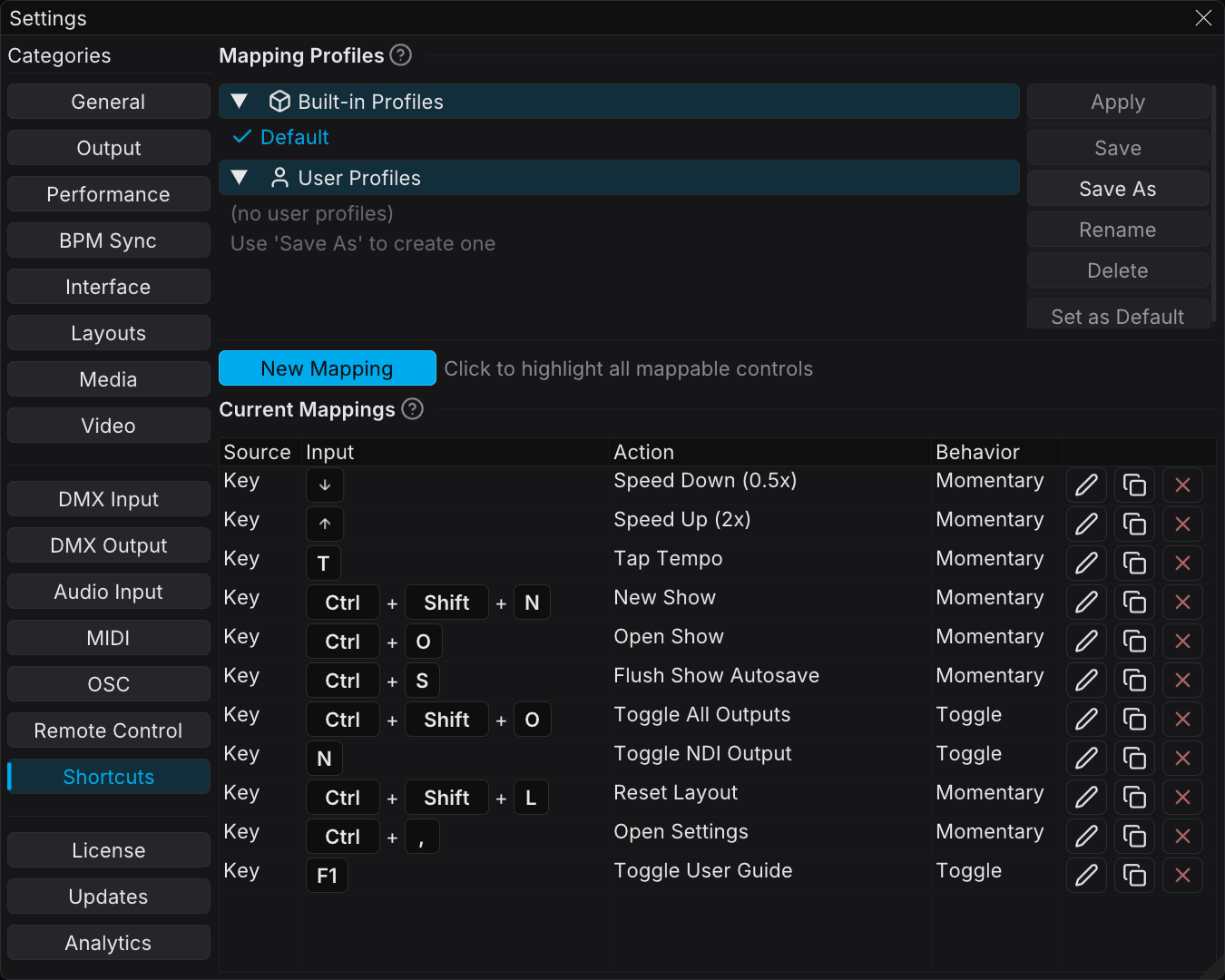
- Open Edit → Settings → Shortcuts
- Click New Mapping. FXCanvas highlights every mappable control in the app.
- Select the action to control in one of two ways:
- Click a highlighted control in the FXCanvas interface, for example the Master Dimmer slider or an effect parameter, or
- Select an action from the list that appears in the Shortcuts tab. The list groups the actions by category.
- Move the MIDI control that you want to use. Turn the knob, push the fader, or hit the pad.
- FXCanvas creates the mapping and shows it in the Current Mappings table
To stop without a new mapping, click Cancel Mapping.
FXCanvas selects the behavior automatically from what you mapped. A CC knob on a continuous control becomes Passthrough (smooth), and a pad on a toggle becomes Toggle. You can change the behavior later (see Behaviors and Transforms).
The Current Mappings Table
The Current Mappings table lists every binding in the active profile:
| Column | Description |
|---|---|
| Source | Where the input comes from — MIDI, Key, OSC, or REST |
| Input | The specific control (a CC number, a note, or a key combination) |
| Action | The FXCanvas action that the input triggers |
| Behavior | How FXCanvas reads the input value (Toggle, Momentary, or a value range) |
Each row has three buttons:
- Edit (pencil) — open the mapping in the Edit dialog
- Duplicate (copy) — create a copy that you can bind to a different control
- Delete (✕) — delete the mapping
Behaviors and Transforms
To change the behavior of a mapping, open it with the Edit button. In the Edit dialog you can bind the input again, select a different action, and shape the value that goes to the action.
Re-binding the input
Click Remap…. Then press a key, move a MIDI control, or send an OSC message to capture the new input. Press Escape or Cancel to stop. If another mapping already uses the input, a warning names the other action.
Behavior modes
The Behavior determines how an incoming value drives the action:
| Behavior | What it does | Best for |
|---|---|---|
| Passthrough | Sends the input value straight through | Knobs and faders on continuous controls (dimmer, parameters) |
| Toggle | Each press changes between off and on | Pads and buttons for blackout, mirror, or effect enable |
| Momentary | On while you hold it, off when you release it | Hold-to-activate looks (momentary blackout or strobe) |
| Step Up % | Each press increases the value by a set percentage | A button that moves a parameter up |
| Step Down % | Each press decreases the value by a set percentage | A button that moves a parameter down |
The dialog offers only the behaviors that fit the action that you mapped:
| Action type | Examples | Recommended behaviors |
|---|---|---|
| Continuous | Dimmer, hue, saturation, parameters | Passthrough, Toggle, Momentary, Step Up/Down |
| Toggle | Blackout, mirror, effect enable | Toggle, Momentary |
| Trigger | Tap tempo, go cue, select source | Momentary, Toggle |
| Discrete | Source / cue / palette by index | Toggle, Step Up/Down |
Value scaling
For continuous actions, and for discrete actions with a step behavior, you can scale the range of the control onto the range of the action:
| Field | Description |
|---|---|
| Output Min / Output Max | The value range of the action, for example a fader to dimmer 0.0–1.0, or hue 0–360 |
| Step % | How far each press moves the value (Step Up/Down behaviors) |
| Invert | Reverse the range so the bottom of the fader is the top of the value (Passthrough only) |
If a button-style action fires two times per press, change its behavior to Momentary or Toggle. Passthrough is for smooth knobs and faders, and it can fire again on trigger-style actions.
Mappable Actions
You can map almost everything in FXCanvas. The action picker groups the actions by category:
| Category | What you can map |
|---|---|
| Global Controls | Master Dimmer, Hue Shift, Saturation, Blackout, Mirror H/V, Symmetry H/V, Global Speed, Global Direction, Reset Canvas / Source |
| BPM | Tap Tempo, Speed Up (2×), Speed Down (0.5×), Pause Audio Analysis |
| Output | Toggle NDI Output, Toggle All Outputs |
| File | New Show, Open Show, Flush Show Autosave |
| UI | Toggle User Guide, Open Settings, Reset Layout |
| Sources | Select a specific source, Select by Index, Next / Previous Source |
| Source Presets | Load a specific preset, Select by Index, Next / Previous Preset |
| Palettes | Select by Index, Next / Previous Palette |
| Cues | Go to a specific cue, Go by Index, Next / Previous Cue, Re-trigger Current |
| Source Parameters | Every parameter of the active source |
| Effects | Each effect's Enabled toggle and every parameter |
| Effect Selection | Add an effect by type, Toggle an effect by type |
| Effect Presets | Load a specific effect preset |
| Media Files | Select a specific file, Select by Index, Next / Previous Media |
Source-parameter, effect, cue, preset, and media actions are content-aware. They follow the cues that you add, the active source, and the effects chain. A mapping to "the active source's Speed" follows the source that is loaded.
MIDI Feedback
FXCanvas can send MIDI messages back to a controller that supports visual feedback (Novation Launchpad, Akai APC series):
- Light the pads to show which cue or effect is active
- Show the toggle states (blackout, mirror, NDI) on the button LEDs
The feedback uses the current state of each action. A pad that is bound to a toggle lights when that toggle is on.
Mapping Profiles
The top of the Shortcuts tab manages the mapping profiles. A profile is a complete set of keyboard, MIDI, OSC, and REST bindings. You can keep one profile for each controller, or one for each show.
| Button | Action |
|---|---|
| Apply | Load the selected profile (or double-click it in the list) |
| Save | Overwrite the selected user profile with the current mappings |
| Save As | Save the current mappings as a new profile |
| Rename / Delete | Manage your user profiles |
| Set as Default | Select the profile that loads at startup |
The built-in Default profile holds the factory shortcuts, and you can always apply it again. You cannot overwrite, rename, or delete a built-in profile. Use Save As for your own profile.
Give each profile the name of its controller, for example "Launchpad Mini," or "nanoKONTROL2". When you change hardware, apply the profile with that name.
Troubleshooting
Controller Not Responding
- Make sure that the correct port is selected under MIDI Control Device (Shortcuts) in Settings → MIDI
- Make sure that the status line shows Connected
- Open the Log Viewer (Tools → Log Viewer → MIDI) to see the incoming messages
- Make sure that no other software holds the MIDI port
A Control Does Not Bind
- Make sure that you clicked New Mapping first. FXCanvas highlights the controls in mapping mode only.
- Some controllers send on one specific MIDI channel. FXCanvas accepts any channel by default.
- An endless or relative encoder can send a CC without a clean 0–127 sweep. Try an absolute knob, or use a Step behavior.
A Mapping Fires Twice
- For button-style and pad-style controls, change the Behavior to Momentary or Toggle (see Behaviors and Transforms)
No MIDI Devices Shown
- Make sure that your MIDI device is connected through USB or a MIDI interface
- Click Refresh to scan the ports again
- On Windows, make sure that the device appears in Device Manager under "Sound, video and game controllers"
- On macOS, look in the Audio MIDI Setup utility
Clock and Control on the Same Device
If your device sends the clock and the control messages on one port, select it for both selectors. Select it as the Clock Device and as the Control Device. FXCanvas accepts both message types from one port.
Tips and Best Practices
- Faders/knobs → Passthrough for smooth control of dimmer and parameters
- Pads → Toggle for blackout, mirror, and effect on/off
- Pads → Momentary for a control that is active only while you hold it
Use one device for the clock (a DJ mixer) and a different device for control (a Launchpad). The tempo sync then stays independent from your visual control surface.
Related Topics
- Keyboard Shortcuts — the default shortcuts, and how to change them in the same Shortcuts tab
- MIDI Clock — MIDI Clock tempo synchronization
- OSC API — OSC control from TouchOSC and other controllers
- REST API — HTTP control for Bitfocus Companion and Stream Deck