REST API
Control FXCanvas from Stream Deck Companion, web applications, and any other HTTP-capable software with the REST API. Use it for custom control surfaces, automation scripts, and show control systems.
What is the REST API? Pro
The REST API gives HTTP endpoints that control FXCanvas. OSC uses UDP messages. The REST API uses standard HTTP requests and JSON responses instead, so it works well with these applications:
- Bitfocus Companion — Stream Deck control software
- Web applications — Custom browser-based controllers
- Automation scripts — Python, Node.js, or any other language with HTTP support
- Show control systems — QLab, Isadora, and similar software
For the full list of endpoints, the request and response schemas, and example payloads, see the REST API Reference.
The REST API server runs only with an activated license. In the free tier FXCanvas disables the Enable REST API Server checkbox, and the server does not start. See What requires a license.
Getting Started
Enabling the REST API
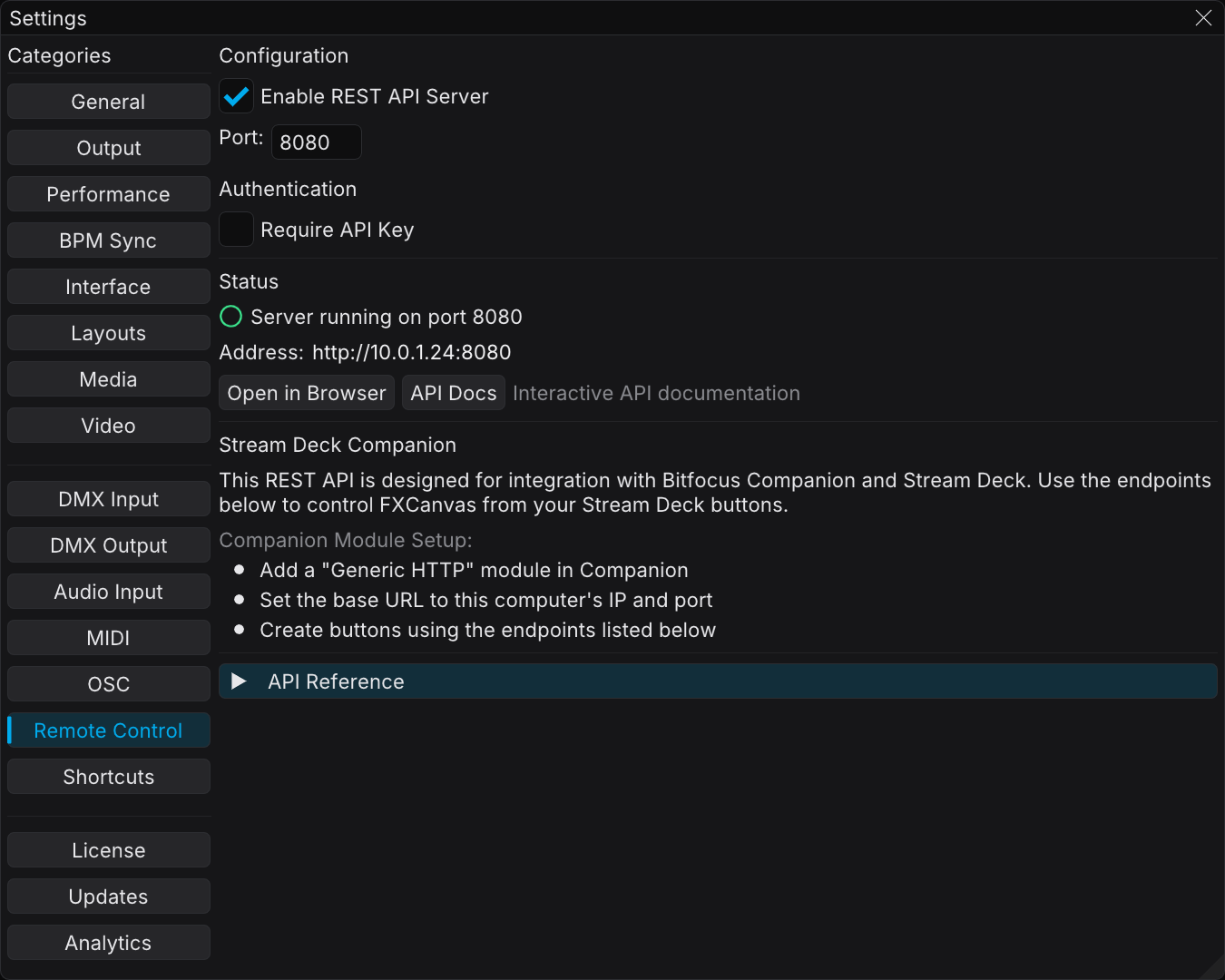
- Open Edit → Settings from the menu bar
- Select the Remote Control tab in the sidebar
- Select Enable REST API Server
- Keep the default port 8080, or enter another port number
- If you changed the port, click Apply
When you enable the REST API, the status section shows one of these states:
| Status | Description |
|---|---|
| Server Running (green) | FXCanvas is ready to receive HTTP requests |
| Server Starting... (yellow) | The service starts now |
| Server Disabled (gray) | The REST API is disabled |
Testing Your Connection
The fastest test is this:
- Enable the REST API in Settings
- Click Open in Browser in the Quick Actions section
- The browser shows a JSON response with the server status
Or use curl from a terminal:
curl http://localhost:8080/api/v1/status
Interactive Documentation
When the REST API runs, the interactive documentation is available at these addresses:
http://localhost:8080/api/v1/docs— Browse and test all endpoints in your browserhttp://localhost:8080/api/v1/openapi.yaml— OpenAPI 3.0 spec that you can import into Postman, Insomnia, and other tools
You can also click the API Docs button in Settings → Remote Control.
Stream Deck Companion Setup
The REST API works with Bitfocus Companion.
Basic Setup
- In Companion, add a Generic HTTP connection
- Set the Base URL to the IP address and port of your computer, for example
http://192.168.1.100:8080 - Create buttons with the endpoints from the API Reference
Example Button Configurations
Next Palette Button:
- Method:
POST - Path:
/api/v1/palettes/next - Body: (empty)
Select Specific Source:
- Method:
POST - Path:
/api/v1/sources/select - Body:
{"name": "Plasma"}
Blackout Toggle:
- Method:
POST - Path:
/api/v1/global/blackout - Body:
{"enabled": true}
Master Dimmer (with variable):
- Method:
POST - Path:
/api/v1/global/dimmer - Body:
{"value": $(internal:custom_dimmer)}
Thumbnail for button image:
- Method:
GET - Path:
/api/v1/thumbnails/current?size=72 - Use as button image (returns PNG)
Authentication
Authentication is optional. If you want to restrict access, enable it in Settings → Remote Control.
When you enable authentication, send your API key with every request:
- Header:
X-API-Key: your-key-here - Or:
Authorization: Bearer your-key-here
The /status, /docs, and /openapi.yaml endpoints are always accessible without authentication.
Name Matching
When you select an item by name, the API uses flexible matching:
- Case-insensitive: "ocean blues" matches "Ocean Blues"
- Underscore tolerance: "ocean_blues" matches "Ocean Blues"
- Hyphen tolerance: "ocean-blues" matches "Ocean Blues"
You can use the names in URLs and scripts without exact formatting.
Settings Configuration
Open the REST API settings from Edit → Settings → Remote Control tab.
| Setting | Description |
|---|---|
| Enable REST API Server | Enables or disables the HTTP server |
| Port | TCP port FXCanvas listens on (default: 8080, range: 1024–65535) |
| API Key | Optional authentication key |
| Status | Shows the current server state |
| Network Address | The URL for access from other devices |
Quick Actions
- Open in Browser — Opens the status endpoint in your default browser
- API Docs — Opens the interactive API documentation
- Copy Base URL — Copies the server URL to the clipboard
Troubleshooting
Server Not Starting
- Another application can hold port 8080. Try a different port.
- Look in the Log Viewer for error messages
Requests Not Working
- Make sure that the REST API is enabled in Settings
- Make sure that the server status reads "Running"
- Make sure that you use the correct IP address and port
- Make sure that your firewall permits connections on the port
CORS Issues (Web Applications)
The REST API sends CORS headers that permit requests from any origin. If a CORS error occurs, make sure that you request the correct URL. Also make sure that the server runs.
Item Not Found
- Use the list endpoint (for example,
GET /api/v1/palettes) to see the available items - Names are case-insensitive, and they tolerate underscores and hyphens
- Or select the item by index
Related Topics
- REST API Reference — Full interactive endpoint documentation
- Browse & Input Activation Reference — Browse hierarchy, input activation, and live previews
- Stream Deck Plugin — The native plugin that these routes drive
- OSC API — Alternative control protocol over UDP
- Sources — The source types that you can control
- Palettes — The color palettes
- Shows and Cues — The cues for show control