Palettes
Palettes are color schemes that set the colors of every visual source in FXCanvas. Select a different palette to change the whole look of your lighting output immediately. The source settings do not change.
What are Palettes?
A palette is a set of 1 to 20 colors. Sources use these colors for their visual patterns. No source has its own fixed colors. Every source samples the colors of the active palette. This separation gives you three benefits:
- One palette change affects all sources — Change the mood of your whole show immediately
- Sources remain flexible — The same wave pattern or spiral pattern looks very different with another palette
- Quick experimentation — Try many color combinations with no change to the source parameters
A palette is like a paint set for every visual source. Change the paint set, and every painted item changes color.
Using the Palettes Panel
The Palettes panel is the central place to browse, select, and manage color palettes.
Finding the Panel
Look for the Palettes panel in your workspace. It is usually docked with the other panels. You can also open it from the View → Panels menu.
Panel Layout
The action bar at the top of the panel holds the panel controls in one row:
| Element | Description |
|---|---|
| Add button (plus icon) | Make a new custom palette and open it in the Palette Editor |
| View mode toggles (cube, user) | Select which palettes the panel shows |
| Filter field (magnifying glass icon) | Narrow the grid to the names that match your text |
| Columns button (table columns icon) | Select a 1, 2, or 3 column layout for the palette grid (3 columns by default) |
| Refresh button (rotate icon) | Load the palettes from disk again |
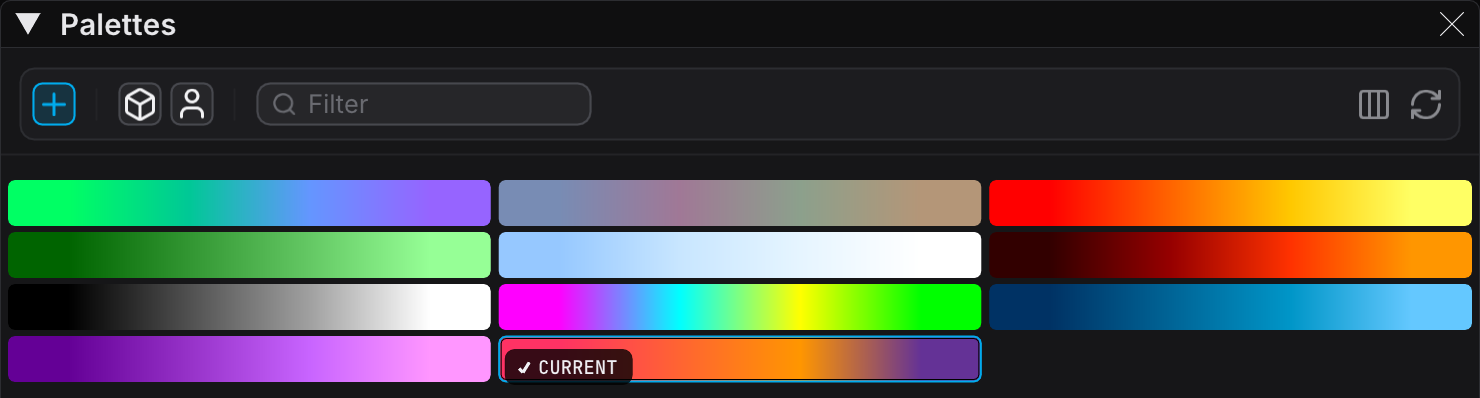
Below the action bar, the palette grid shows the available palettes as gradient tiles that FXCanvas renders at run time.
While the filter field holds text, the field carries an accent ring and a clear button. Click the clear button (X icon) inside the field to see the whole grid again.
View Modes
Two toggle buttons select which palettes appear in the grid. You can enable both at the same time:
| Mode | Icon | Description |
|---|---|---|
| Built-In | cube | Factory palettes that ship with FXCanvas. You cannot modify them, but you can duplicate them. |
| My Palettes | user | Your custom palettes, stored in your user profile. They are available in all shows. |
Click a toggle button to enable or disable that category. An enabled toggle carries a raised frame.
Selecting a Palette
To activate a palette:
- Left-click any palette tile in the grid
- The active palette shows a dark CURRENT pill (a check glyph plus the word "CURRENT") in its bottom-left corner, plus an accent outline around the tile
- Every source immediately uses the colors of the new palette
The CURRENT pill is the only mark of the active palette. The panel holds no status line above the grid.
Palette Tiles
Each palette is a horizontal gradient tile with its colors. FXCanvas renders the gradient live from the colors of the palette, so the tile always matches the current color set. Hover any palette to see:
- An animated preview of your output in those colors
- The palette name
- The color count, under Colors
- Whether the palette is built-in
Understanding Palettes
How Colors Work
Each palette holds a sequence of colors in order. Sources sample these colors in three ways:
- By index — Some sources take specific colors (color 1, color 2, and so on)
- By position — A source can sample along the palette gradient. It then gets interpolated colors between the defined stops
- Cycling — An animated source can cycle through the palette colors over time
The same source pattern therefore gives very different visuals with each palette.
Color Count
Palettes can hold between 1 and 20 colors:
- Minimum 1 color — A single color gives a flat wash. Two or more are necessary for a gradient or a variation
- Maximum 20 colors — This limit keeps palettes manageable and still allows rich gradients
The color count appears in the hover tooltip of the tile, under Colors. More colors give smoother gradients when sources interpolate between them.
The Gradient View
Palette tiles show the colors as a continuous gradient from left to right. The gradient represents how sources sample the colors:
- Position 0.0 (left edge) returns the first color
- Position 1.0 (right edge) returns the last color
- The positions between them return interpolated colors
This gradient view helps you predict how a source uses the palette.
Color Section
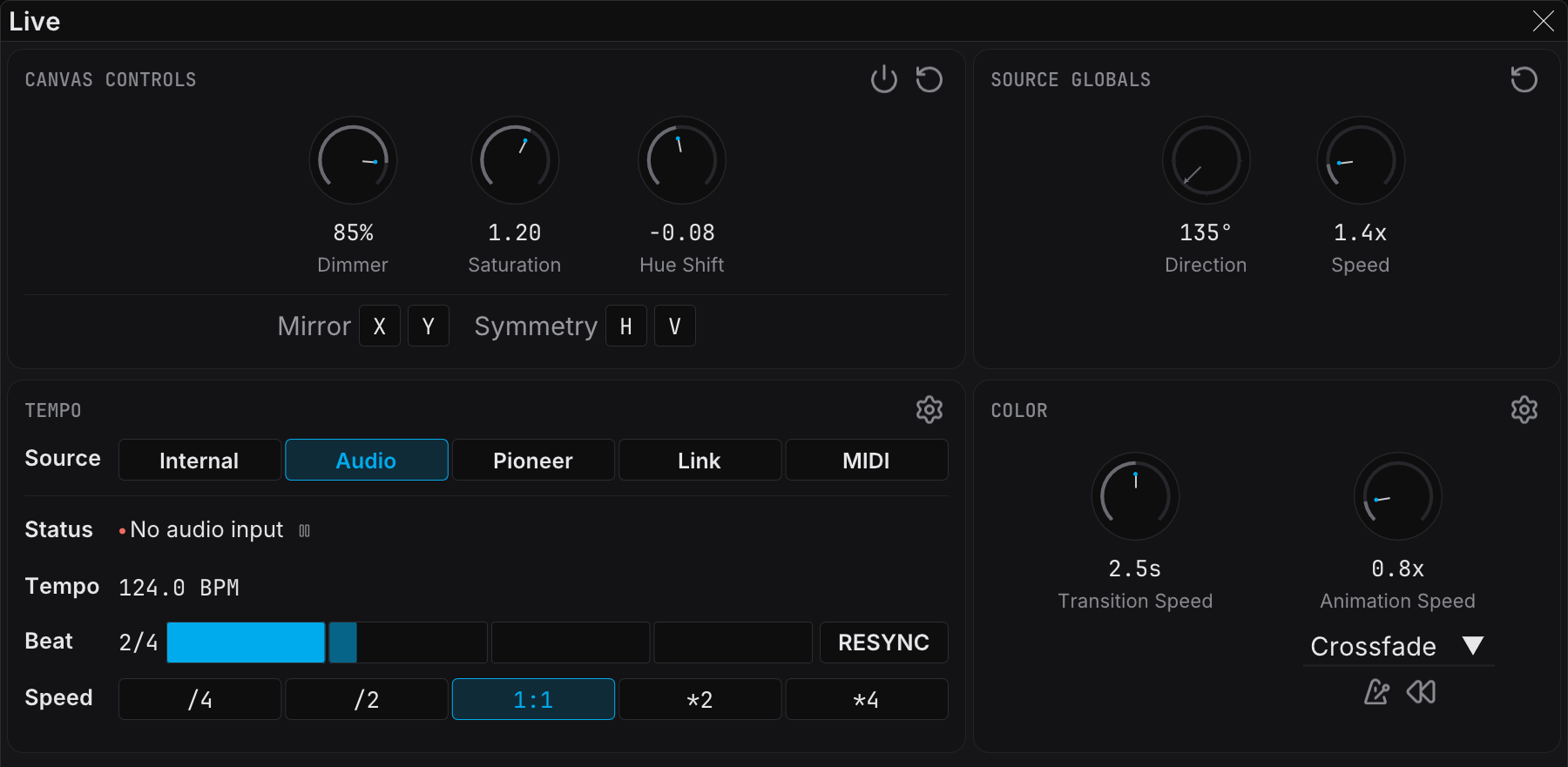
The Color section of the Live panel controls where the colors come from and how FXCanvas applies them. It holds the Transition Speed knob and the Animation Speed knob. Its gear menu, in the top-right corner of the section, holds the color mode settings.
Color Mode
Select the color mode in the gear menu of the Color section. The active mode shows a checkmark:
| Mode | Description |
|---|---|
| Palette | Sources use the colors of the palette that is selected in the Palettes panel. This is the default mode and the most common one. |
| Art-Net | The colors arrive from an external Art-Net source. A DMX console can then control the color palette. |
| Manual | Edit the colors directly with the inline palette editor in the section. |
Each source decides whether a palette wraps. A source with a color that follows an angle or a repeated phase closes the ramp. The last color then meets the first color with no seam. A source with a color that follows a density, a height, or an intensity keeps the two ends separate. Your first color and last color then stay different. There is no setting for this.
Manual Palette Editor
In Manual mode an inline palette editor appears. Click any color swatch in it to edit that color. Use this editor for:
- Fast color tests with no saved palette
- Live changes during a show
- One-off color schemes
The manual palette holds 2–10 colors. Click any color swatch to open a color picker. To add a color, click the empty + slot at the end of the row. The swatches wrap to new rows as the palette grows. Right-click a color swatch to open the Remove option.
Creating Custom Palettes
Opening the Palette Editor
To edit a palette:
- Right-click any palette in the Palettes panel
- Select Open in Palette Editor in the context menu
- The Palette Editor window opens. If the window is already open, it takes the focus
You can also click the add button (plus icon) in the panel action bar. This makes a new palette and opens it in the editor.
The Palette Editor Window
The editor shows:
| Element | Description |
|---|---|
| Editing indicator | This shows the palette that you edit, for example "Editing: My Palette" |
| Dirty indicator | An asterisk (*) appears after the name when you have unsaved changes |
| Color list | Numbered rows with color pickers |
| Remove buttons | A "-" button next to each color to delete it |
| + Add Color button | Add new colors to the palette |
| Color count | This shows the current count and the maximum count, for example "5/20 colors" |
| Save / Save As... / Revert buttons | Manage your changes |
Adding Colors
Click + Add Color to add a new color to the end of the palette. New colors start as white. You can add colors until you reach the maximum of 20.
Removing Colors
Click the - button next to any color to delete it. Every palette must keep at least 1 color. At the minimum, FXCanvas refuses the removal.
Changing Colors
Click the color swatch to open a color picker:
- Use the color wheel or the sliders to select a color
- The changes apply to the preview immediately
- The palette tile updates in real time
The color picker supports:
- RGB sliders for precise control
- Hex color input for exact values
- Click and drag in the color field for a fast selection
Generating Palettes from a Color
Right-click any color in the editor to open the Generate Palette from this Color option. A dialog opens with four generation modes:
| Mode | Description |
|---|---|
| Monochromatic | Different shades and tints of the hue of the selected color |
| Analogous | Colors next to each other on the color wheel, for harmony |
| Complementary | Colors opposite each other on the color wheel, for high contrast |
| Triadic/Tetradic | Colors that form triangles or squares on the color wheel, for balance |
Click Generate to replace all palette colors with the generated scheme.
Saving Your Palette
- Save — This updates the current palette with your changes. It is available for user palettes only, because FXCanvas cannot overwrite built-in palettes.
- Save As... — This makes a new palette with a custom name. Use it to:
- Save your changes to a built-in palette as a new user palette
- Make variations of an existing palette
- Give your palette a descriptive name
- Revert — This discards all changes and restores the palette to its last saved state.
A built-in palette cannot open in the editor directly. Duplicate it first, or accept the Save Copy & Edit dialog, and edit the copy.
Working with Palette Presets
Preset Storage Locations
FXCanvas stores palettes in two locations, by type:
| Type | Location | Behavior |
|---|---|---|
| Built-in palettes | Application data folder | Read-only, ships with FXCanvas |
| User palettes | User profile folder | Editable, available in all shows |
Cues store the palette colors from the moment of the save. A show therefore plays back the right colors on a machine without that palette in its library.
Duplicating Built-In Palettes
Built-in palettes are read-only, but you can make editable copies:
- Right-click a built-in palette
- Select Duplicate to make an editable copy (named "<Name> copy"). If you select Open in Palette Editor instead, an Edit Built-in Palette dialog appears. Click Save Copy & Edit there to get the same editable copy
- Make your changes
Your copy appears in the My Palettes section. You can change it as you like.
Context Menu Options
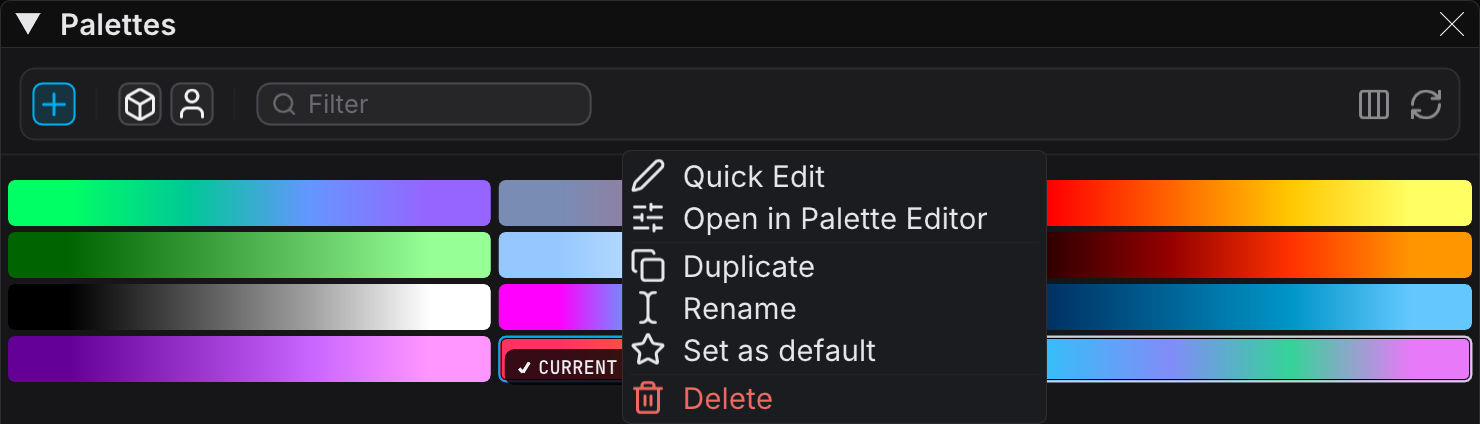
Right-click any palette tile in the grid to open these options, in order:
| Option | Description |
|---|---|
| Quick Edit | Open the floating Quick Edit popover over the library (disabled for built-in palettes) |
| Open in Palette Editor | Open the palette in the full Palette Editor window |
| Duplicate | Make an editable copy named "<Name> copy" |
| Rename | Rename the palette (disabled for built-in palettes) |
| Set as default | Make this the palette that activates when FXCanvas starts |
| Delete | Delete the palette after a confirmation prompt (disabled for built-in palettes) |
Built-in palettes are read-only, so Quick Edit, Rename, and Delete are disabled for them. Use Duplicate to make an editable copy first.
You cannot undo a delete. Delete asks for a confirmation before it removes a palette. At least one palette must remain.
Quick Edit
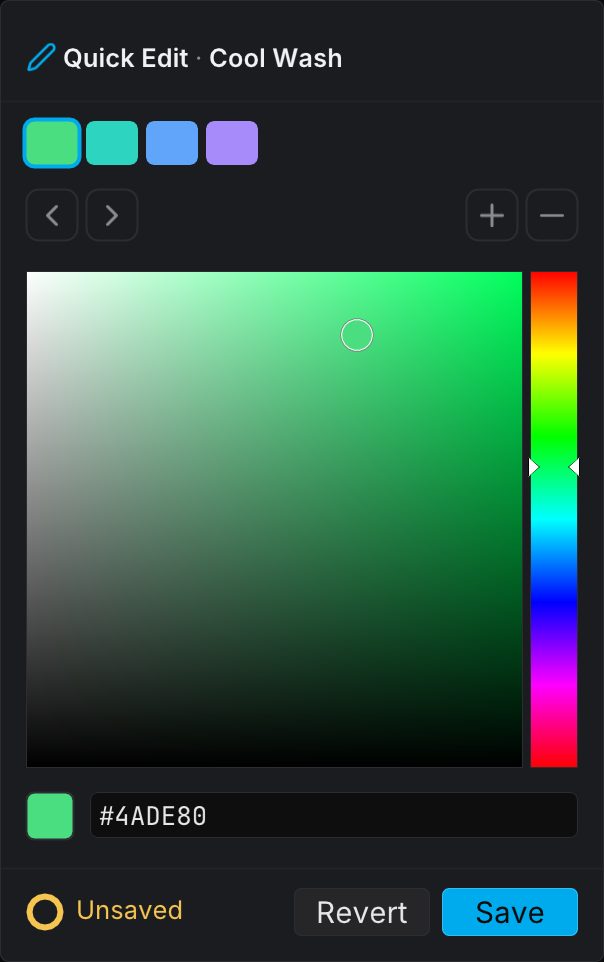
With Quick Edit you can change the colors of a palette without the full Palette Editor. Right-click a palette tile and select Quick Edit. A floating, non-modal popover opens over the library. The popover header reads Quick Edit · <palette name>.
The popover is non-modal, so your output continues to render live under it. Every edit applies to the output immediately.
Quick Edit Controls
| Control | Description |
|---|---|
| Swatch strip | Click a swatch to select it. Use the prev/next arrows to step between the colors. |
| + / − | Add or delete colors. A palette holds between 1 and 20 colors. |
| Color picker | Select a hue on the vertical strip. Then click or drag in the large square to set how vivid and how bright the color is. |
| Hex field | Type an exact hex value for the selected color. |
Every edit applies live to the output immediately.
Saving Quick Edits
The popover footer holds the save controls:
| Control | Description |
|---|---|
| Unsaved dot | An orange dot appears when there are unsaved changes |
| Revert | Restore the saved colors of the palette and discard your live changes |
| Save | Write your changes to the palette |
Esc or a click outside the popover closes it. Your live changes stay on the output until you click Revert or Save.
Quick Edit is disabled for built-in palettes, because they are read-only. You can duplicate a built-in palette first, then use Quick Edit on the copy.
Adding a Color
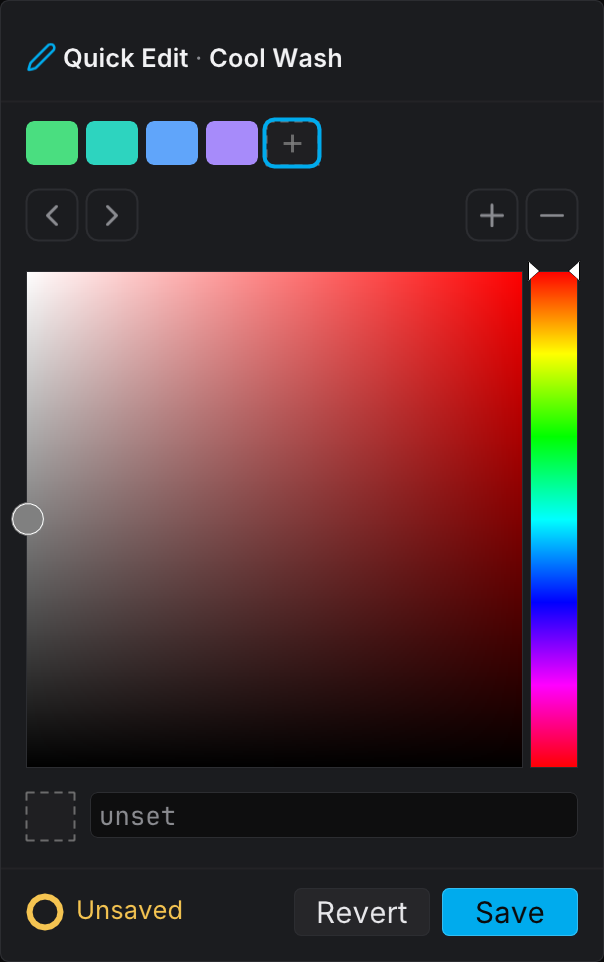
Press +. A new empty slot with a dashed outline appears at the end of the swatch strip. The slot is a placeholder. It does not change your output, and it does not count in the color total of the palette yet. Select a color with the color picker, or type a hex value. The slot then becomes a normal swatch and goes live immediately.
If you are not sure, close the popover. FXCanvas discards an empty slot that you do not fill, and your palette does not change.
Palette Transitions
When you change palettes, FXCanvas can animate the color change instead of an instant switch. The result is a smooth transition, which works well during live performances.
The Transition Speed Knob
One knob in the Color section of the Live panel controls the palette transitions:
- At 0 the knob reads Instant, and palette changes apply immediately
- Increase it to blend palette changes over that number of seconds (up to 5.0s)
- Double-click the knob to reset it to 0.5s
- FXCanvas keeps the value between sessions
Transitions always use a smooth ease-in-out curve.
How Transitions Work
When you select a new palette and transitions are active:
- The colors blend smoothly from the current palette to the new palette
- Every source updates at the same time during the transition
- The whole gradient flows naturally from one color scheme to the next
Transitions stay smooth between palettes with different numbers of colors. FXCanvas samples the colors by position along the gradient, not by index. The number of colors in each palette therefore makes no difference.
Watching a Crossfade
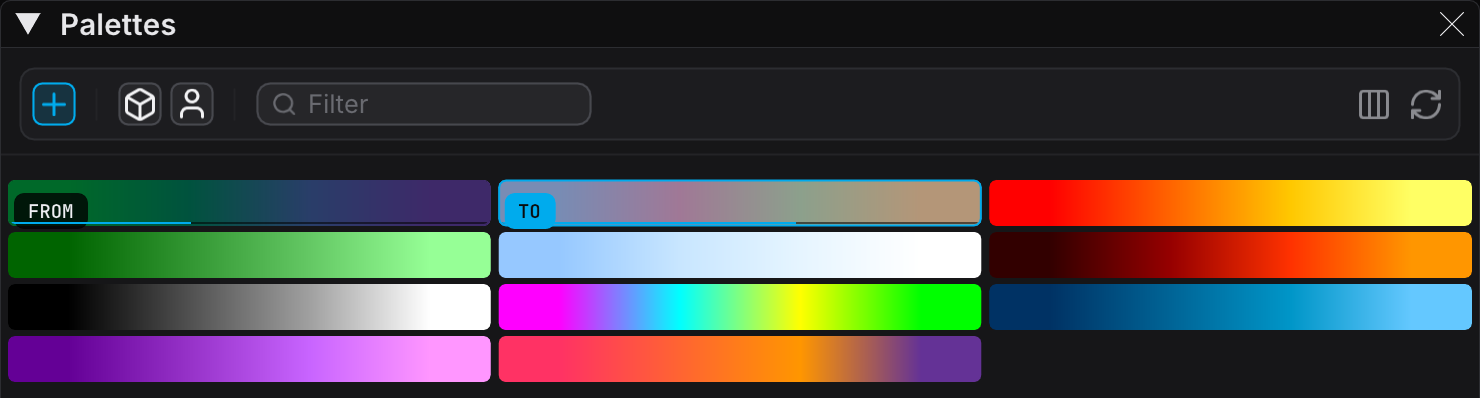
During a crossfade, the two tiles show exactly where the blend is:
- The outgoing palette tile dims and shows a FROM tag
- The incoming palette tile takes an accent outline and shows a TO tag
- A progress meter runs along the bottom edge of both tiles. The meter of the outgoing tile drains as the meter of the incoming tile fills
The two meters are one readout. Together they show how much of the output each palette holds at that moment. These indicators clear automatically at the end of the fade.
Choosing a Transition Speed
The knob value sets how long the blend takes:
| Setting | Feel | Best For |
|---|---|---|
| Instant (0) | Immediate | Precise cuts on the beat |
| 0.1–0.5s | Quick, snappy | High-energy moments |
| 0.5–2.0s | Balanced | Noticeable but not distracting |
| 2.0–5.0s | Slow, dramatic | Gradual mood changes |
Rapid Palette Switching
If you change palettes again before a transition ends:
- The transition redirects smoothly to the new target palette
- There is no hard reset. The colors continue from their current values
- You can therefore "paint" with fast palette changes
Instant Mode
With the knob at 0 (the default), palette changes are instant:
- The colors change immediately when you click a new palette
- This suits precise, immediate control
- There is no processing overhead for a transition calculation
Palette Animation
The Animation Speed knob sits next to the Transition Speed knob. It adds motion inside the current palette. Select a mode in the dropdown under the knob (Crossfade, Wave, Shimmer, or Chase). Then use the knob to scale the motion from 0.1x to 5x. At 1x a cycle takes about four seconds.
The two icon toggles below the knob switch BPM Sync (drive the animation from the tempo) and Reverse (run the animation backwards). Animation is not available while the colors come from Art-Net.
Tips and Best Practices
Choosing Palettes for Mood
Different color schemes give different emotions:
| Color Type | Mood |
|---|---|
| Warm colors (reds, oranges, yellows) | Energy, excitement, warmth |
| Cool colors (blues, teals, greens) | Calm, professional, serene |
| Saturated colors (bright, vivid hues) | High-energy, attention-grabbing |
| Desaturated colors (muted tones, grays) | Elegant, sophisticated, subtle |
| Mixed palettes (complementary or varied hues) | Creative, artistic, dynamic |
Match the palette to the mood that you want.
Color Harmony Considerations
Well-designed palettes follow the principles of color theory:
- Analogous palettes (adjacent hues) give harmony and flow
- Complementary palettes (opposite hues) give contrast and energy
- Monochromatic palettes (one hue, varying lightness) give cohesion
The built-in palettes follow these principles. When you make a custom palette, consider how the colors relate to each other.
Matching Event Themes
Make custom palettes for specific needs:
- Corporate branding — Use the company colors
- Holiday themes — Red/green for Christmas, orange/black for Halloween
- Wedding colors — Match the color scheme of the event
- Sports teams — School colors or team colors
Save these palettes as user palettes. They are then available in every show. A show holds no palettes of its own: each cue captures the colors that it needs.
Creating Palettes That Transition Well
When you design palettes for smooth transitions:
- Similar brightness levels — Palettes with comparable overall brightness transition more naturally
- Shared anchor colors — One or two similar colors in both palettes give visual continuity
- Complementary structures — A warm palette and a cool palette with similar color distributions swap well
- Gradient flow — Consider how the gradient morphs. Put similar hues at similar positions
A "sunset" palette (orange → pink → purple) transitions well to an "ocean" palette (teal → blue → purple), because both end with purple tones.
Performance
Palettes have no performance cost. FXCanvas passes the color data to the shaders as uniform values. You can:
- Change palettes instantly with no lag
- Use palettes with many colors
- Change palettes often during a show
- Enable transitions with very little overhead
The GPU does all the color sampling and interpolation at full speed, at any palette complexity. During a transition, FXCanvas samples two palettes instead of one. This extra work is very small.
ISF Shader Palette Integration
When you load ISF (Interactive Shader Format) sources, FXCanvas replaces the common hardcoded color generation functions automatically. It uses palette-aware versions instead. A community ISF source therefore uses your active palette, not its original built-in colors.
The replacement is automatic and internal, and FXCanvas never changes the original ISF files. After a palette change, ISF sources update their colors like built-in sources. Palette transitions also work smoothly with ISF sources.
Some ISF shaders compute the colors inline instead of in a named function. FXCanvas remaps the final color of those shaders at the end of main(), so the palette still reaches them. Each ISF source also carries a Use Palette toggle, which disables the remap.
A multi-pass ISF shader gets no final-color remap, because its intermediate passes carry data and not display color. Such a shader follows the palette only when it holds a color function that FXCanvas recognizes. See ISF Sources.
Quick Palette Switching
During a live performance:
- Keep the Palettes panel visible for fast access
- Use the view modes to show only the palettes that you need
- Left-click palette tiles for instant changes
- Make a curated set of show palettes for the event
- Enable transitions for smooth color changes
Related Topics
- Sources — The visual patterns that use palette colors
- Effects — Post-processing effects for the source output
- DMX Output & Mapping — Drive real lighting fixtures with palette colors
- DMX Input — Control palettes from a lighting console with Art-Net
- Getting Started — An overview of the FXCanvas basics