Video Playback
Play video and image files as sources, together with built-in shaders and live video inputs. FXCanvas scans the folders that you select and indexes the media inside them. You can then put any clip into your visual chain. Video playback includes loop ranges, scrub controls, and hardware-accelerated decoding.
What Is Video Playback?
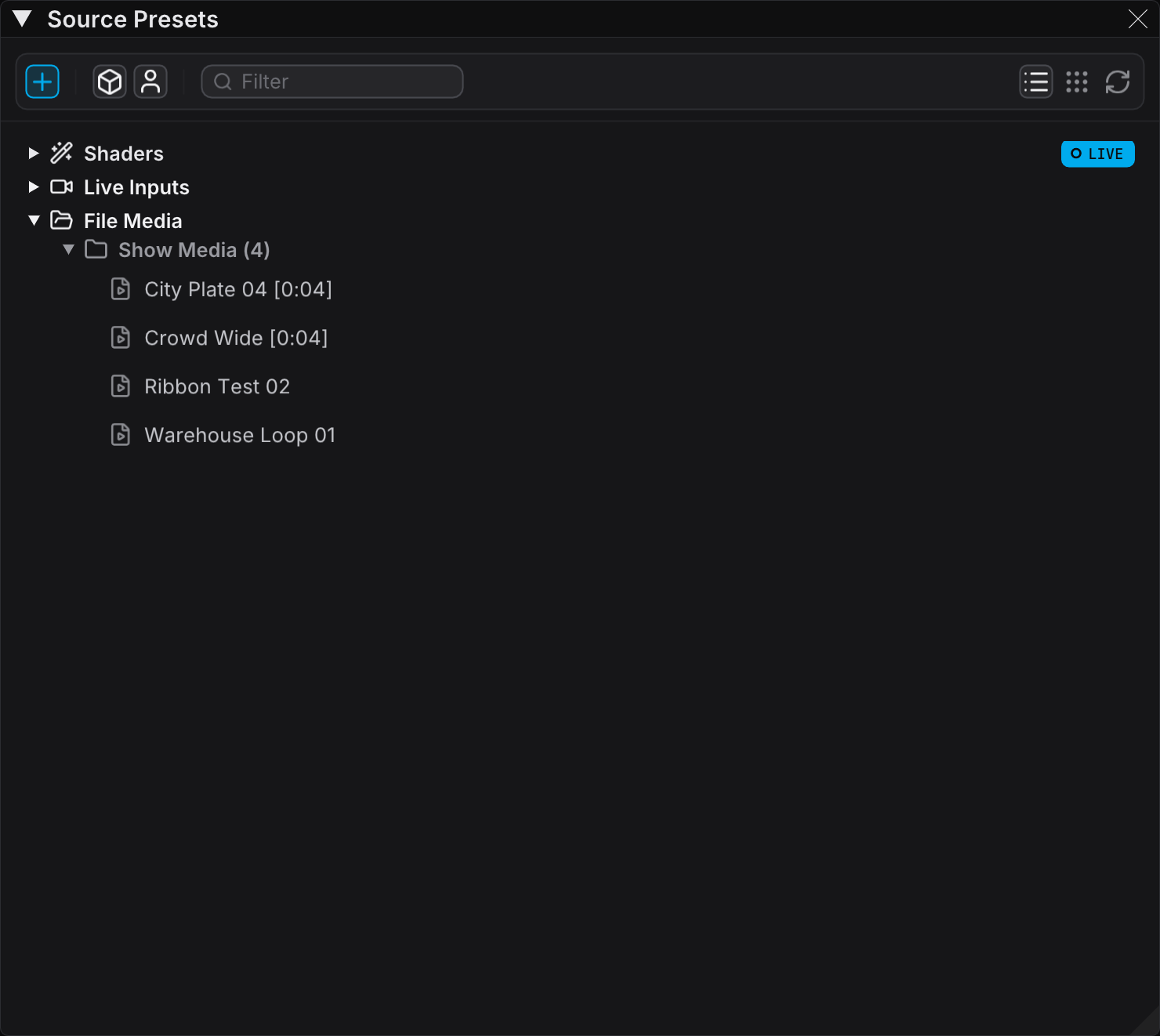
Video playback in FXCanvas uses the File Media system. You give FXCanvas the folders on your drive, and it scans them for supported files. The files then appear in the Source Presets panel as sources. After you activate one file, it becomes the active source. It runs through the effects chain and the output mappings, like a shader.
Key capabilities:
- Video and image playback — Load video clips or still images as sources
- Folder-based media library — Select the folders to scan. The UI groups the media by folder
- Hardware-accelerated decoding — This uses GPU decoders when they are available (NVDEC, AMF, QSV, and D3D11 on Windows, VideoToolbox on macOS)
- Full transport controls — Play, pause, seek, loop, and set in/out loop ranges
- Variable speed — Playback from 0.25× to 4×
- Scale and flip — Fit, Fill, Stretch, or Center scaling, plus horizontal and vertical flip
- Asynchronous loading — Large videos load in the background and do not stall playback
Supported Formats
FXCanvas supports these file types by default:
| Type | Extensions |
|---|---|
| Video | .mp4, .mov, .avi, .mkv, .webm, .gif, .ts, .mxf |
| Image | .png, .jpg, .jpeg, .bmp |
Extension support says nothing about the codec inside. A .mp4 container can hold H.264, H.265, or AV1 video. H.264 and HEVC (H.265) in MP4/MOV have the widest support. They are the best choice for reliable hardware-accelerated playback.
HAP Codec
FXCanvas supports the HAP family of codecs. These GPU-accelerated codecs exist for real-time playback in VJ applications and media server applications.
Why HAP suits FXCanvas:
- All I-frame — Every frame is a complete image with no inter-frame dependencies. You can therefore seek to any point in the video with no decode delay. Tight loops and live scrubbing need this behavior.
- GPU-decoded — HAP frames are DXT/BCn compressed textures. They upload directly to the GPU with no decompression on the CPU. CPU use stays near zero during playback.
- Predictable performance — Every frame is the same size, and the decoder can decode each frame alone. There are no keyframe stalls and no decode spikes. Playback stays smooth wherever you seek.
- Easy encoding — Tools such as FFmpeg, Adobe Media Encoder, and AVF Batch Converter can encode HAP from any source video.
HAP variants:
| Variant | Best For |
|---|---|
| HAP | General use — good quality, fast decode |
| HAP Alpha | Content with transparency |
| HAP Q | Higher visual quality, at the cost of larger files |
HAP files are much larger than H.264/H.265 files, because every frame is stored independently. A 1-minute 1080p HAP clip is 1–4 GB, and the size changes with the variant. A fast SSD gives smooth playback of HAP content.
Setting Up the Media Library
Media appears in the Source Presets panel only after you add at least one folder for FXCanvas to scan.
Adding a Media Folder
The fastest route is the add button (plus icon) in the Source Presets action bar:
- Open the Source Presets panel
- Click the add button (plus icon) in the action bar
- Select Add media folder...
- Select a folder with your video and image files
FXCanvas adds the folder with the subfolders included. The new media then appears in the File Media section.
For the full settings, use the Settings window instead:
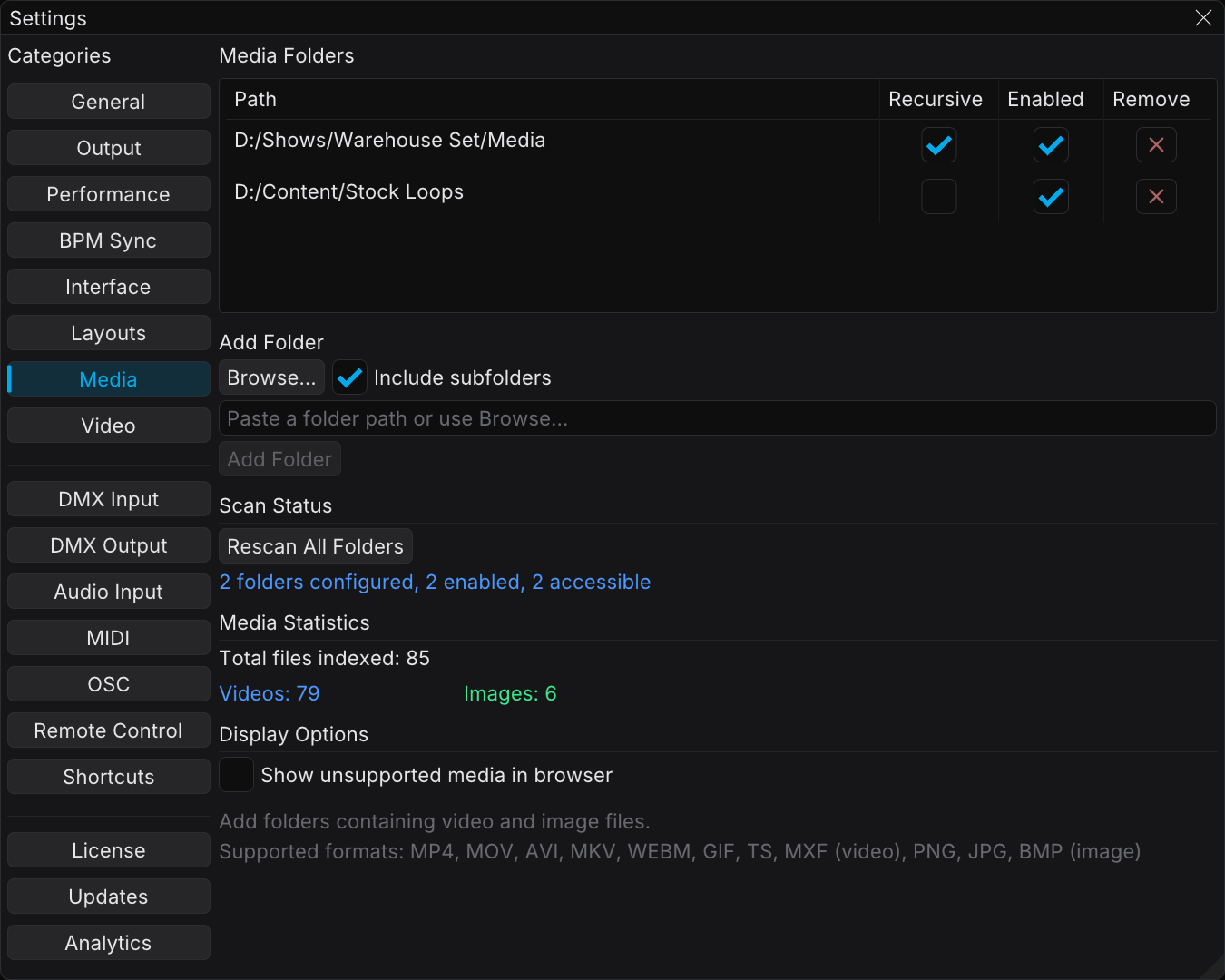
- Open Edit → Settings
- Select the Media tab in the sidebar
- Click Browse and select a folder with your video and image files, or type the path
- To include nested directories, enable Scan subfolders
- Click Add Folder
Manage media folders... in the same add menu opens that tab directly.
FXCanvas scans the folder in the background and indexes every supported file. It probes the metadata (duration, resolution, framerate) asynchronously, so a large library stays responsive.
Managing Folders
In the Media settings tab you can:
- Enable / disable a folder temporarily, without removing it
- Toggle recursive scanning for each folder
- Remove a folder (FXCanvas de-indexes the files but does not delete them from the disk)
- Rescan to find new files and changed files
FXCanvas caches the probed metadata on disk between sessions. Later starts do not probe the files again if the files do not change. The cache key is the file path. A rename or a move starts a new probe.
Loading a Media File
After you add at least one folder and FXCanvas scans it, your media appears in the Source Presets panel. The media appears in a File Media section, grouped by folder.
Browsing Media
- Open the Source Presets panel
- Expand the File Media section
- Expand a folder to see its files. A video icon marks videos, and an image icon marks images
- FXCanvas dims the files that it cannot probe (unsupported codec, corrupt file, or no access)
Activating a File
Double-click any file to activate it as the current source. The file replaces the shader, video input, or other media that was active before. It then flows through the effects chain to your outputs.
For a video, playback starts immediately. For an image, FXCanvas draws the still and sizes it with the active scale mode.
Transport Controls
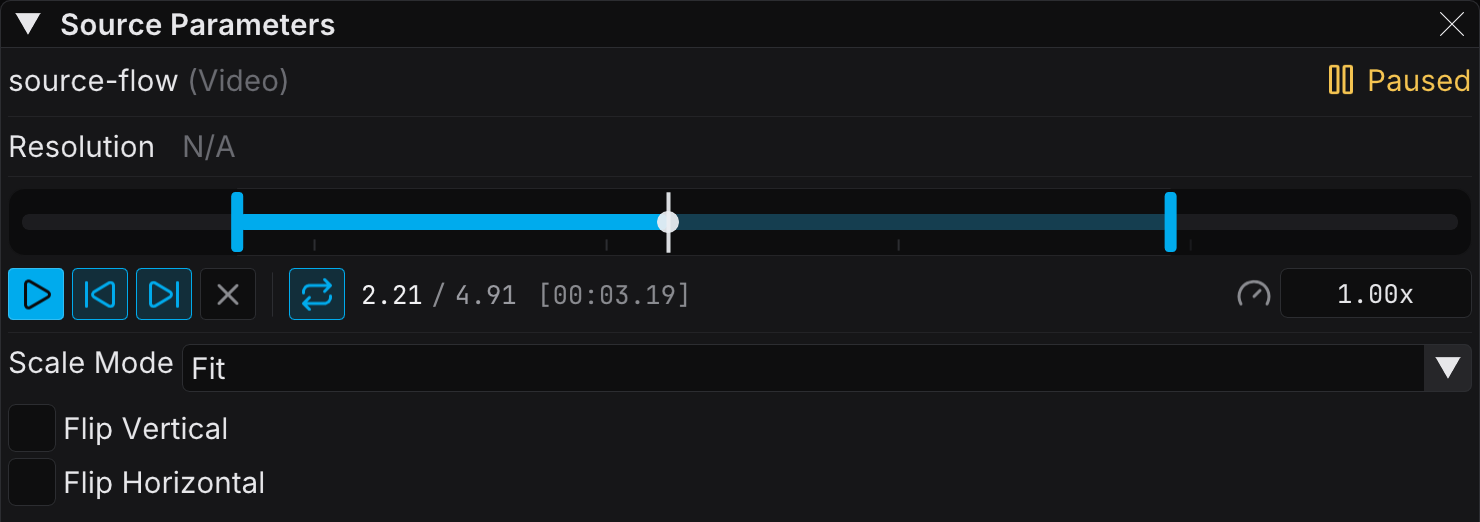
When a video file is active, the Source Parameters panel shows the full transport bar. The standard source parameters stay in the panel.
Timeline
The timeline shows the full duration of the clip. It has a scrubber and optional in/out range handles.
- Drag the scrubber — Seek to any position
- Drag a range handle — Set an in point or an out point for loop playback. The handles sit at the edges of the timeline by default
- Click the track — Jump to a position
When you set a loop range, FXCanvas dims the unused parts of the timeline. Playback stays inside the range.
Transport Bar
| Control | Action |
|---|---|
| Play / Pause | Start or pause playback |
| Loop toggle | Enable or disable file looping |
| Speed | Set the playback speed from 0.25× to 4× |
| Time readout | The current position and the total duration |
You can scrub during playback. When you release the scrubber, playback continues from the new position at the current speed.
Scale Mode and Flip
Video sources and image sources often need to fit the aspect ratio of the canvas. FXCanvas has four scale modes:
| Mode | Behavior |
|---|---|
| Fit | Scale to fit the canvas and keep the aspect ratio. This produces letterbox or pillarbox bars. |
| Fill | Scale to fill the canvas and keep the aspect ratio. This crops the edge that overflows. |
| Stretch | Stretch to fill the canvas completely. The aspect ratio changes. |
| Center | Draw at the native resolution of the source, centered on the canvas. There is no scaling. |
Flip controls:
- Flip Horizontal — Mirror the image left to right
- Flip Vertical — Mirror the image top to bottom
FXCanvas applies the flips after the scaling, so they work with any scale mode.
Playback Speed
You set the speed with the speed control at the right of the transport row. The range is 0.25× to 4×. Right-click the control to return to 1.00×. Playback then runs at that constant rate.
To match a clip to the music, set an in/out range that spans a musical bar. Then trim the speed by hand.
FXCanvas has no automatic tempo sync and no audio-reactive speed for video files. The speed control is manual. For visuals that follow the beat or the audio, a shader source with modulation gives that behavior.
End Behavior
When looping is off and a video reaches its end, the End Behavior setting decides what happens:
| Setting | Behavior |
|---|---|
| Hold Last Frame | The final frame stays on screen as a still |
| Go To Black | The output clears to black |
This setting helps in cue-driven shows. A video plays one time and leaves a deliberate visual state.
Hardware Decoding
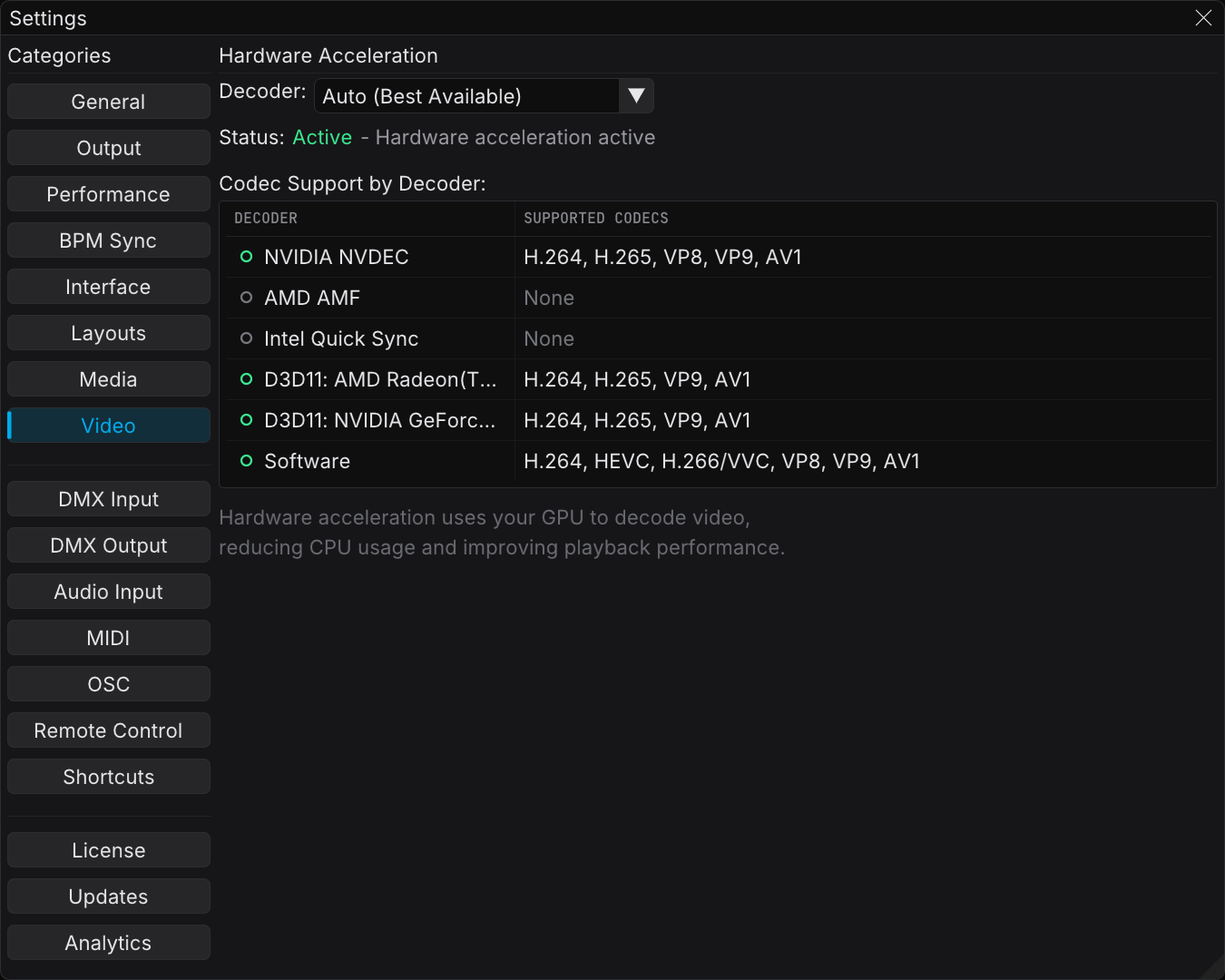
FXCanvas selects the best available hardware decoder for each video automatically. Hardware decoding moves the work onto the GPU and frees the CPU for other tasks.
Windows Decoders
| Decoder | GPU Vendor | Notes |
|---|---|---|
| NVDEC | NVIDIA | Dedicated video decode hardware on GeForce/Quadro cards |
| AMF | AMD | Advanced Media Framework on Radeon cards |
| QSV | Intel | Quick Sync Video on Intel integrated GPUs and Arc GPUs |
| D3D11 | Any | Generic Direct3D 11 hardware decoding (multi-GPU aware) |
If your machine has more than one GPU, FXCanvas lists a D3D11 decoder for each device. You can then target a specific card. Select the active decoder in Settings → Video.
macOS Decoders
| Decoder | Notes |
|---|---|
| VideoToolbox | The unified hardware decode framework of Apple. It uses the acceleration that the Mac exposes (Apple Silicon media engine, Intel Quick Sync, or discrete GPU). |
Checking Active Decoder
After you load a video, the Source Parameters panel or the Video settings show the active decoder. They also show:
- Decode FPS — The number of frames per second that the decoder delivers
- Dropped frames — The count of frames that the decoder did not deliver in time
- Native framerate — The original framerate of the video
If the decode FPS stays below the native framerate, the decoder is too slow. See Troubleshooting below.
Loop Ranges for Musical Cues
A loop range turns a long clip into a short, repeatable hit.
- Load a longer video clip
- Drag the in and out range handles to isolate a beat drop, a visual hit, or another short section
- Read the range length beside the time read-out
- Trim the speed until the range lasts as long as the musical phrase
The isolated section then repeats on its own. FXCanvas does not lock the length to the beat clock. Match the speed to the tempo by hand. If the tempo changes, set the range again.
Performance Tips
HAP gives the best real-time performance. It decodes on the GPU, seeks to any frame immediately, and never stalls on a keyframe. It is therefore the right choice for tight loops and live scrubbing.
The cost is storage. A HAP file is approximately ten times larger than the same footage in H.264. 1080p content therefore needs gigabytes per minute instead of tens of megabytes.
Past a certain size the bottleneck moves from the decode to the read. On a spinning disk, an external drive, or a network share, a large HAP clip can stutter. The read is too slow, even when the GPU has spare capacity. Keep HAP content on a local SSD.
A practical split is possible. Encode the few clips that you use most during a show as HAP. Leave the rest of the library in H.264 or HEVC.
H.264 and HEVC (H.265) have hardware support on every modern GPU. Support for VP9 and AV1 changes with the hardware. On older hardware these codecs can change to software decoding, which uses much more CPU.
FXCanvas usually renders videos at your canvas resolution or at the fixture grid resolution. Both are much smaller than 4K source footage. If a 4K clip does not play smoothly, export it again at 1080p or 720p. The visual result is the same, and the decode work is much lower.
For live performance, short video loops (2–8 seconds) respond better than long clips. They start immediately and need no seek.
Only one file source is active at a time on the main source chain. To layer more than one video clip, put the clips on separate cue slots. Then swap between the slots.
Troubleshooting
File Does Not Appear in the Library
- Make sure that the file extension is in the supported list
- Make sure that the file is in a media folder that you added (Settings → Media)
- Make sure that the folder is enabled in Settings → Media. A disabled folder hides its files
- Click the Refresh button (rotate icon) in the Source Presets action bar to rescan
- Read the Log Viewer for scan errors
File Is Dimmed or Marked Unsupported
FXCanvas found the file but cannot decode it. The common causes are:
- FXCanvas does not support the codec inside the container
- The file is corrupt or truncated
- The file moved or changed name after the last scan
Open the file in another player to make sure that it plays. Then rescan the folder.
Video Plays But Looks Choppy
- Compare the decode FPS with the native framerate. A lower decode FPS means that the decoder is too slow
- Select a different hardware decoder in Settings → Video
- Reduce the resolution of the video, or convert it to the H.264 baseline profile for wider compatibility
- Close other GPU-intensive applications
Audio From the Video Plays Through My Speakers
FXCanvas is a visual tool and does not route audio. It decodes the video track only and ignores the audio track. If you hear audio, another program produces it. The usual source is the same video file open in another application, or a system sound.
A Loop Drifts Against the Music
- The speed control is manual, so a tempo change needs a new speed value
- Set the in and out points on frames that carry the same visual position
- For a look that follows the beat clock by itself, use a shader source with modulation
MXF Files Do Not Play
MXF support uses a special code path, because standard MXF decoding has errors. Some MXF variants can still fail, in particular variants with unusual codecs or wrapping. For the most reliable playback, convert the file to .mov or .mp4.
Related Topics
- Sources — The built-in shader-based visual sources
- Video Inputs — Live video from webcams, NDI, Spout/Syphon, and DeckLink
- BPM Sync — Tempo source setup for beat-driven shader sources
- Audio Input — Audio capture for audio-reactive shader parameters
- Effects — Post-processing for video playback
- Shows and Cues — Trigger video cues from the cue system