Log Viewer
The Log Viewer is one window for all communication and system activity in FXCanvas. Use it to examine OSC messages, to track MIDI events, and to read the internal system logs. All of this is in one interface with tabs.
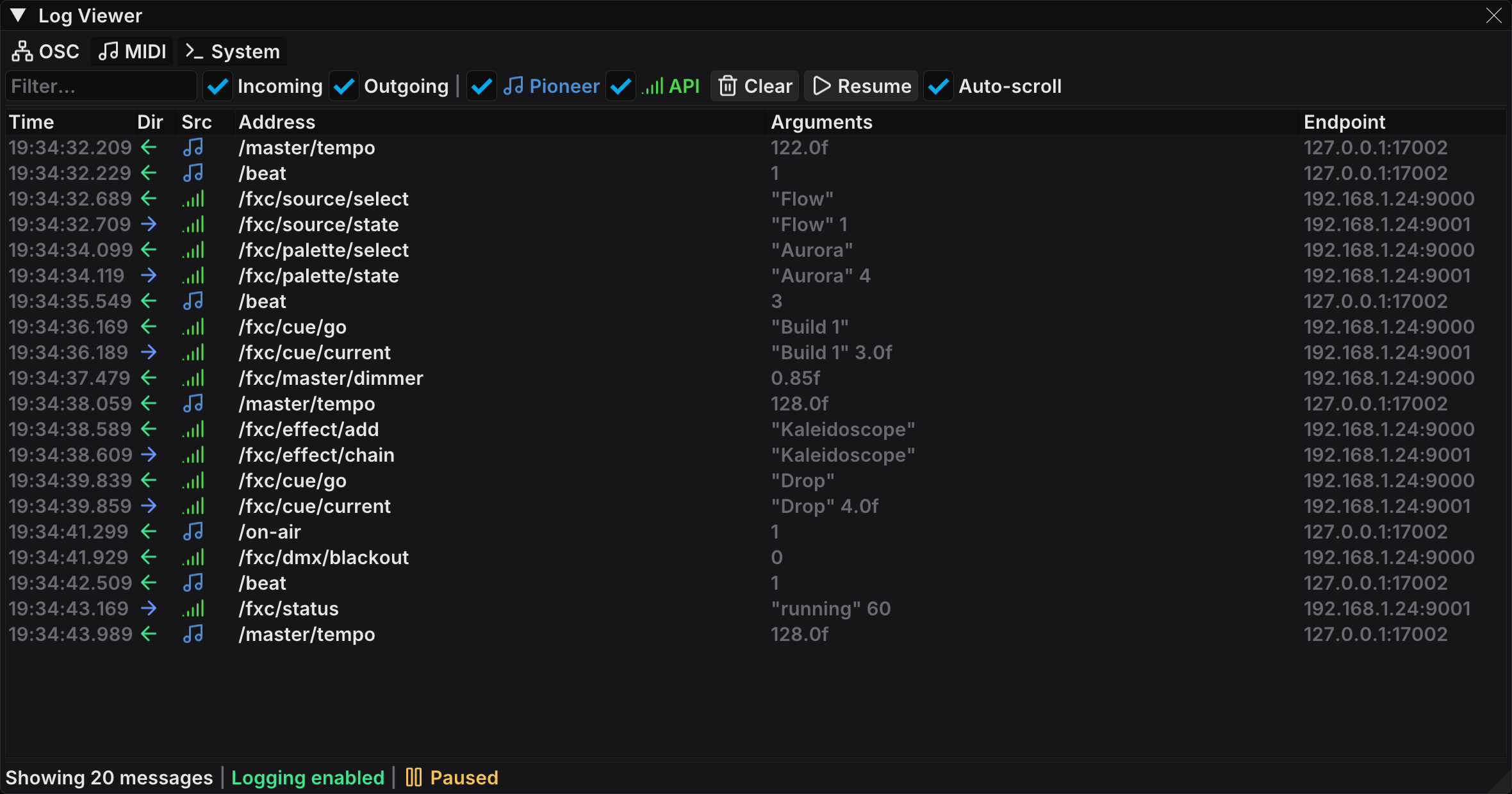
What is the Log Viewer?
The Log Viewer collects all the logging information in one place. You do not need to search through several windows or console outputs. One interface shows everything, from the protocol messages to the system diagnostics.
FXCanvas supports three log types:
| Log Type | Icon | Description |
|---|---|---|
| OSC | network-wired icon | Incoming and outgoing OSC (Open Sound Control) messages |
| MIDI | music icon | MIDI messages from the connected control device, in both directions |
| System | terminal icon | Internal application logs for diagnostics and troubleshooting |
Each log type has its own tab. Each tab has its own columns and filters.
Accessing the Log Viewer
Open the Log Viewer from the menu bar:
- Tools → Log Viewer
The window opens with the OSC tab active. You can resize and move the window like any other panel in FXCanvas.
Log Types
OSC Tab
The OSC tab shows every Open Sound Control message that FXCanvas sends and receives. Use this tab to debug OSC communication with external software and with hardware controllers. External software includes Ableton Live, Resolume, and other OSC applications.
Columns:
| Column | Description |
|---|---|
| Time | Timestamp in HH:MM:SS.mmm format |
| Dir | Direction indicator — arrow-left icon for incoming, arrow-right icon for outgoing, and a third icon for internal traffic |
| Src | A source icon. Hover it to read the full name, "Pioneer DJ (beat/tempo)" or "OSC API (External Control)" |
| Address | OSC address pattern (for example /master/tempo) |
| Arguments | Formatted argument values (for example 120.5f) |
| Endpoint | Remote IP:Port address (for example 127.0.0.1:17002) |
Use cases:
- Make sure that FXCanvas receives OSC messages from external controllers
- Make sure that outgoing messages reach their destinations
- Debug address patterns and argument formats
- Monitor real-time OSC traffic in a live performance
MIDI Tab
The MIDI tab logs the messages that FXCanvas receives from the selected MIDI control device, and the messages that FXCanvas sends back to it. Select the device in Edit → Settings → MIDI.
Columns:
| Column | Description |
|---|---|
| Time | Timestamp in HH:MM:SS.mmm format |
| Dir | Direction indicator — arrow-left icon for incoming, arrow-right icon for outgoing |
| Type | Message type (for example Note On, Note Off, CC) |
| Data | Channel, note, velocity, or other values (for example Ch:1 Note:60 Vel:127) |
| Device | MIDI device name (for example Launchpad Pro) |
System Tab
The System tab shows the internal application logs. These logs include status messages, warnings, and errors from the FXCanvas modules.
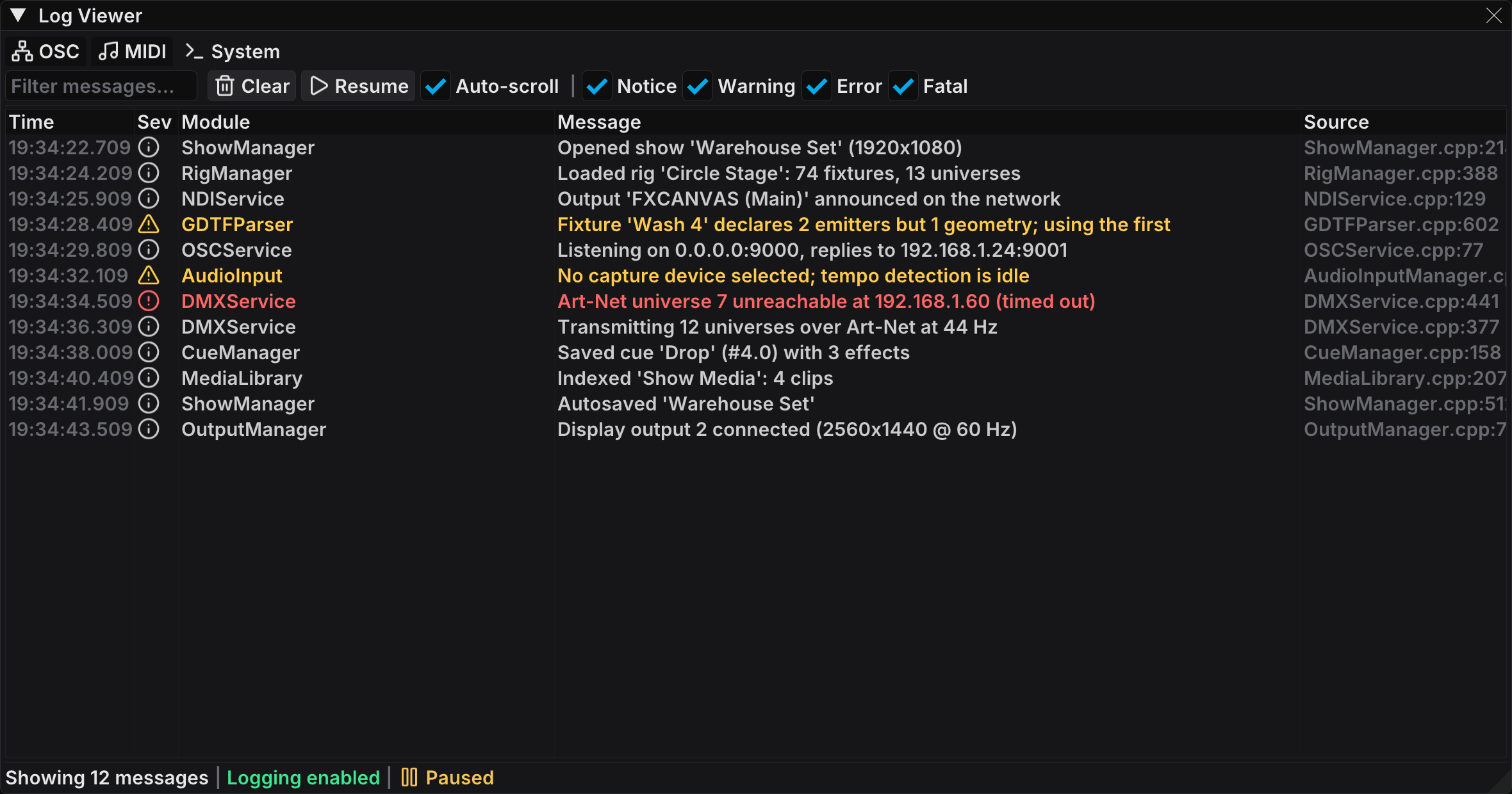
Columns:
| Column | Description |
|---|---|
| Time | Timestamp in HH:MM:SS.mmm format |
| Sev | Severity level icon (color-coded, see the table that follows) |
| Module | Source module name (for example OSCService, NDIService) |
| Message | Log message text |
| Source | Source file and line number (for example OSCService.cpp:42) |
Severity levels:
| Level | Icon | Color | Description |
|---|---|---|---|
| Verbose | ellipsis icon | Gray | Developer detail. Release builds compile this tier out |
| Diagnostic | magnifying-glass icon | Blue | Support-level detail |
| Notice | circle-info icon | Light gray | Normal informational messages |
| Warning | triangle-exclamation icon | Yellow | Potential faults that do not block operation |
| Error | circle-exclamation icon | Red | Errors that can affect a function |
| Fatal | xmark icon | Bright Red | Critical failures that need attention |
Use cases:
- Find why a feature does not work as expected
- Monitor the application health in a live performance
- Read the startup and initialization messages
- Find error patterns for troubleshooting
Features
Text Filter
Each tab has a text filter field in the toolbar. Type text into the field to filter the entries:
- OSC/MIDI tabs — Filters by address pattern, arguments, or endpoint
- System tab — Filters by module name or message content
The filter is case-insensitive, and it matches partial text. To show all entries again, clear the filter.
Direction Filter (OSC & MIDI)
The OSC and MIDI tabs have checkbox filters. Use them to show or hide messages by direction:
- Incoming — Messages from external sources
- Outgoing — Messages to external destinations
Both are enabled by default. To see one direction only, clear the other checkbox.
OSC Source Filter
The OSC tab also filters by message source. You can separate the different types of OSC traffic:
| Source | Icon | Badge Color | Description |
|---|---|---|---|
| Pioneer | music icon | Blue | Messages from the Pioneer DJ bridge (the built-in tempo sync system) |
| API | signal icon | Green | Messages from external controllers through the OSC API port |
FXCanvas shows both sources by default. To see specific traffic, clear one checkbox:
- To debug an external controller, clear Pioneer. FXCanvas then hides the tempo sync messages, and only the traffic of your controller remains
- To examine a BPM sync error, clear API. Only the Pioneer DJ communication remains
The Src column shows which system sent each message. You can then find the origin of each message quickly.
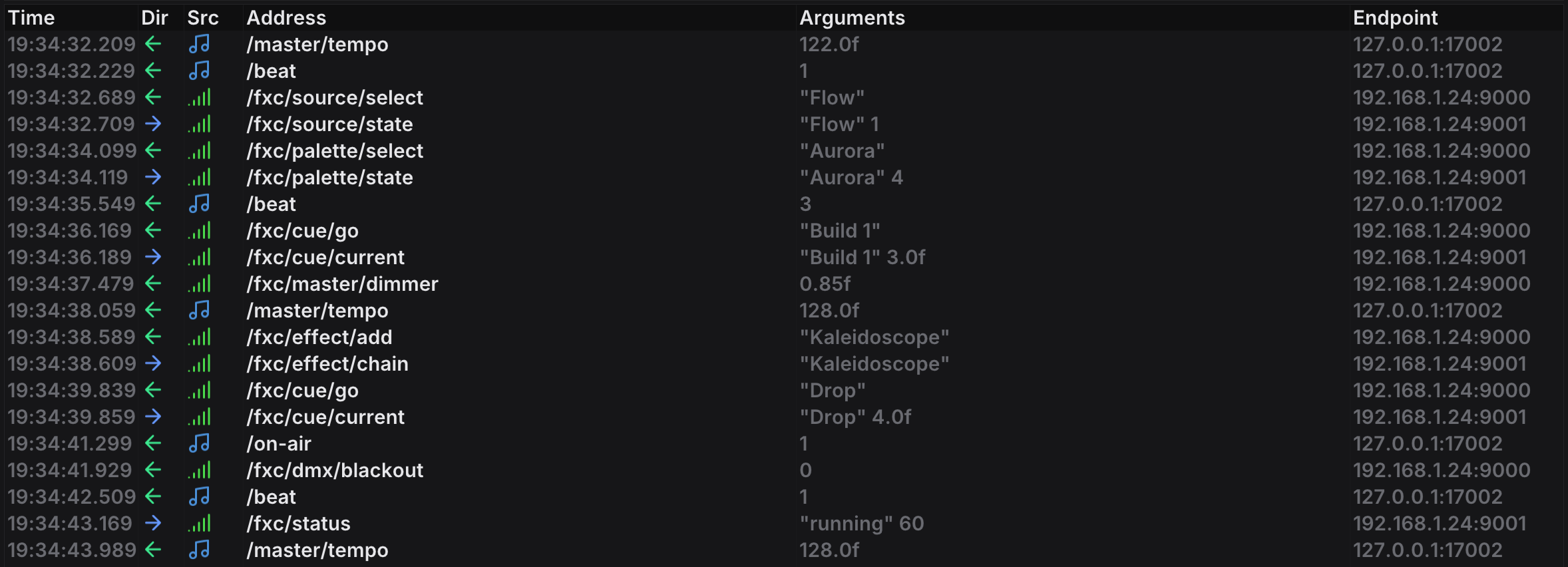
Internal OSC messages always appear, whatever you set the source filters to.
Severity Filter (System)
The System tab has a checkbox for each severity level that the build exposes:
- Notice — Informational messages
- Warning — Potential faults
- Error — Errors
- Fatal — Critical failures
FXCanvas shows all of them by default. Clear a level to reduce the noise and to see specific message types.
A release build shows those four filters. A debug build adds Verbose and Diagnostic, which are developer and support tiers.
Control Buttons
The toolbar includes these control buttons:
| Button | Icon | Description |
|---|---|---|
| Clear | trash icon | Removes all log entries of the current tab. When you debug one specific interaction, use this button to start again. |
| Pause | pause icon | Freezes the log display. You can then examine the entries, and no new messages scroll past. The log continues to collect messages in the background. |
| Resume | play icon | Appears when the log is paused. Click it to see the new entries from the pause. |
Auto-scroll — This checkbox is enabled by default. The view then scrolls automatically to the newest entries. If you want to scroll through older entries, disable this checkbox. The view then stays where you put it.
Copying an Entry
To copy one cell or a whole row, right-click it and select Copy or Copy Row.
The Status Bar
Below each tab, a status bar reports the visible message count and the logging state, for example "Showing 42 messages | Logging enabled". A Paused marker appears there while the display is frozen. If a log type is disabled, the tab shows an Enable Logging button instead of entries.
Tips
- Use the text filter to see specific OSC addresses (for example
/tempoor/source) - Make sure that Incoming and Outgoing are both enabled. You then see the full conversation
- Read the Endpoint column and make sure that the messages come from the expected source
- When you see something interesting, click Pause to freeze the display
- Scroll through the paused entries and examine the message details
- Hover over truncated text to see the full content in a tooltip
- Click Resume to continue
- When something does not work, read the System tab first
- Enable every severity level, above all Error and Warning
- Look for error messages near the time of the failure
- The Module column shows which part of FXCanvas reported the error
- In a long session, clear the logs at intervals to free memory
- When you read the logs, disable Auto-scroll to stop the UI updates
- Use the filters to reduce the number of visible entries
Related Topics
- OSC API — how to control FXCanvas from external applications with OSC
- BPM Sync — FXCanvas uses OSC for Pioneer DJ and other external tempo sources
- Getting Started — an overview of the FXCanvas basics