Software Updates
FXCanvas can keep itself up to date. It reads an online release feed. If a newer version is available, FXCanvas downloads the version, makes sure that it is genuine, and installs it. The standard update dialogs of the system guide you. Each update is cryptographically signed. As a result, FXCanvas installs genuine builds only.
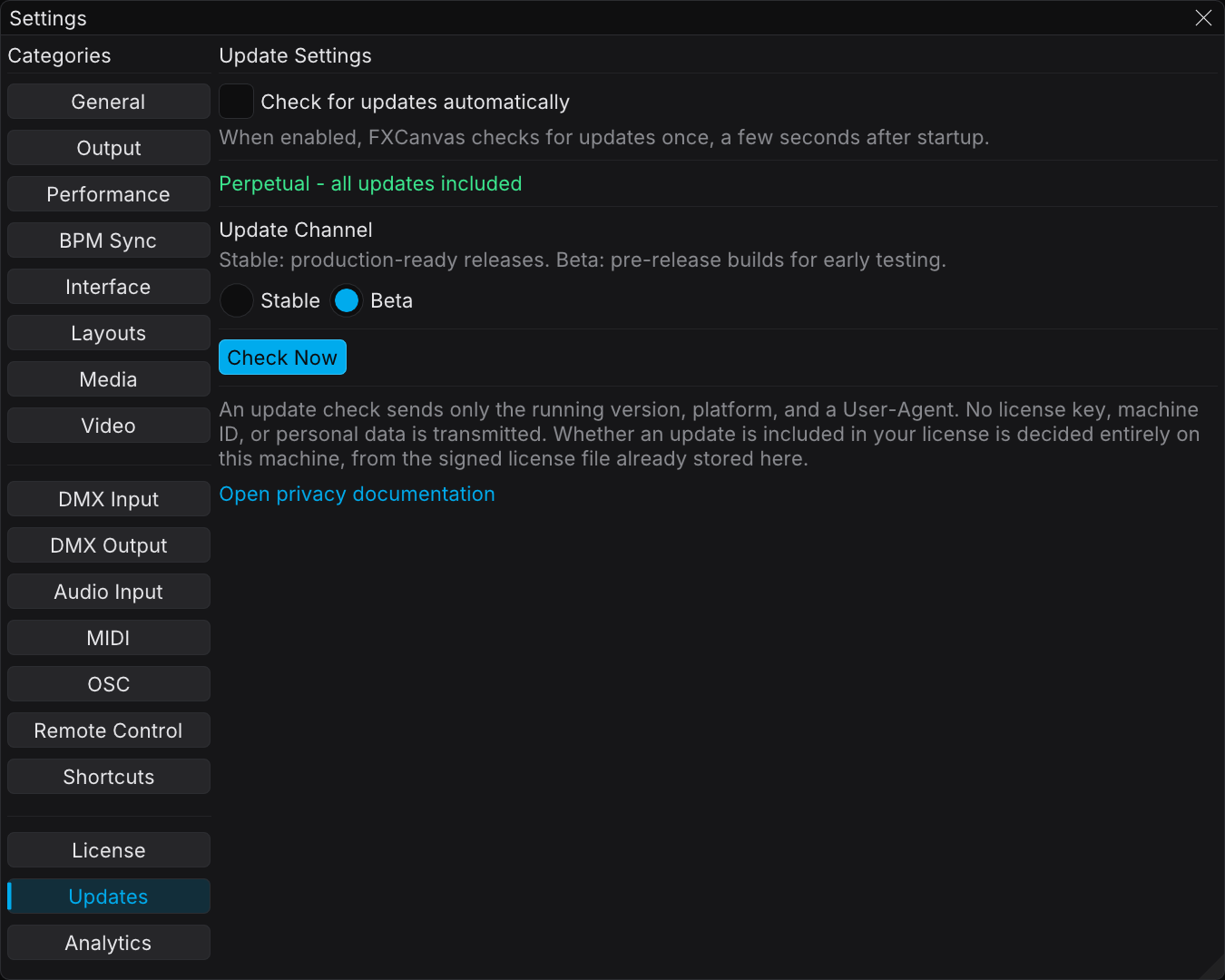
Checking for Updates
Open Edit → Settings → Updates.
| Control | What it does |
|---|---|
| Update eligibility | States whether your license covers new versions (see below) |
| Check for updates automatically | When this setting is enabled, FXCanvas checks once, a few seconds after startup |
| Update Channel | Select Stable or Beta (see the next section) |
| Check Now | Look for an update immediately |
Update eligibility
The page states your eligibility above the channel selector, in one of three forms:
- Perpetual - all updates included — your license never expires
- Updates included until <date> — your license covers every version released before that date
- Eligibility ended <date> — your license works on every version released on or before that date, and newer versions run with Free tier limits. A Renew License button appears beside it.
Without a license, no eligibility line appears. The Free tier always receives updates.
You can also select Help → Check for Updates.
When FXCanvas finds an update, it shows a standard update prompt with the release notes. If you select the install action, FXCanvas downloads the update. It then makes sure that the signature is valid, and it restarts in the new version. FXCanvas saves your work before it restarts.
Check Now stays disabled during any update operation, and the check itself is such an operation. The message "An update operation is currently in progress…" appears until the operation is complete.
Release Channels
| Channel | Who it is for |
|---|---|
| Stable | Everyone — production-ready releases. This channel is the default. |
| Beta | Early adopters who want pre-release builds for tests. A beta build can be less stable. |
You can change the channel at any time in Settings → Updates. If you are on Beta and want released builds only, select Stable.
Some builds of FXCanvas do not show the Beta channel. If you do not see the channel selector, your build is Stable-only. Such a build also forces a saved Beta setting back to Stable.
Privacy
An update check sends as little data as possible. The Updates page states this:
An update check sends only the running version, platform, and a User-Agent. No license key, machine ID, or personal data is transmitted. Whether an update is included in your license is decided entirely on this machine, from the signed license file already stored here.
For more detail, click Open privacy documentation at the foot of the page, or read the privacy documentation.
Troubleshooting
"Updater is not available in this build"
Automatic updates need a release build of FXCanvas. A development build or a test build does not include the updater. Download a release build from fxc.studio.
No update is found, but you expect one
- Make sure that your channel is correct. A Beta build does not appear while you are on the Stable channel
- Make sure that you have an internet connection. Then make sure that no firewall or proxy blocks the update feed
- Click Check Now again. An earlier operation can still be in progress
An update does not install
- Make sure that FXCanvas can write to its install location. On Windows this can need administrator rights
- Close each second copy of FXCanvas before you install the update
Related Topics
- Installation & Requirements — how to install FXCanvas the first time
- Licensing — how your license applies to new versions
- Analytics & Privacy — the other privacy controls