Analytics & Privacy Controls
FXCanvas has optional analytics and crash reporting. This data helps the developers improve the application. This page tells you which data FXCanvas collects, how the developers use it, and how you control your privacy settings.
Overview
FXCanvas uses PostHog analytics for three purposes:
- Crash Reporting: FXCanvas captures application crashes automatically and reports them. The developers use these reports to correct faults
- Usage Analytics: The developers learn which features you use, and then they improve the application
- Performance Monitoring: The developers track performance metrics, and then they correct the slow parts
Important: the default privacy level is Anonymous, which does collect anonymous data. To stop all collection, set the privacy level to Disabled.
First-Run Consent
When you start FXCanvas the first time, a dialog titled Help Improve FXCanvas asks how much data you want to share:
- Read the explanation of the data that FXCanvas collects
- Click one of three buttons:
- Full Analytics: share the full context with the show names
- Anonymous: share anonymized data. This button is the recommended one
- Off: FXCanvas collects no data
- You can change this setting later in Settings at any time
Privacy Levels
FXCanvas has three privacy levels:
Disabled (Level 0)
- No data collection at all
- FXCanvas sends no crash reports
- FXCanvas collects no usage statistics
- The application works normally
Anonymous (Level 1) - Default
- Basic anonymous analytics. This level is active until you change it
- Crash reports with anonymized data
- FXCanvas hashes the show names, and nobody can read them
- No personally identifiable information
- No file paths and no user content
Detailed (Level 2)
- Full analytics with your consent
- Crash reports with the full context
- FXCanvas includes the show names for debug work
- Detailed performance metrics
- Extended breadcrumb information
What Data Is Collected
Crash Reports (when enabled)
| Data | Anonymous | Detailed |
|---|---|---|
| Error message | ✓ | ✓ |
| Stack trace | ✓ | ✓ |
| Application version | ✓ | ✓ |
| Operating system | ✓ | ✓ |
| CPU/GPU info | ✓ | ✓ |
| Memory usage | ✓ | ✓ |
| Show name | Hashed | Full name |
| Active effects count | ✓ | ✓ |
| Recent actions (breadcrumbs) | Limited | Full |
Usage Analytics (when enabled)
| Data | Anonymous | Detailed |
|---|---|---|
| Feature usage counts | ✓ | ✓ |
| Session duration | ✓ | ✓ |
| Effect/source popularity | ✓ | ✓ |
| Performance metrics | Basic | Detailed |
| User actions | Limited | Full |
What Is NEVER Collected
- Your name, your email address, or your contact information
- IP addresses (the desktop app does not collect them)
- File contents or show data
- Passwords or credentials
- Personal files or documents
- Screenshots or recordings
Configuring Privacy Settings
Accessing Settings
- Start FXCanvas
- Select Edit → Settings
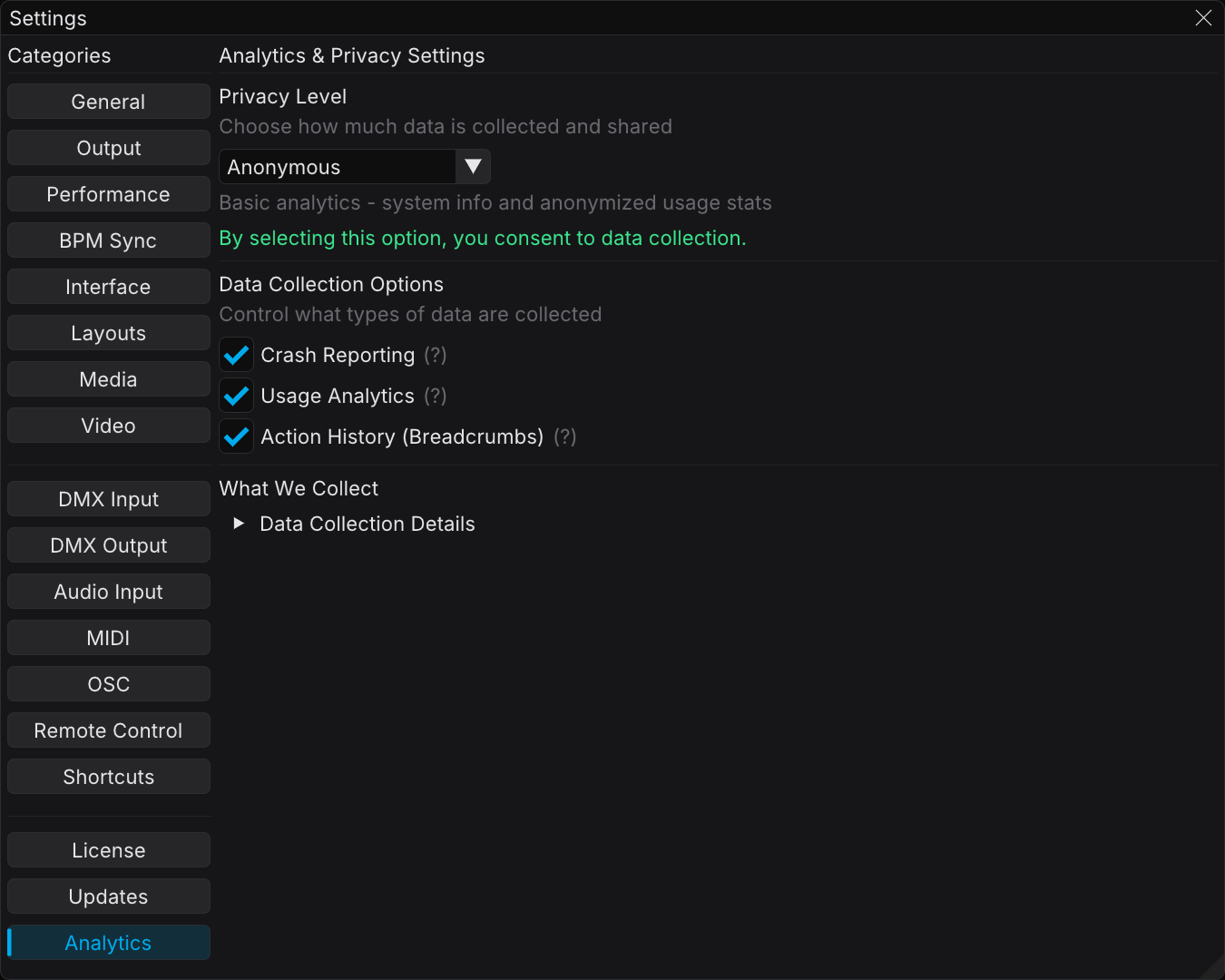
- Select the Analytics category
Available Options
Privacy Level
This dropdown is the master control. Select the level that you prefer:
- Disabled: No data collection. This level also revokes your consent, and it clears the three checkboxes below
- Anonymous: Basic anonymous data. This level is the default, and it is the recommended one
- Detailed: Full data with your consent
While the level is Anonymous or Detailed, the page states "By selecting this option, you consent to data collection."
Crash Reporting
This checkbox controls the crash reports only.
- While the privacy level is not Disabled, you can enable and disable it independently
- Leave it enabled. The reports help the developers correct faults
Usage Analytics
This checkbox controls the feature-usage tracking only.
Action History (Breadcrumbs)
This checkbox controls the record of your recent actions, which is the last 50 actions before a crash.
- Breadcrumbs help the developers find the cause of a crash
- If you prefer not to share your action history, clear this checkbox
What We Collect
Expand Data Collection Details on the page to read the full list of the collected fields.
Saving Settings
FXCanvas saves each setting automatically. The settings remain after you restart the application.
Data Security
Transmission Security
- FXCanvas transmits all data over HTTPS, which is encrypted
- FXCanvas sends the data to the secure cloud servers of PostHog, through the
k.fxc.studioproxy - FXCanvas stores no data locally in readable form
Data Retention
- PostHog keeps the data for 12 months
- You can request a data deletion at any time
- Contact support to request your data
GDPR Compliance
The analytics of FXCanvas comply with GDPR:
- Right to Access: You can request a copy of your data
- Right to Erasure: You can request a data deletion
- Data Minimization: FXCanvas collects only the necessary data
- Consent: the first-run dialog asks for your choice, and you can revoke it at any time. If you revoke consent, the Detailed level changes to Anonymous
- Transparency: The explanation of the data collection is clear
Frequently Asked Questions
Q: Does FXCanvas work differently with analytics disabled?
A: No. FXCanvas works the same way with analytics disabled. Analytics is optional.
Q: Can I enable crash reporting but disable other analytics?
A: Yes, while the privacy level is Anonymous or Detailed. The Disabled level turns both off.
Q: What happens to my data if I disable analytics?
A: FXCanvas collects no new data. The data that PostHog already holds stays on its servers until the retention period of 12 months expires, or until you request a deletion.
Q: How do I request my data or request deletion?
A: Contact FXCanvas support with your request. Include your approximate usage dates. These dates help support find your data.
Q: Is my show content ever uploaded?
A: No. FXCanvas never uploads show files, presets, or your creative content. A crash report can include metadata only, for example the number of effects.
Q: Why is analytics useful?
A: Analytics helps the development team:
- correct crashes more quickly, because the team knows the cause
- improve the features that users use
- find and correct performance faults
- make better decisions about future development
Q: Can I see which data FXCanvas sends?
A: Open Tools → Log Viewer and select the System tab. Look for entries whose Module column reads "PostHogAnalyticsService".
Troubleshooting
Analytics Not Working
- Analytics enabled: Make sure that analytics is enabled in Settings
- Network: Make sure that you have an internet connection
- Firewall: Permit FXCanvas to access the network
- Logs: Look for error messages in the Log Viewer
Privacy Settings Not Saving
- Permissions: Make sure that you can write to your
Documents/FXCanvas/Preferencesfolder - Restart the application: FXCanvas applies the settings when you restart it
- Settings files: FXCanvas stores the analytics setting in
Documents/FXCanvas/Preferences/user-preferences.json, and the privacy settings inDocuments/FXCanvas/Preferences/privacy_settings.json
Contact & Support
For questions about privacy, or to request your data, go to the FXCanvas support page. You can also contact us from the Help menu of the application.
Related Topics
- Licensing — how to manage your FXCanvas license
- Log Viewer — how to read the system logs for troubleshooting