Workspace Layouts
FXCanvas has a dockable interface with panels. You can arrange the panels for your workflow. Then you can save an arrangement as a layout preset and recall it immediately. A layout also stores the panels that you moved to a second monitor.
What is a Layout?
A layout is a saved arrangement of the application panels. Internally, a layout has three parts:
- Columns from left to right. Each column takes a proportion of the window width
- Slots from top to bottom in each column. Each slot takes a proportion of the column height
- Panels docked into the slots. Two or more panels in one slot appear as tabs
FXCanvas stores the positions as proportions, not as fixed pixels. As a result, a layout keeps its arrangement when you resize the window or move to a display with a different resolution.
To show or hide a panel, select View → Panels. The Log Viewer is under Tools instead. You can also drag a panel to a new position and dock it to another panel.
The dockable panels are Source Presets, Source Parameters, Effect Presets, Effects Chain, Effect Parameters, Palettes, Palette Editor, Cues, Output Preview, Output Mapping, Live, Fixture Mapping, and Log Viewer. The Live panel consolidates the canvas, source, tempo, and color controls.
Managing Layouts
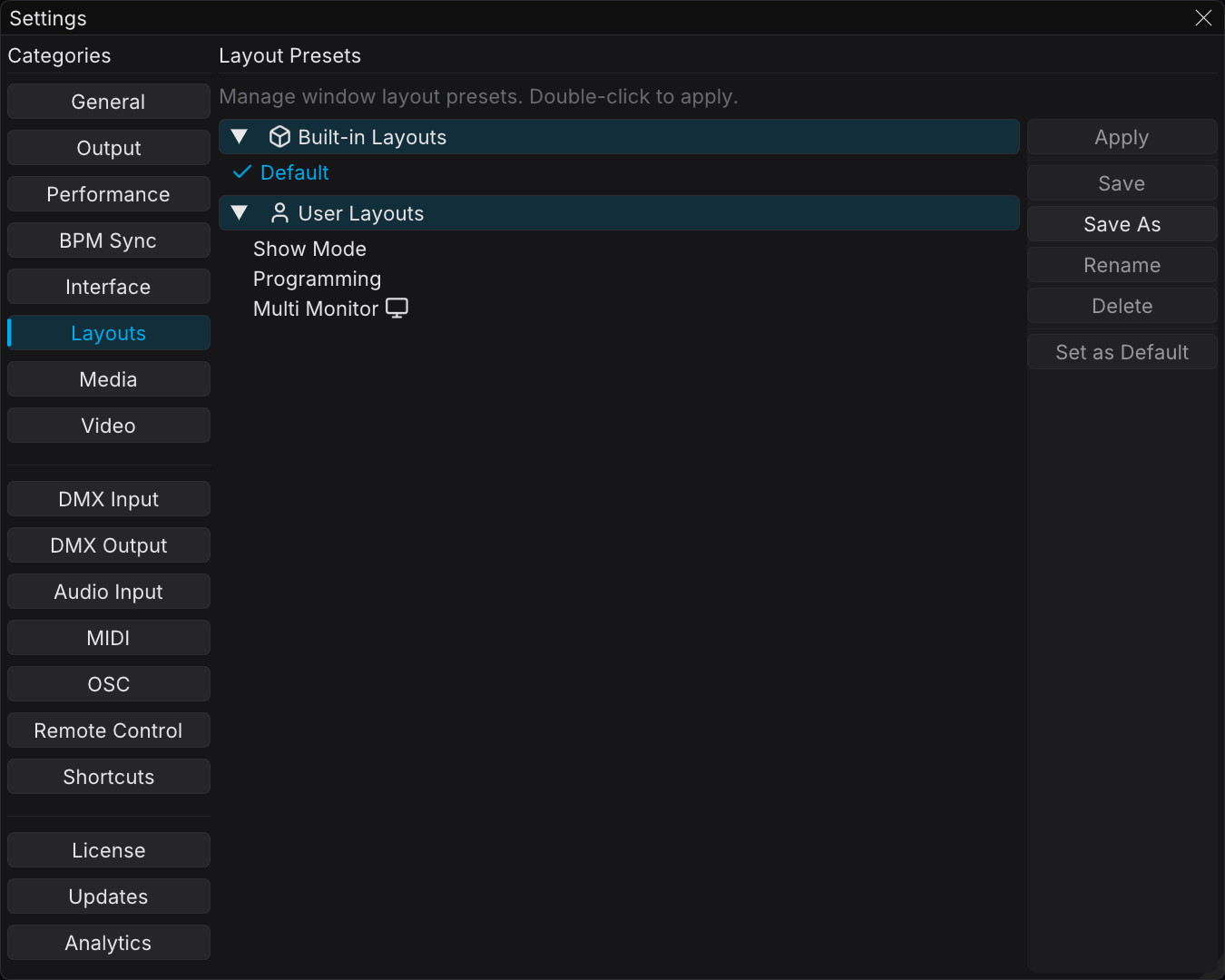
Open Edit → Settings → Layouts. The tab has a list of layouts on the left, with the built-in layouts and your own layouts. The action buttons are on the right.
| Button | Action |
|---|---|
| Apply | Load the selected layout (or double-click it in the list) |
| Save | Overwrite the selected layout with the current window arrangement (user layouts only) |
| Save As | Save the current arrangement as a new layout |
| Rename | Rename a user layout |
| Delete | Delete a user layout |
| Set as Default | Load the selected layout automatically at startup |
If the selected layout is already the default, the last button reads Clear Default instead.
The built-in layouts are read-only. You cannot overwrite them, rename them, or delete them. Use Save As to make your own layout.
Without a selection, only Save As stays active. For a built-in layout, Save, Rename, and Delete stay disabled, and each one explains itself in a tooltip.
How to save your own layout
- Arrange the panels the way that you want them
- Open Edit → Settings → Layouts
- Click Save As, enter a name for the layout, and accept the dialog
Your layout then appears in the list with your other user layouts. You can apply it at any time.
How to load a layout automatically at startup
Select a layout and click Set as Default. FXCanvas then applies that layout at each start. This method is the fastest way to start each session in your preferred arrangement.
A layout opens and docks each panel that it references. The other panels stay where they are. A layout never closes a panel that you opened separately.
Multi-Monitor Layouts
Drag a panel out of the main window to make it float. Then move the panel to a second monitor. For example, you can put the Output Preview on a confidence monitor and work on the main display.
Save and Save As store each floating panel with its screen position, its size, and its monitor. When you apply that layout later, FXCanvas restores each panel to the same place. A two-screen performance setup returns exactly as you left it.
Save a dedicated performance layout. Make Output Preview, Live, and Cues prominent, and float Output Preview to your second screen. Then save a separate design layout with the parameter panels and the preset panels in reach. A double-click changes from one layout to the other.
Resetting the Layout
If the panels move during a session, press Ctrl+Shift+L. FXCanvas resets the panels to your current layout, or to the default layout when no layout is active. FXCanvas applies the arrangement again without a restart.
Troubleshooting
A panel is missing
- Open it again from View → Panels, or
- Apply a layout, or press Ctrl+Shift+L. A layout opens each panel that it includes
The arrangement looks wrong after resizing
A layout uses proportional sizes. As a result, the panels keep their relative sizes. If a slot looks too small, adjust the dividers. Then click Save to store the new proportions.
A floating panel did not return to my second monitor
If your monitor arrangement changed, a floating panel can appear on the primary monitor. This happens when you disconnect a display or move it. Move the panel back and save the layout again.
Related Topics
- Keyboard Shortcuts — includes Ctrl+Shift+L to reset the layout
- Outputs — how to configure the Output Preview and the display outputs
- Shows and Cues — how to organize a performance
- Getting Started — an overview of the FXCanvas interface