REST API
Control FXCanvas from web applications, Bitfocus Companion, and any other HTTP-capable software with the REST API. Use it for custom control surfaces, automation scripts, and show control systems.
For a Stream Deck, use the FXCanvas Stream Deck plugin. It shows your sources, palettes, effects and cues on the keys with live thumbnails. It uses the REST API, so turn the REST API on as this page shows. You do not need to build buttons from the endpoints yourself.
What is the REST API? Pro
The REST API gives HTTP endpoints that control FXCanvas. OSC uses UDP messages. The REST API uses standard HTTP requests and JSON responses instead, so it works well with these applications:
- The FXCanvas Stream Deck plugin: see Stream Deck Plugin
- AI agents: see AI Agents and the MCP Server
- Bitfocus Companion: control-surface software, for your own button layouts
- Web applications — Custom browser-based controllers
- Automation scripts — Python, Node.js, or any other language with HTTP support
- Show control systems — QLab, Isadora, and similar software
For the full list of endpoints, the request and response schemas, and example payloads, see the REST API Reference.
To let an AI agent use these endpoints, see AI Agents and the MCP Server.
The REST API server runs only with an activated license. In the free tier FXCanvas disables the Enable REST API Server checkbox, and the server does not start. See What requires a license.
Getting Started
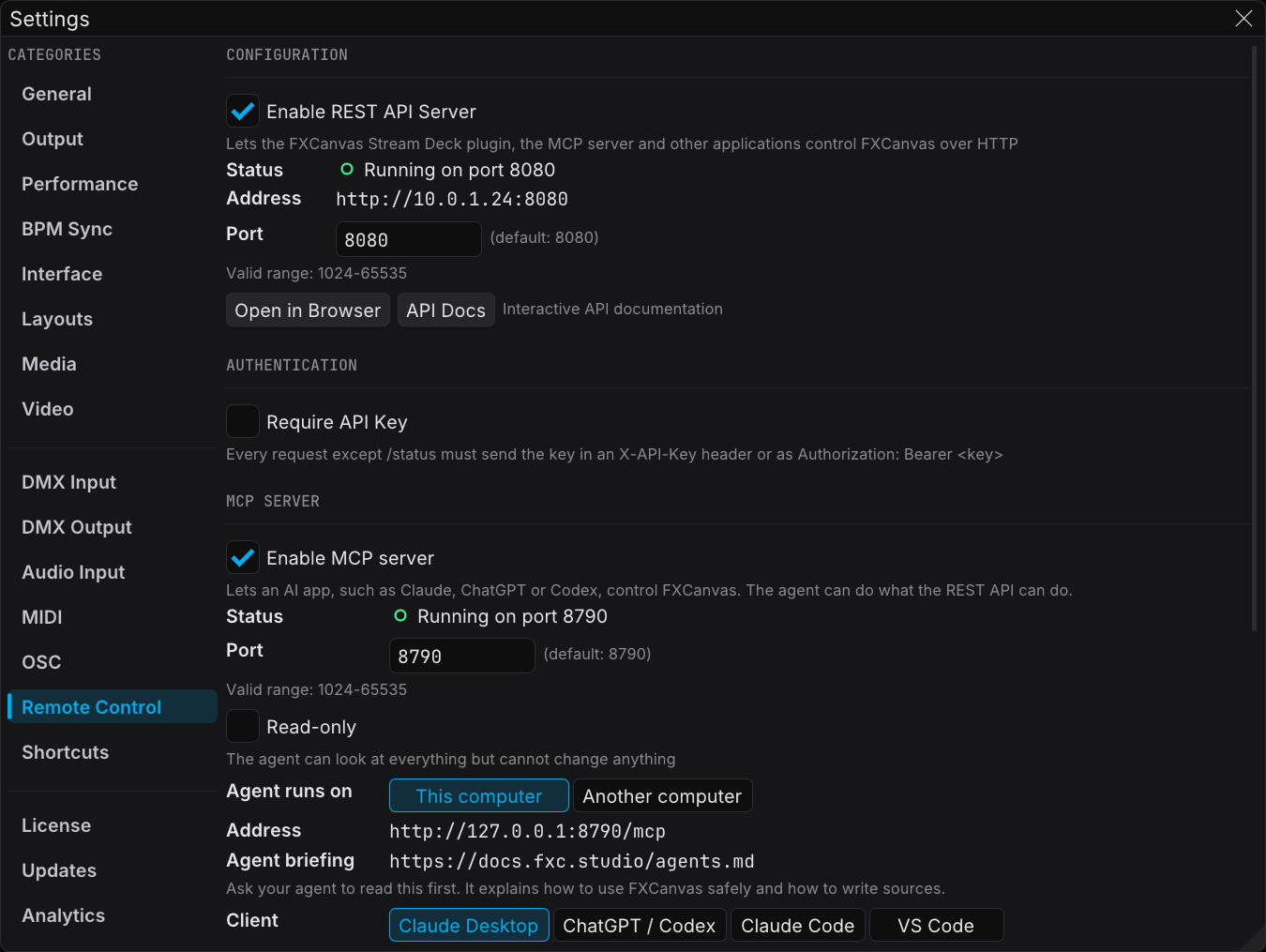
Enabling the REST API
The REST API is off by default. Anyone who can reach this computer on the network can control the show through it, so turn it on only when you need it. To limit access, select Require API Key.
- Open Edit → Settings from the menu bar
- Select the Remote Control tab in the sidebar
- Select Enable REST API Server
- Keep the default port 8080, or enter another port number
- If you changed the port, click Apply
When you enable the REST API, the status section shows one of these states:
| Status | Description |
|---|---|
| Server Running (green) | FXCanvas is ready to receive HTTP requests |
| Server Starting... (yellow) | The service starts now |
| Server Disabled (gray) | The REST API is disabled |
Testing Your Connection
The fastest test is this:
- Enable the REST API in Settings
- Click Open in Browser in the Quick Actions section
- The browser shows a JSON response with the server status
Or use curl from a terminal:
curl http://localhost:8080/api/v1/status
Interactive Documentation
When the REST API runs, the interactive documentation is available at these addresses:
http://localhost:8080/api/v1/docs— Browse and test all endpoints in your browserhttp://localhost:8080/api/v1/openapi.yaml— OpenAPI 3.0 spec that you can import into Postman, Insomnia, and other tools
You can also click the API Docs button in Settings → Remote Control.
Bitfocus Companion Setup
The REST API works with Bitfocus Companion. For a Stream Deck, the FXCanvas Stream Deck plugin is easier: it needs no button setup. Use Companion for other control surfaces, or for your own button layouts.
Basic Setup
- In Companion, add a Generic HTTP connection
- Set the Base URL to the IP address and port of your computer, for example
http://192.168.1.100:8080 - Create buttons with the endpoints from the API Reference
Example Button Configurations
Next Palette Button:
- Method:
POST - Path:
/api/v1/palettes/next - Body: (empty)
Select Specific Source:
- Method:
POST - Path:
/api/v1/sources/select - Body:
{"name": "Plasma"}
Blackout Toggle:
- Method:
POST - Path:
/api/v1/global/blackout - Body:
{"enabled": true}
Master Dimmer (with variable):
- Method:
POST - Path:
/api/v1/global/dimmer - Body:
{"value": $(internal:custom_dimmer)}
Go to a cue page:
- Method:
POST - Path:
/api/v1/pages/go - Body:
{"name": "Drops"}
Cruise Control play and pause:
- Method:
POST - Path:
/api/v1/cruise/toggle - Body: (empty, for the cruising or active page),
{"page": "Drops"}, or{"page": "all"}for All Cues
Next cue (follows the active page):
- Method:
POST - Path:
/api/v1/cues/next - Body: (empty)
Thumbnail for button image:
- Method:
GET - Path:
/api/v1/thumbnails/current?size=72 - Use as button image (returns PNG)
Authentication
Authentication is optional. If you want to restrict access, enable it in Settings → Remote Control.
When you enable authentication, send your API key with every request:
- Header:
X-API-Key: your-key-here - Or:
Authorization: Bearer your-key-here
The /status, /docs, and /openapi.yaml endpoints are always accessible without authentication.
Name Matching
When you select an item by name, the API uses flexible matching:
- Case-insensitive: "ocean blues" matches "Ocean Blues"
- Underscore tolerance: "ocean_blues" matches "Ocean Blues"
- Hyphen tolerance: "ocean-blues" matches "Ocean Blues"
You can use the names in URLs and scripts without exact formatting.
Setup and configuration
The setup endpoints let a script or an automation tool read and change how FXCanvas is set up: the canvas size, the composition look, video outputs and output presets, application settings, color palettes, fixtures, the DMX patch, the effects chain, and the cues and cue pages of the open show. They follow the same rules everywhere, so a tool that learns one area can use all of them.
With authentication off, anyone who can reach this port on your network can change your setup. Turn on the API key before using setup endpoints on a shared network.
Discovery
Start with GET /api/v1/config. It lists every setup area with its endpoint, the methods it accepts, whether it is writable, where its changes are saved, and the schema of its document in the OpenAPI spec. An area that is not available in this session is still listed, with available: false and a reason.
curl http://localhost:8080/api/v1/config
GET /api/v1/config/{category} returns the same document as that area's own GET endpoint. The areas are:
| Area | Endpoints |
|---|---|
| Canvas | GET / PATCH /api/v1/canvas |
| Composition | GET / PATCH /api/v1/composition |
| Video outputs | GET / POST /api/v1/outputs, GET / PATCH / DELETE /api/v1/outputs/{id} |
| Output presets | GET / POST /api/v1/output-presets, POST /api/v1/output-presets/current/save, POST /api/v1/output-presets/{id}/load |
| Settings | GET / PATCH /api/v1/settings |
| Palettes | GET / POST /api/v1/palettes, GET / PATCH / DELETE /api/v1/palettes/{id}, POST /api/v1/palettes/{id}/activate |
| Fixture types | GET /api/v1/fixture-types, GET /api/v1/fixture-types/{id} |
| Fixtures | GET / POST /api/v1/fixtures, GET / PATCH / DELETE /api/v1/fixtures/{uuid} |
| Patch | GET / PATCH /api/v1/patch |
| Effect types | GET /api/v1/effect-types, GET /api/v1/effect-types/{type} |
| Effect chain | GET / POST /api/v1/effect-chain, GET / PATCH / DELETE /api/v1/effect-chain/{id} |
| Cues | GET / POST /api/v1/cue-list, GET / PATCH / DELETE /api/v1/cue-list/{id}, POST /api/v1/cue-list/{id}/record |
| Cue pages | GET / POST /api/v1/cue-pages, GET / PATCH / DELETE /api/v1/cue-pages/{id} |
PATCH requests on canvas, composition, settings, outputs, palettes, fixtures, effects, cues and cue pages are merge patches: send only the fields you want to change, with Content-Type: application/json or application/merge-patch+json. PATCH /api/v1/patch is a list of assignments, not a merge patch, and accepts application/json only. Send writable fields only. Read-only fields copied from a GET response are accepted when unchanged.
Composition and the global controls share values. The composition's hueShift, saturation, mirrorX and mirrorY are the same live values as the global hue, saturation and mirror of GET /api/v1/global (set with POST /api/v1/global/hue, /global/saturation and /global/mirror/x, /y or /both). They are one state, not two copies: a change made through either set of endpoints shows in both. Only symmetryX and symmetryY are composition-only. A recorded cue stores all six in contents.composition, not in contents.globals.
Dry run
Add ?dryRun=true to any setup write to check it without changing anything. FXCanvas runs the same validation, license checks and patch-conflict checks as a real write, and returns the same errors and warnings. The reply shows the result as it would be, with "dryRun": true. Identifiers that FXCanvas assigns, such as a new fixture's uuid or a new output's id, are null in a dry run. A dry run cannot predict whether a video output will start successfully.
curl -X PATCH "http://localhost:8080/api/v1/canvas?dryRun=true" \
  -H "Content-Type: application/json" \
  -d '{"width": 3840, "height": 2160}'
Safe concurrent edits with ETag and If-Match
Every setup GET returns an ETag header. Send it back in an If-Match header on the next write to make sure nobody changed the resource in between, for example the operator in the FXCanvas window. If the resource changed, the write is refused with 412 and PRECONDITION_FAILED, and details.currentEtag holds the current tag. Read the resource again and retry.
If-Match: *matches any existing resource.- Weak tags (
W/"...") never match. - Writes that update a resource return the
ETagof its new state, so you can chain edits without a newGET.
Errors
Setup endpoints return errors in this shape:
{
  "error": {
    "code": "VALIDATION_FAILED",
    "message": "2 fields are invalid",
    "field": "/patch/address",
    "details": {
      "errors": [
        {"code": "OUT_OF_RANGE", "message": "address must be 1-512", "field": "/patch/address"},
        {"code": "UNKNOWN_FIELD", "message": "Unknown field 'adress'", "field": "/adress"}
      ]
    }
  }
}
codeis a stable identifier for scripts.messageis for people.fieldpoints at the problem: a path into the request body such as/patch/address,?namefor a query parameter,path:uuidfor part of the URL, orheader:If-Match. It isnullwhen no single field is at fault.- On a validation failure,
details.errorslists every problem at once, so you can fix the request in one round trip. - A
409withRIG_NOT_READYorSHOW_NOT_READYmeans FXCanvas is busy loading. Retry shortly. A503withMAIN_THREAD_TIMEOUTcan also be retried.
The older control endpoints keep their existing error format, where error is true and code and message sit next to it. A client can tell the two apart by checking whether error is an object.
DMX universes
Universes are numbered from 0 in the setup endpoints, the same way they are stored in the rig file. Every patch address in a response also has a read-only displayUniverse, which is the number the FXCanvas window shows (universe + 1). For example, {"universe": 0, "address": 1, "displayUniverse": 1} is universe 1, address 1 in the DMX window. Write requests use universe and ignore any displayUniverse you send.
Two fixtures on overlapping addresses are refused with 409 PATCH_CONFLICT. Add ?allowOverlap=true to accept the overlap. The reply then lists it as a warning.
When changes are saved
Every write reply has a persistence object that tells you where the change goes and whether it is already on disk.
| Area | Saved |
|---|---|
| Fixtures and patch | In the open rig, by the rig autosave a few seconds after edits settle |
| Canvas and composition | In the open show, by the show autosave. With no show open, the change applies live but is not saved |
| Video outputs | Not saved on their own. Save them into an output preset with POST /api/v1/output-presets/current/save or POST /api/v1/output-presets |
| Output presets | Immediately |
| Settings | Immediately. Some settings take effect the next time FXCanvas starts, and the reply warns you when you change one |
| Palettes | Immediately, in your palettes folder. The active palette is remembered by the open show |
| Effect chain | In the open show, by the show autosave; whether each effect is on is not saved |
| Cues | Immediately, in the open show |
| Cue pages | Immediately, in the open show |
Which cue is current and which page is viewed or active are part of the open show's session; FXCanvas saves them automatically with the show, as it does when you make the same change in the Cues panel.
Palettes
The palette endpoints create, edit, delete and activate color palettes. GET /api/v1/palettes lists every palette with its id. Use that id with the other palette endpoints.
curl -X POST http://localhost:8080/api/v1/palettes \
  -H "Content-Type: application/json" \
  -d '{"name": "Ocean Blues", "colors": ["#1B6AC9", "#0E3A66", "#6FC3DF"]}'
- Create:
POST /api/v1/paletteswith anameandcolors. The reply is201and has the new palette'sid. A new palette does not become active. - Read:
GET /api/v1/palettes/{id}returns the palette with anETag. - Edit:
PATCH /api/v1/palettes/{id}changes thename, thecolors, or both.colorsreplaces the full list. - Delete:
DELETE /api/v1/palettes/{id}removes the palette and its file. You cannot delete the last palette. - Activate:
POST /api/v1/palettes/{id}/activateshows the palette on the output with the palette transition.
Rules for palettes:
- Colors are
#RRGGBBstrings, for example#1B6AC9. A palette has 1 to 20 colors. - A name has 1 to 64 characters. It cannot contain
\ / : * ? " < > |. Two palettes can have the same name, but the reply warns you. Use theidto select a palette. - Built-in palettes are read-only. An edit or a delete is refused with
409 PALETTE_READ_ONLY. Create a copy instead. - A palette with unsaved edits in the FXCanvas window is protected. An edit or a delete is refused with
409 PALETTE_HAS_UNSAVED_EDITSuntil the operator saves or reverts the edits. - An edit to the live palette shows immediately. If a cue's saved colors are live, activate the palette to show the edited palette.
- If a show is still loading, an activate request is refused with
409 SHOW_NOT_READY. Retry shortly. - You can delete the startup default palette. The reply warns you. FXCanvas skips the missing default at startup until you choose a new default in Settings.
Effect chain
The effect chain endpoints add effects with their parameters, change parameters, turn effects on or off, reorder the chain and remove effects. They work on the live effects chain, the same chain as the Effects panel.
| Endpoint | What it does |
|---|---|
GET /api/v1/effect-types | Lists the effect types that you can add, with their type, name, category and how many of each are in the chain |
GET /api/v1/effect-types/{type} | Returns one effect type with its parameters, their ranges and their default values |
GET /api/v1/effect-chain | Returns the chain in order, with every effect's parameter values, and maxEffects |
POST /api/v1/effect-chain | Adds an effect. Send type, and optionally position, enabled and params |
GET /api/v1/effect-chain/{id} | Returns one effect with an ETag |
PATCH /api/v1/effect-chain/{id} | Changes params, enabled or position |
DELETE /api/v1/effect-chain/{id} | Removes the effect |
curl -X POST http://localhost:8080/api/v1/effect-chain \
  -H "Content-Type: application/json" \
  -d '{"type": "blur", "position": 1, "params": {"radius": 10}}'
The reply is 201. It has the new effect's id and a Location header. In a dry run the id is null.
Ids and positions. Each effect in the chain has an id such as fx-12, and a position from 1 (the first effect). Use the id to select an effect. It stays the same when other effects move, and while FXCanvas runs it never gives that id to another effect. Ids are not saved in the show. The position is the same number as index in the older /api/v1/effects endpoints. For type, use the type or the name from GET /api/v1/effect-types.
Parameter values. params holds the values, and parameters describes each one: its type, its range and, for a list, its options.
| Parameter type | Value |
|---|---|
float | A number from min to max |
int | A whole number from min to max |
bool | true or false |
enum | The index of the option, from 0. When you write, you can also send the option text |
color | [r, g, b], each 0 to 1 |
point2d | [x, y], with x from min to max and y from minY to maxY |
- Reset to default: in a
PATCH, set a parameter tonullto reset it to its default value."params": nullresets every parameter. - Reorder:
PATCHwith a newpositionmoves the effect to that place. The other effects move up or down to make room. - On or off:
PATCHwith"enabled": falseturns the effect off. Shows and cues do not save whether an effect is on, so the effect is on again after the show or a cue is loaded. - Cue recall and show load: recalling a cue that holds effects, or loading a show, replaces the whole chain. Every effect then has a new
id, and the old ids answer404 NOT_FOUND. Read the chain again. - License limit:
maxEffectsis the number of effects your license allows, ornullfor no limit. An add at the limit is refused with403 FEATURE_GATED.
An effect's ETag also covers its position. When an effect before it is added, moved or removed, its ETag changes, so read the effect again before the next write that sends If-Match.
A write can succeed with a warning in the reply:
| Warning | Meaning |
|---|---|
EFFECT_STATE_NOT_SAVED | You turned an effect off or on. The show and its cues do not save this |
PARAMETER_MODULATED | The parameter is modulated, for example by BPM or audio. The write sets its base value, and the modulation keeps moving it |
EFFECTS_BYPASSED | The effects chain is bypassed in FXCanvas, so the change is not visible until the bypass is turned off |
The older /api/v1/effects endpoints stay for control surfaces. See the Effects & Palettes API Reference.
Cues and cue pages
The cue endpoints record, edit, re-record and delete the cues of the open show. The cue page endpoints create, change and delete cue pages. They do the same things as the Cues panel and the Cue Editor, and they use the same id values as POST /api/v1/cues/go and POST /api/v1/pages/select.
| Endpoint | What it does |
|---|---|
GET /api/v1/cue-list | Lists every cue in playback order, with its contents, recall scope, DMX map, pages and problems. Also showName, currentCueId and currentCueModified |
POST /api/v1/cue-list | Records the live look as a new cue |
GET /api/v1/cue-list/{id} | Returns one cue with an ETag |
PATCH /api/v1/cue-list/{id} | Changes name, number, notes, recallScope, dmxMapName, and the captured contents.globals and contents.bpm |
POST /api/v1/cue-list/{id}/record | Re-records the cue from the live look |
DELETE /api/v1/cue-list/{id} | Deletes the cue and takes it off every page |
GET /api/v1/cue-pages | Lists every cue page in tab order, with its cues and Cruise Control settings. Also viewPageId and activePageId |
POST /api/v1/cue-pages | Creates a cue page |
GET /api/v1/cue-pages/{id} | Returns one page with an ETag |
PATCH /api/v1/cue-pages/{id} | Changes name, color, hidden, position, entries or cruise |
DELETE /api/v1/cue-pages/{id} | Deletes the page. Its cues stay in the show |
Record a cue. A cue records the live look: the source, the effects, the palette, the composition, the globals and the tempo. You cannot send the contents of a cue. Build the look first with the other setup endpoints, then record it. This records the same look as the + button in the Cues panel, with one difference: the + button also puts the new cue on the page you are viewing, and the API puts it on a page only when you send page. The new cue becomes the current cue. {} records with every default: the next whole number, the name Cue <number>, every recall scope on and no DMX map. Add page (a page id) to also put the cue on that page, at pagePosition (1 is the first place; the default is the end). Without page, the cue is on no page.
curl -X POST http://localhost:8080/api/v1/cue-list \
  -H "Content-Type: application/json" \
  -d '{"name": "Opening", "number": 1, "page": "5b0c9e2a-1f4d-4c8b-a6e3-7d2f9b1c0a54"}'
The reply is 201. It has the new cue's id and a Location header.
Edit a cue. PATCH changes what the Cue Editor changes, except the fade time: name, number, notes, recallScope (members you do not send keep their value), dmxMapName (null removes the binding), and the captured contents.globals and contents.bpm, when the cue captured them. The look itself (contents.source, effects, palette and composition) is read-only. To change the look, set the live look and re-record the cue with POST /api/v1/cue-list/{id}/record. The cue's fade time, fadeSeconds, is read-only (null when the cue uses the show's default fade). Set it in the Cue Editor. Read Cue Fades. A re-record is the same as Update Cue in the Cues panel: the cue keeps its id, name, number, notes, recall scope, DMX map and pages, and the current cue does not change.
Order. The order of All Cues is the cue number, then the name. To move a cue in All Cues, change its number. The order on a page is the order of the page's entries. To move a page tab, change its position.
Cue numbers. A number is rounded to 3 decimals. Stored as a 32-bit float: above about 16 000, the stored value can differ from the sent one in the third decimal; read it back from the reply.
Delete. Deleting a cue removes its file and takes it off every page, as in the Cues panel. Deleting a page never deletes its cues: they stay in the show and on any other page.
Create a page. POST /api/v1/cue-pages takes an optional name (default the next free "Page N"), color (#RRGGBB; default the next page color, as the + button gives), hidden, position (1 is the first tab), entries and cruise. {} creates an empty page. Creating a page does not change the page on screen. Use POST /api/v1/pages/select to show it.
curl -X POST http://localhost:8080/api/v1/cue-pages \
  -H "Content-Type: application/json" \
  -d '{"name": "Encore", "entries": [{"cueId": "0362734b-e985-48d0-ba90-74c29ad9d095", "duration": 8}]}'
Page entries. entries is the page's cue list in play order. Each entry has a cueId and an optional duration for Cruise Control, in the page's unit (null uses the page default). A page holds references: one cue can be on many pages, but only once on each page. A PATCH with entries replaces the whole list. To add, remove or reorder cues on a page, read the page, change its entries, and send the full list back.
No show open. Cues and pages exist only in a show. With no show open, the lists are empty and every write is refused with 409 NO_SHOW_OPEN. Check showName in GET /api/v1/cue-list before you change cues, so that you change the show you expect.
ETags. A cue's ETag covers its pageIds, so it changes when the cue is added to a page or taken off one. A page's ETag covers its position, so it changes when a page before it is created, moved or deleted, and when a cue on it is deleted. Recalling a cue does not change any cue's ETag. If-Match is optional on every cue and page write: without it, the write is not conditional.
Dry run. A dry run of a record returns the cue as it would be, with id, createdAt and modifiedAt set to null, and no ETag or Location. A dry run of a PATCH or a re-record shows the stored modifiedAt. Only the real write sets the write time, so you cannot use the ETag of a dry run as If-Match for the real write. Use the ETag of your last read.
A write can succeed with a warning in the reply:
| Warning | Meaning |
|---|---|
DUPLICATE_CUE_NAME | Another cue has the same name. Recall cues by id |
DUPLICATE_CUE_NUMBER | Another cue has the same number. Recall cues by id |
DUPLICATE_PAGE_NAME | Another page has the same name. Select pages by id |
EFFECT_STATE_NOT_SAVED | An effect in the chain is off. The cue does not save this, and recalling the cue turns the effect on |
SOURCE_NOT_RECORDED | The live output comes from a source that this cue cannot record (for example a camera or capture input, or a media file that is not loaded). The cue records the shader source under it, and recalling it shows that shader |
REMOVED_FROM_PAGES | The deleted cue was also taken off the pages in details.pageIds |
CURRENT_CUE_CLEARED | The deleted cue was the current cue. No cue is current after the delete |
ACTIVE_PAGE_CLEARED | The deleted page was the active page. All Cues is active after the delete |
CRUISE_CONTINUE_CLEARED | Cruise Control on the pages in details.pageIds continued on the deleted page. They continue on the next page now |
DMX_MAP_UNCHECKED | FXCanvas could not check the DMX map name against the open rig |
A cue also lists problems when it cannot recall fully on this computer: SOURCE_MISSING (its source is not available, and recallable is false), EFFECT_TYPE_MISSING and DMX_MAP_MISSING.
Transitions and timing
Replies, status codes and headers are the same as before for the same requests. What changes is when the new look appears on the output.
The source switch fade setting. GET /api/v1/settings has the key sourceSwitchFadeSeconds. It is the fade time, in seconds, for a plain change of source, preset, media file or live input. 0 (the default) is a cut. Set it with a merge patch:
curl -X PATCH http://localhost:8080/api/v1/settings \
  -H "Content-Type: application/json" \
  -d '{"sourceSwitchFadeSeconds": 0.5}'
- The value is a number from 0 to 30. It applies at once and is saved immediately, the same as the Transition Speed knob in Source Globals. Read Source switch fade.
- A value outside 0 to 30 is refused with
400 VALIDATION_FAILEDandOUT_OF_RANGE. A value that is not a number is refused withWRONG_TYPE. The setting keeps its value. - Cues do not use this setting. Each cue fades over its own fade time.
Cue timing. POST /api/v1/cues/go answers as before. The visible fade starts when the new look has its first frame ready: for most cues one or two frames later, and for a video cue when the clip plays. The old look stays on screen and keeps moving until then. Right after /cues/go on a video cue, GET /api/v1/sources/current already reports the new clip, during and after its load.
Switch timing. With sourceSwitchFadeSeconds at 0, POST /api/v1/sources/select, /sources/presets/select, /inputs/file/select and /inputs/live/select cut as before. The output can hold the last frame for one or two frames while the new source gets ready, instead of showing an incomplete frame. Above 0, the same requests fade over that time.
Wait for the new look. To read the output after a cue or a switch, use GET /api/v1/thumbnails/current?settle=true. It waits until the new look is ready and the fade has ended, and then for a few frames more. Read Wait for the output to settle.
Four cases behave differently from 1.1:
- A media cue whose file cannot play still fires. When the file passed the media library check but then fails to play, and the cue has no shader to fall back on,
/cues/gonow answers200instead ofCUE_RECALL_FAILED. FXCanvas shows a warning in its window and writes an error to its log. The output fades to black, or, when a video was on screen before the cue, that video keeps playing. A file that the media library already marked as unsupported is still refused before the cue starts. - A cue fired while a media file loads cancels that load. A
/inputs/file/selectrequest that is still waiting then answers504 ACTIVATION_TIMEOUT. - Selecting a live input while a media file loads cancels that load. The waiting
/inputs/file/selectanswers504. Before, the request answered200and the clip then replaced the live input. - Selecting a shader source while a media file loads cancels that load. This applies to the Source Presets panel,
/sources/select, presets, and OSC, MIDI and DMX selections. The waiting/inputs/file/selectanswers504. Before, the clip replaced the shader when it finished loading.
Browsers and host names
Browsers must reach the server by IP address, localhost, a .local name, or the machine's short host name to make changes; full domain names such as studio-pc.lan are rejected. Scripts and automation tools are unaffected.
Known limitations
A few editor fields in the FXCanvas window keep their own copy of a value while you edit it, and do not pick up a change made over the REST API until you select something else:
- The fixture label and fixture ID fields in the DMX Patch inspector.
- The output name field in the Video Mapping details.
If you press Enter in one of these fields after a REST change, the old value is written back. Select another item and then reselect it to refresh the field. The Welcome window's auto-open checkbox shows a REST change to the auto-open settings the next time the window opens.
Two more limitations apply to the effects chain:
- The selection in the Effects panel follows the position. After a REST add, move or remove, the panel can show a different effect as selected.
- MIDI, OSC and keyboard mappings to effect parameters are per position. After a REST add, move or remove, a mapping controls the effect that is now at its position.
One limitation applies to cues:
- After a cue's
numberchanges, the olderGET /api/v1/cueslist, andindexinPOST /api/v1/cues/go, keep the old order until the show is opened again. Use the cueid.
Settings Configuration
Open the REST API settings from Edit → Settings → Remote Control tab.
| Setting | Description |
|---|---|
| Enable REST API Server | Enables or disables the HTTP server |
| Port | TCP port FXCanvas listens on (default: 8080, range: 1024–65535) |
| API Key | Optional authentication key |
| Status | Shows the current server state |
| Network Address | The URL for access from other devices |
Quick Actions
- Open in Browser — Opens the status endpoint in your default browser
- API Docs — Opens the interactive API documentation
- Copy Base URL — Copies the server URL to the clipboard
Troubleshooting
Server Not Starting
- Another application can hold port 8080. Try a different port.
- Look in the Log Viewer for error messages
Requests Not Working
- Make sure that the REST API is enabled in Settings
- Make sure that the server status reads "Running"
- Make sure that you use the correct IP address and port
- Make sure that your firewall permits connections on the port
CORS Issues (Web Applications)
The REST API sends CORS headers that permit requests from any origin. If a CORS error occurs, make sure that you request the correct URL. Also make sure that the server runs.
Item Not Found
- Use the list endpoint (for example,
GET /api/v1/palettes) to see the available items - Names are case-insensitive, and they tolerate underscores and hyphens
- Or select the item by index
Related Topics
- REST API Reference — Full interactive endpoint documentation
- Browse & Input Activation Reference — Browse hierarchy, input activation, and live previews
- AI Agents and the MCP Server — Let an AI agent use these endpoints
- Stream Deck Plugin — The native plugin that these routes drive
- OSC API — Alternative control protocol over UDP
- Sources — The source types that you can control
- Palettes — The color palettes
- Shows and Cues — The cues for show control